JSScript - Server Side Java Script
Developers can extend Contineo capabilities with JavaScript for Data Parsing, and API Designing.
Contineo Server Side JavaScript (JScript) is an extended version of JavaScript that enables backend access to databases, file systems, and servers. Also, you can publish a JavaScript API for your application to send and receive the data over HTTP.
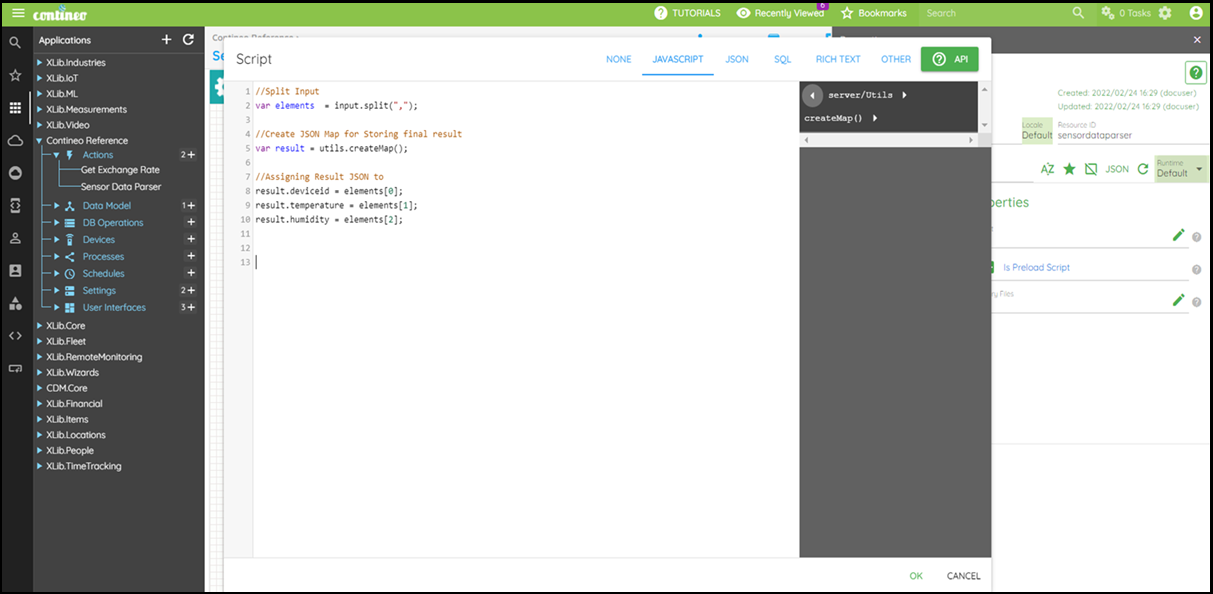
For Example, you need to design a JavaScript (JScript) API to receive the data from the device for Temperature, Humidity, and device ID.
Refer to "How to Create JavaScript".
Click Actions and open Properties Panel.
Click Properties > Script and open the Editor.
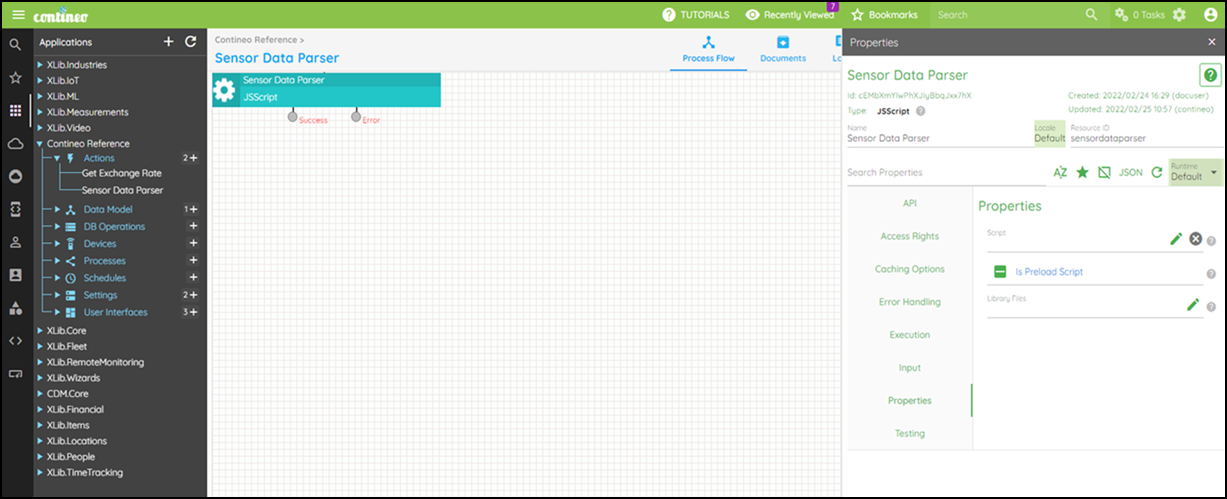
Write down the Script and click OK.
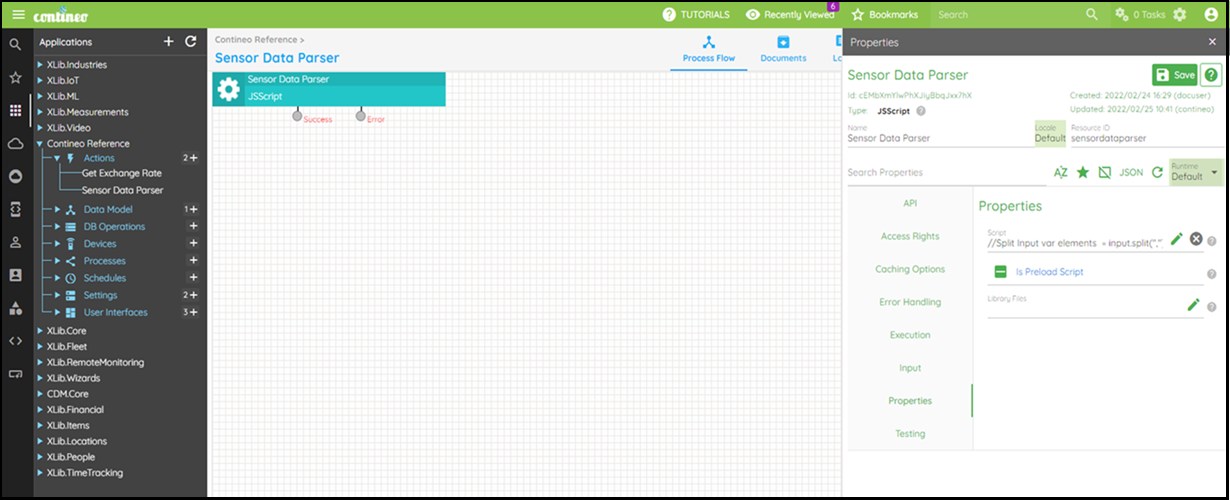
Click SAVE to save the JavaScript.
Scripting examples
1. Scripting Example to call other actions created in Contineo
// Get the "getGeoposition" API, which is an action of type "SendHttpRequest".// "getGeoposition" is configured to use an "HttpClient" which points to// the baseURL: https://maps.googleapis.comvar getGeoPosition = context.getApi("getGeoposition");getGeoPosition.apiURL = "maps/api/geocode/json?key=YOUR_API_KEY";getGeoPosition.httpMethod = "GET";// Parameters must be passed as a JSON string. These are// converted to query string if the request method is GET.var params = { address: input.address};getGeoPosition.parameters = JSON.stringify(params);var result = getGeoPosition.execute();result = utils.getObjectFromJson(result);2. Scripting Example to call other actions created in Contineo
// Get the "getAddressesByZipCode" API, which is a DB Operation of type "Find".// It executes the SQL: Select * from address where zip_code = :zipCodevar getAddressesByZipCode = context.getApi("getAddressesByZipCode");// Set the query parametersgetAddressesByZipCode.getParameters().zipCode = input.zipCode;var result = getAddressesByZipCode.execute();3. Scripting Example to call data model APIs
// Example to Register a new customer// Get the customer entityvar customerEntity = context.getEntity("customer");// Create the new customer objectvar newCustomer = customerEntity.createEntityObject(context);newCustomer.firstName = input.firstName;newCustomer.lastName = input.lastName;newCustomer.dateOfBirth = input.dob;newCustomer.address = input.address;newCustomer.phone = input.phone;newCustomer.email = input.email;// Call the "insert" api.var result = customerEntity.executeEntityAPI("insert", newCustomer);// Example to find all customers with last name "Smith"// Get the customer entityvar customerEntity = context.getEntity("customer");var customerQuery = customerEntity.createEntityObject(context);customerQuery.lastName = "Smith";// Call the "list" api.var result = customerEntity.executeEntityAPI("list", newCustomer);// Example to update the address of an existing customer// Get the customer entityvar customerEntity = context.getEntity("customer");// Create the new customer objectvar customer = customerEntity.createEntityObject(context);customer.id = input.customerId;customer.address = input.newAddress;// Call the "update" api.var result = customerEntity.executeEntityAPI("update", customer);4. Scripting Example to send an email with an attachment
Prerequisites:
Create a setting with the type 'SMTPEMailServer'. In Properties > Connection Properties, add properties: host, Port, Username (add email here), and Password.
Create an action with the type 'SendEmail'. In Input > Notification Service, select the setting configured in step 1.
// Create a temp file var tempFilePath = utils.getRootPath() + 'files/temp/testfile.txt';utils.writeFile("This is a test file", tempFilePath);varsignature ="Indicus Software";varsender ="sender@mycompany.com";varmessageSubject ="Test Mail";varrecipients ="johnsmith@mycompany.com, janedoe@mycompany.com";varmessageBodyHTML ="<b>This is an Test email. Please Check the attachment</b>";// Get email action with its resource idvar sendemailApi = context.getApi("mySendEmail");sendemailApi.message = utils.createMap();sendemailApi.message.sender = sender;sendemailApi.message.messageSubject = messageSubject;sendemailApi.message.recipients = recipients;sendemailApi.message.messageBody = messageBodyHTML;// Add temp file as attachmentsendemailApi.message.attachments = utils.createArray();sendemailApi.message.attachments.add(tempFilePath);sendemailApi.execute();context.log("Mail Sent");
Sure! Here's the HTML content converted into clean Markdown:
5. Scripting Example to send an SMS
Prerequisites:
Create a setting with the type
AWSRegionCredentials. In Properties > Connection Properties, add the necessary properties.Create a setting with the type
SNSSMSService. In Properties > Connection Properties > Credentials for AWS. Select the Action configured in Step 1.Create an action with the type
sendsms. In Input > Notification Service. Select the setting configured in Step 2.
var messageBody = "This is an Test message.";var recipients = "+(91) 9425363820";var sendsmsApi = context.getApi("sendsms");sendsmsApi.message = utils.createMap();sendsmsApi.getMessage().recipients = recipients;sendsmsApi.getMessage().messageBody = messageBody;sendsmsApi.execute();6. Scripting Example to download a file from S3
Prerequisite to Upload/Download from S3:
Step 1: Configure S3 Settings in Contineo as mentioned:
Click Application, then click on More, and select Routing. Open the Library Overrides tab.
Drag S3 Content Management Service.
Click the dragged component to open the Properties panel.
Add S3 details in Properties > Connection Properties.
Step 2: Create an action with the type Download Content.
In Properties > Input > Content Management Services dropdown list, select S3 Content Management Service.
In this example downloadfilefroms3indicus is the name of the action created.
var downloadAPI = context.getApi("downloadfilefroms3indicus");downloadAPI.fileName = "download/01e88c78-8065-4aca-918d-1ab91e6793b7.csv";context.log("downloadAPI.fileName" + downloadAPI.fileName);downloadAPI.contentType = "text";downloadAPI.contentDownloadFolder = utils.getRootPath() + 'content/temp/';context.log("finalPathForBrowserFile" + downloadAPI.contentDownloadFolder);context.log("downloadAPI.contentDownloadFolder : " + downloadAPI.contentDownloadFolder);var result = downloadAPI.execute();context.log("DownloadAPI Result: " + result);// for viewing file in browser --var finalPathForBrowserFile = result.replace("/opt/tomcat/webapps/ROOT/", "https://trial.contineonx.com/");context.log("finalPathForBrowserFile : " + finalPathForBrowserFile);7. Scripting Example to upload a file to S3
Prerequisite to Upload/from S3:
Step 1: Configure S3 Settings in Contineo as mentioned:
Click on Application, then click on More, Select Routing. Open the Library Overrides tab.
Drag S3 Content Management Service.
Click on the dragged component to open the Properties panel.
Add S3 details in Properties > Connection Properties.
Step 2: Create an Action with the type Upload Content.
In Properties > Input > Content Management Services dropdown list, select S3 Content Management Service.
In this example,uploadcsvtos3indicusis the name of the action created.
var basePath = utils.getRootPath() + "content/temp/attachments/";// This is an intermediate path from where your file is uploaded to S3 server.var fileName = "DataFile9.csv";var finalPath = basePath + fileName;var finalPathForBrowserFile = finalPath.replace("/opt/tomcat/webapps/ROOT/", "https://trial.contineonx.com/");context.log("finalPathForBrowserFile : " + finalPathForBrowserFile);var uploadAPI = context.getApi("uploadcsvtos3indicus");uploadAPI.folderPath = "download";uploadAPI.fileInput = finalPath;context.log("finalPath : " + uploadAPI.fileInput);var result = uploadAPI.execute(); // This uploads to S3context.log("S3 URL : " + result);