Relational Fields
Relational Fields represent the relations between fields.
Modeling Relations in the Data Model
Example: Consider the data model of the XLib.Samples.Todo library with Entities Task, which represents a task in a To-do list, and Employee, which represents an employee or person who has assigned tasks.
One task may be assigned to a single employee.
One employee may be assigned multiple tasks.
Task and Employee entities both have the ID field as their Primary Key.
To model this relation in Contineo's Data Model:
1. Creating the Parent(1) Relation
A Parent(1) field named Assigned To, of data type Employee, is created in the Task Entity.
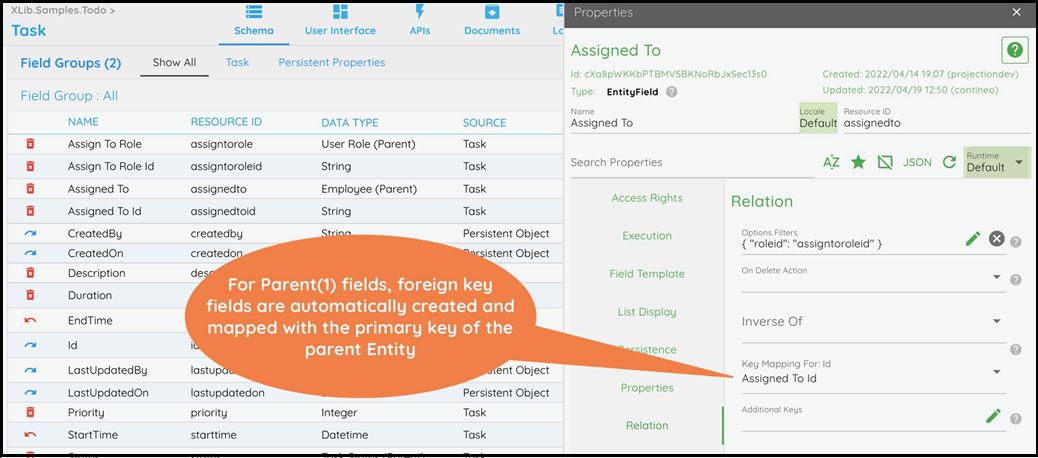
Once created, the foreign key fields required in the database are automatically added to the child Entity. In this case, a field called Assigned To ID is created in the Task Entity. This field is hidden by default. You can see hidden fields by using the Show Hidden Fields toggle on the top right of the Fields list.
If you open the properties of the Assigned To field and open the Relation property group, you can see the Assigned To ID mapped to the ID of Employee.
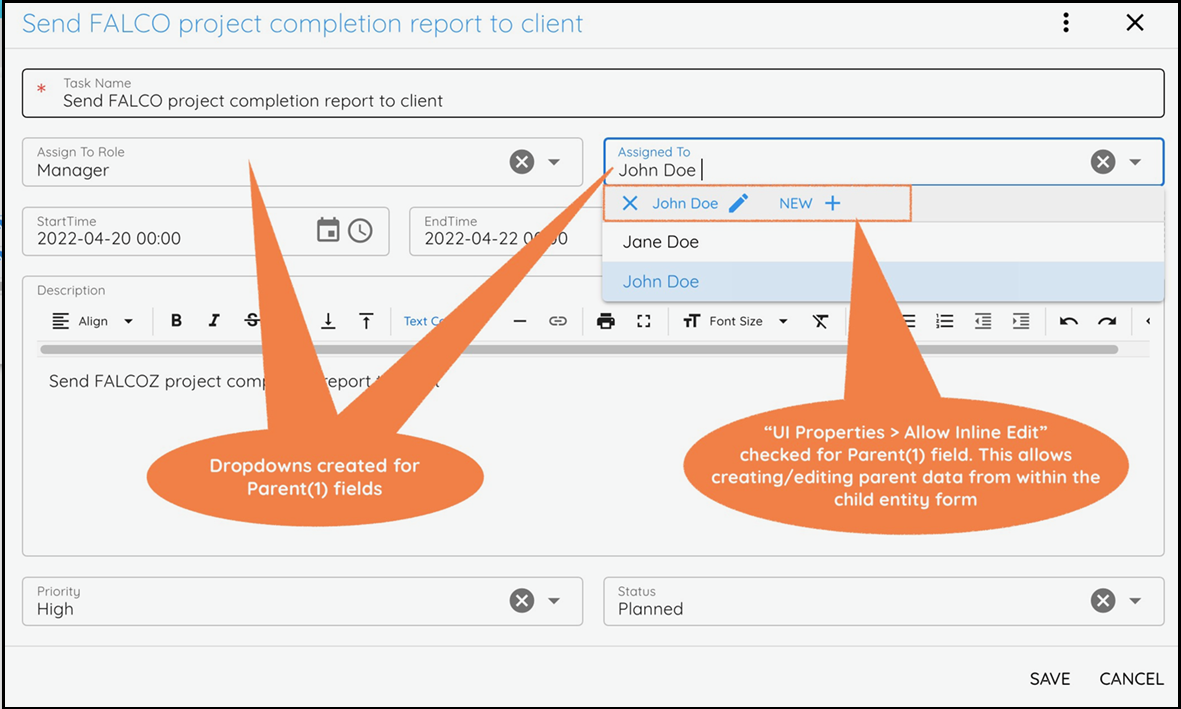
Once this parent relation is configured and the Entity UI is generated, every parent relation is rendered as a dropdown list. To enable inline creation of parent data, check the UI Properties > Allow Inline Creation property of the Parent(1) field.
2. Creating the Child (many) Relation
Add a many to many relations in my Entity/Data Model.
A Child (many) field named Assigned Tasks, of data type Task, is created in the Employee Entity. Unlike Parent fields, the configuration for Child (1/many) fields are to be done manually:
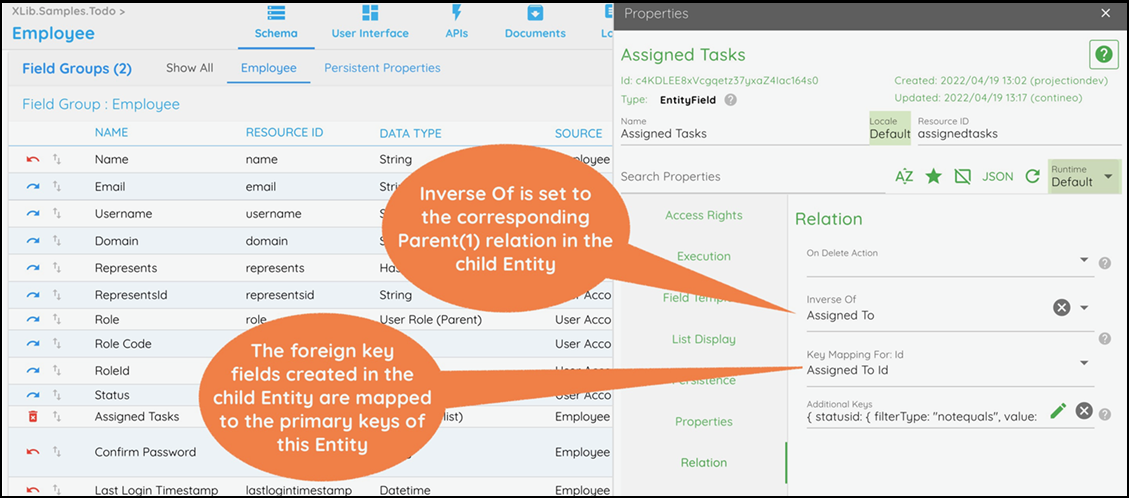
The Relations > Inverse Of property displays a list of the child Entity's fields. The Parent(1) relation created in step 1 is selected here. This indicates the inverse relationship between the Assigned To field in Task and the Assigned Tasks field in Employee.
Next, the foreign key mapping for the relation must be manually set in the Relations > Key Mapping For: Id property. This property displays a list of the child Entity's fields. The Assigned To ID foreign key field, automatically created in step 1, is selected here.
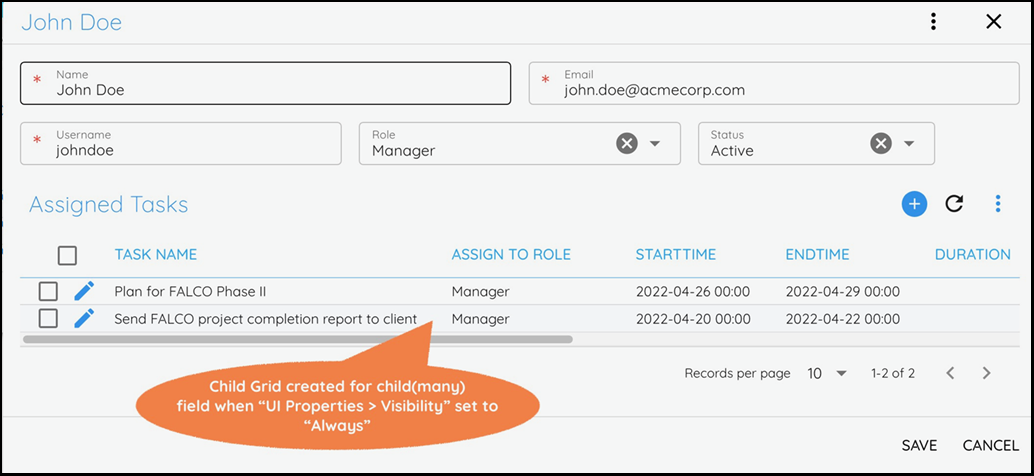
By default, child relations are hidden on the Entity UI. In order to make a child relation visible, set the UI Properties > Visibility property to Always. Once this is done, the child relation appears on the Entity UI in the form of a list that can be added/updated/deleted.
Customizing the Selection Options in a Parent Dropdown
By default, a parent field dropdown list shows ALL records from the parent Entity. In order to filter the selection options, add the From List validation to the Parent(1) field's Validation > Validations property. See the From List section in Entity Field Validations for details on configuring the custom option loaders.
Handling Inter-Dependent Parent Relations
Suppose an Entity has two parent relations where the second parent dropdown needs to be filtered based on the selection in the first dropdown list. For example:
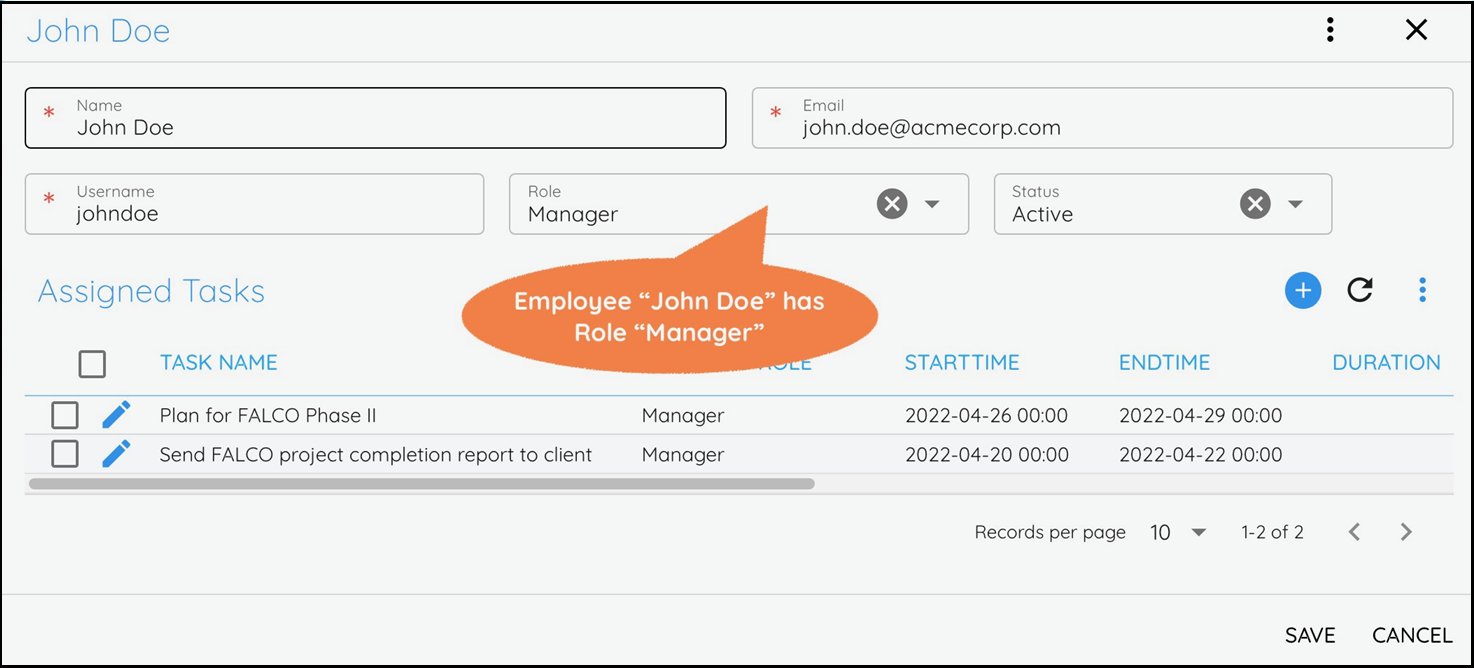
The Employee Entity has a Parent(1) field named Role of data type User Role:
The Task Entity has a Parent(1) field named Assign To Role of data type User Role. This field indicates which roles can perform the task. When creating a task, first select the role in the Assign To Role field. This should automatically filter the Assigned To dropdown list and show only the employees that have that role, as follows:
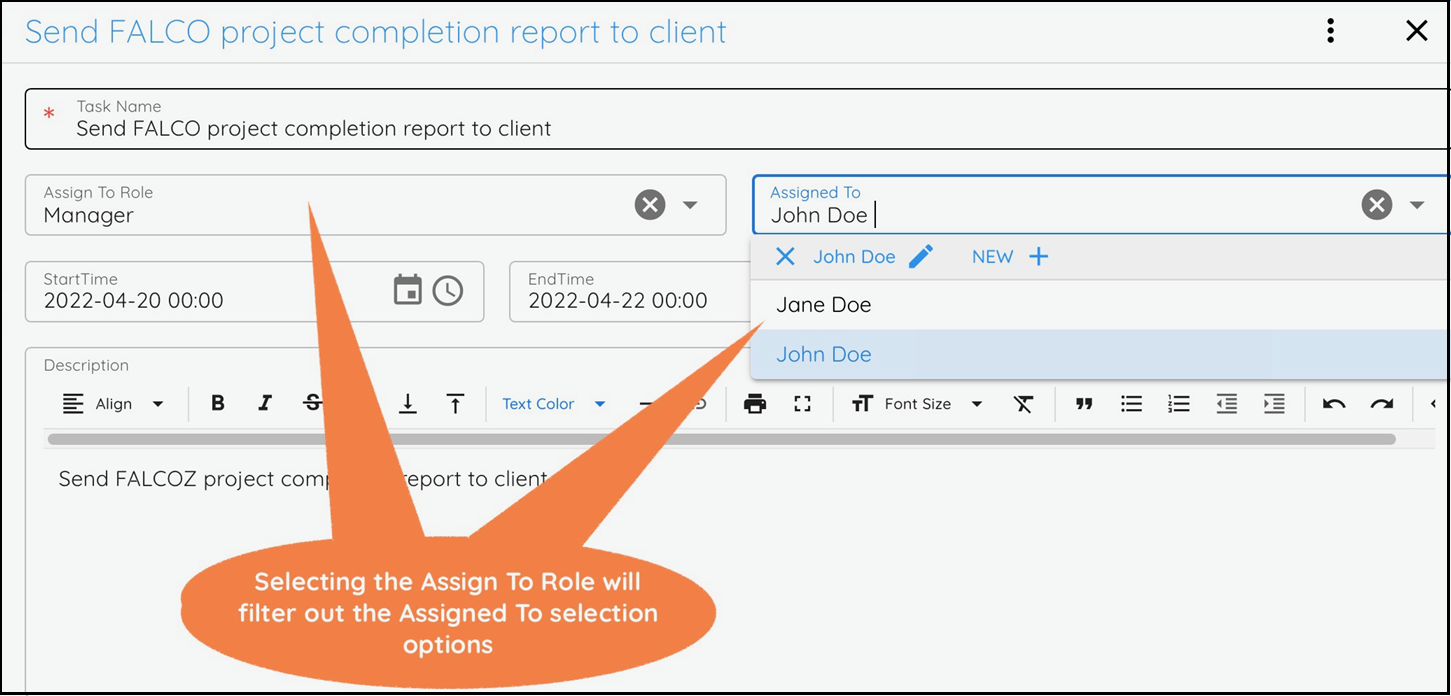
In the Assigned To Parent(1) field, the Relation > Options Filters property has been set to:
{"roleid":"assigntoroleid"}
This indicates that the value assigned to RoleID in Task must be passed as the parameter RoleID to the Employee list API, which fetches the Employee options for selection in the dropdown. The RoleID field is the foreign key field for the Role relation in the Employee Entity.
References
The Task Entity in
XLib.Samples.TodoThe Employee Entity in
XLib.Samples.Todo