Contineo Designer Studio Basics
The Contineo Designer Studio is a web-based IDE to build and deploy Contineo applications.
The Contineo Designer Studio
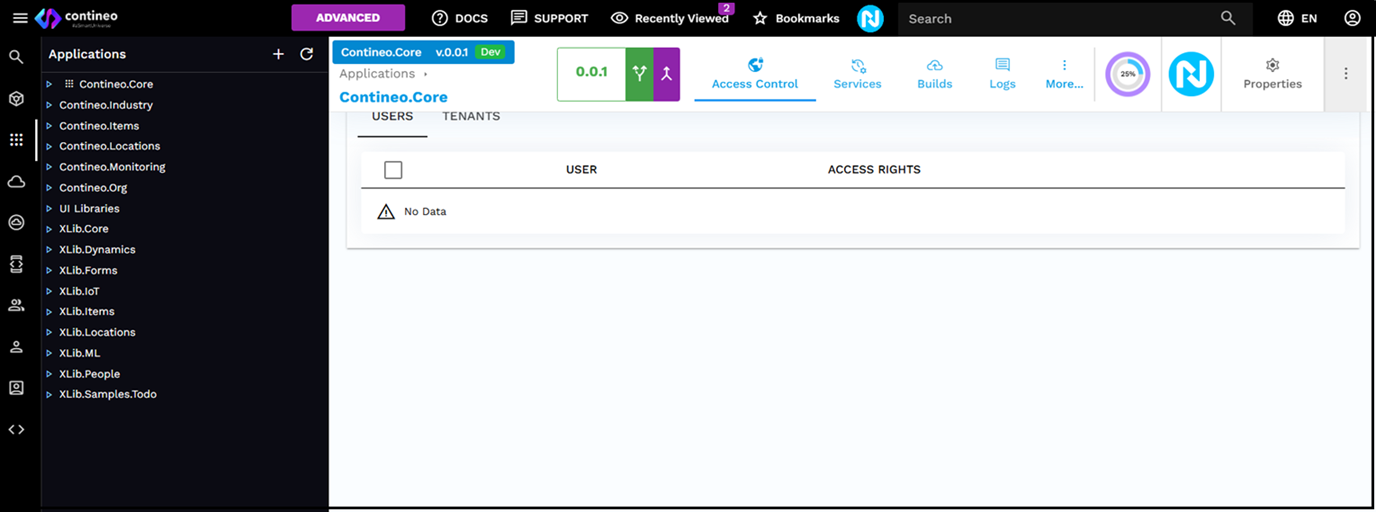
The designer has the following elements:
Page bar - It has the documentation link, Recently viewed, Bookmarks, and Full-text search of your components.
Explorers bar - These are links to explorers for Applications , Environments, Sub-tenants, and Users. You can search for any item by its Name or Resource ID.
Explorer - It shows the selected explorer. You can create, update, and delete items in the Explorer.
Component Menu - It is the menu for the selected component. There are multiple views for editing a component. The views available depend on the type of component selected. Every view provides a different way of viewing, modifying or managing the component.
Component Designer - It is the designer area for the selected view in the Explorer.
Properties Panel - Editor for properties of selected components OR sub-components in the Component Designer. Clicking the component title or the Edit button in the Component Menu opens this panel as follows:
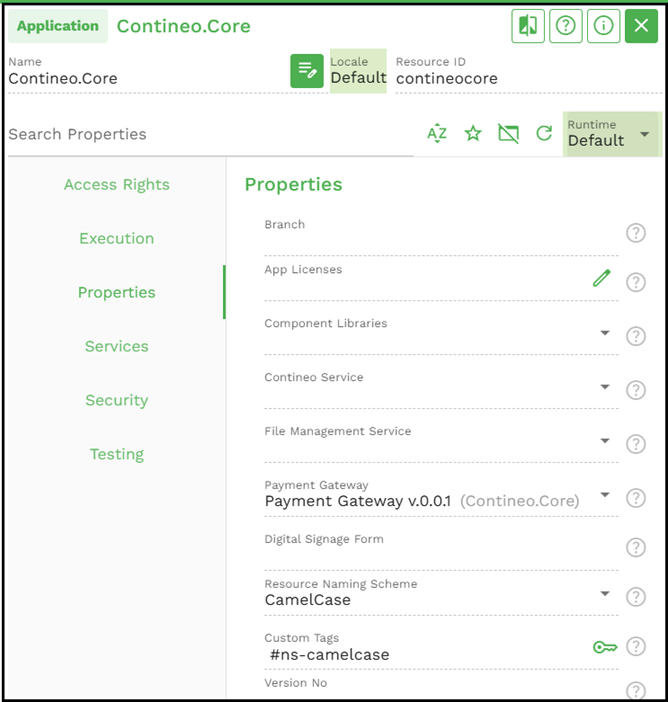
Properties are organized into groups. You can:
Filter properties by name
Sort them alphabetically
Filter out blank properties
View the documentation for the component being edited
Application Components
A Contineo application can be defined by using several different components. When you create an application and expand it in the Applications Explorer, you can see the following groups:
Actions: All APIs and actions that make up the business logic of your application. These are executed on the server side and can be invoked as REST APIs as well as from the web application UI.
Data Model: The application Data Model. This is defined in the form of Entities, which may be Persistent (Stored in the database) or Virtual.
Database Operations: Database operations for searching and modifying data.
Devices: Device models for IoT devices and Device Managers for device management.
Processes: Processes such as Task Queues.
Schedules: Schedules jobs or batch processes. These may be started or stopped from the Application > Services tab.
Settings: Web Modules and infrastructure components such as databases, Pub/sub servers, and Email servers.
User Interfaces: The web application UI, including themes and custom controls and scripts.
Adding Libraries to an Application
Any Contineo Application may be reused as a library in other applications. Properties of components in libraries may be overridden at the application level. For example, you may want to modify a SQL in a library or modify the REST API endpoint for an external service integration provided by a library.