reating and Running the Sample Application
Create and run an application by using the sample.
Creating the sample application
To get started, run a simple to-do application. The components for this application are already built. You may refer to these components for examples of how to build functionality in your applications.
Open the Applications Explorer.
Click on "+" in the top bar.
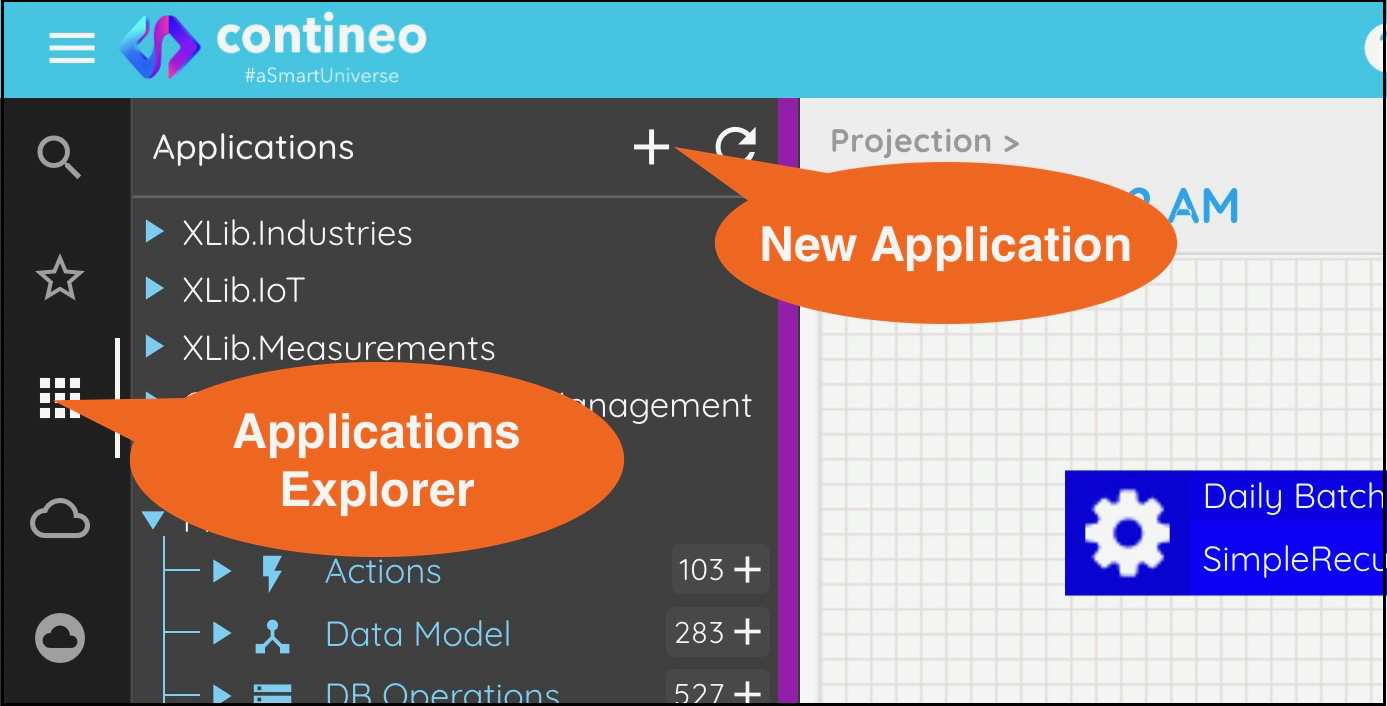
Enter the name of your application. Click OK. The new application is created and opened in the designer.
If you are using a trial account, your application name must be globally unique. It must not clash with application names created by other users. Component names within an application need not be globally unique. They just need to be unique within the application.
Adding Libraries to the Application
An application may be used as a library in other applications. Once added to an application, a library's component properties may be overridden by the application.
For this sample application, use the XLib.Samples.Todo library. Override the Core DataBase component which is configured to act as a database for the Data Models that are present in XLib.* libraries.
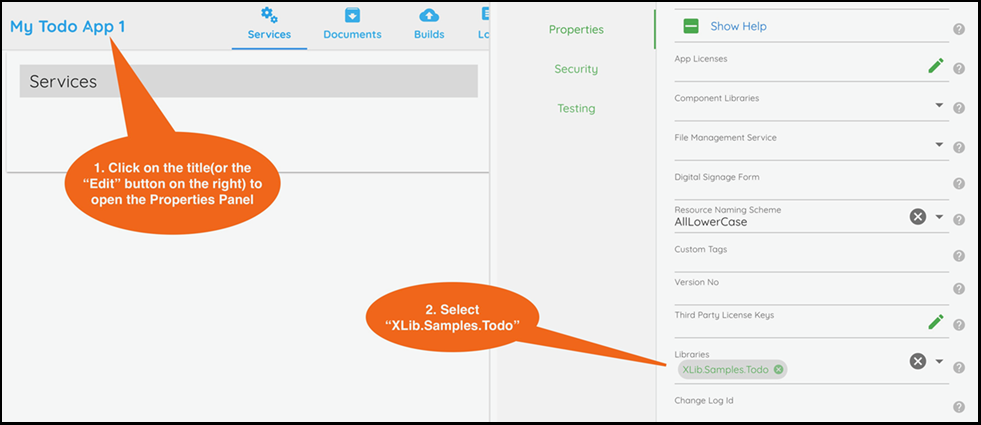
Click on the Application and open the properties window.
Select the XLib.Samples.Todo, XLib.Core, and CDM.Core libraries to be used in the Properties > Libraries property.
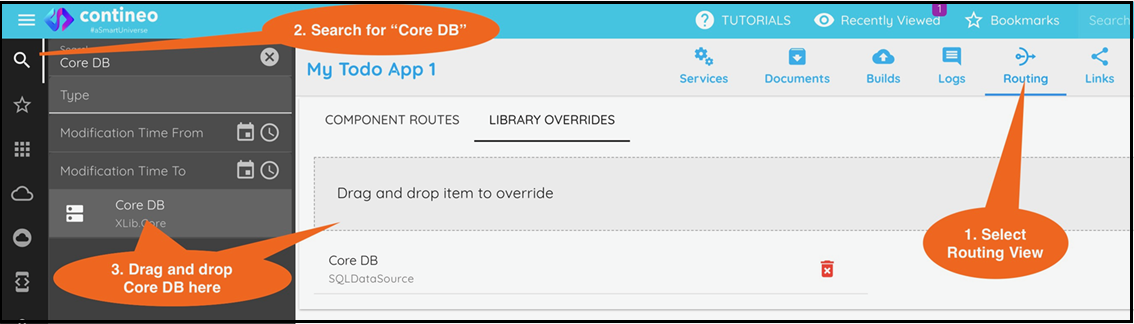
Open the application and select the Routing view. Open the Library Overrides tab. Search for the Core DataBase component and drag and drop it into Library Overrides.
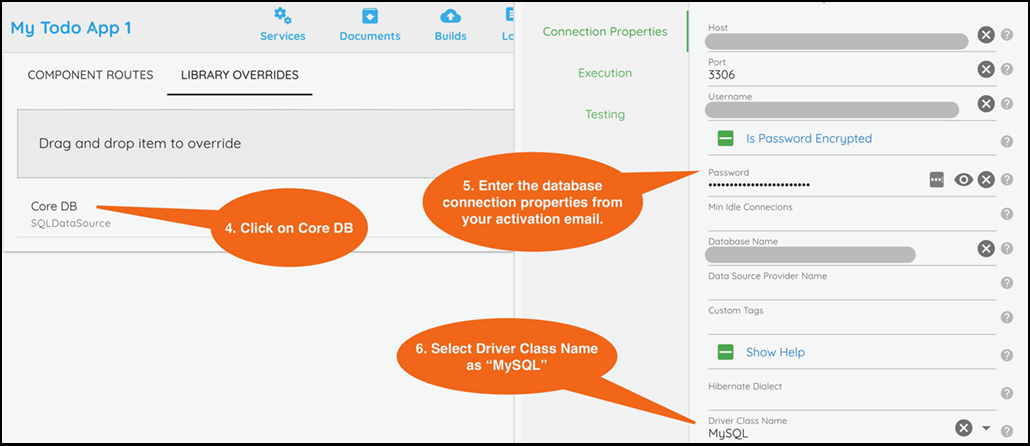
Select the Core DataBase under Library Overrides and provide the database connection details. You may use the database details received in your Account Activation email. Make sure to select the appropriate Database Driver in Connection Properties > Driver Class Name. Select this as MySQL if you are using the database in your Account Activation email.
Click SAVE to save the changes in applications.
Generating the Sample Data
To create users and some sample data for running the application:
Open your Application's properties. Copy the Application's Resource ID.
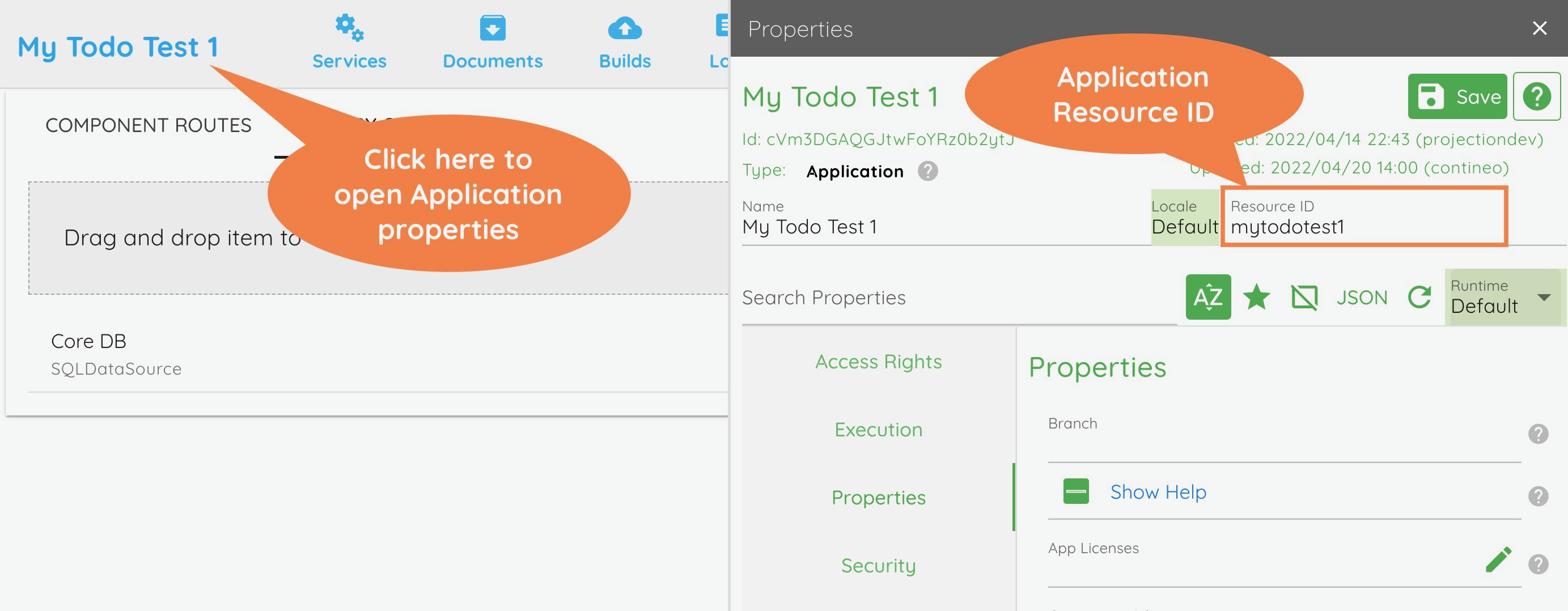
In the following URL, replace APP_RESOURCE_ID with the Application Resource ID copied in Step 1.
https://trial.contineonx.com/contineo-APP_RESOURCE_ID-api/generatesampledataAdd the updated URL in the browser or call it using any REST client such as Postman. If the data has been created properly then you see the following response:
{"result":"Sample Data Generated","status":"OK"}
If you do not see the above response, check your database connection details and make sure all properties mentioned above in Adding Libraries To Your Application - Step 4 have been followed. If the problem persists, raise a support ticket from the link in the top bar.
Running the sample application
Open the Services view and click Run next to the Todo Web module.

The login credentials for the Todo Web module are as follows:
Username | Password | Role |
|---|---|---|
sysadmin | demo@164#conti | Admin |
johndoe | demo@164#conti | Manager |
briansmith | demo@164#conti | Assistant |