Creating Fields and Field Groups
Different types of fields used in Contineo.
Entity Fields
The fields of an Entity are its schema. These can be viewed from the Schema view. There are 3 main types of fields:
Persistent: Persistent fields have their data stored in the database table. Each persistent field is a column in the entity table. Persistent fields must have primitive data types such as:
String
Longtext
Integer
Decimal
Date
DateTime
Boolean
Relational: These include the relations of Parent(1), Child(1), and Child(many). These correspond to Many-To-One, One-To-One, and One-To-Many relations respectively.
Virtual: These fields are not created in the database. They are used for calculated values or custom-formatted displays of persistent data values.
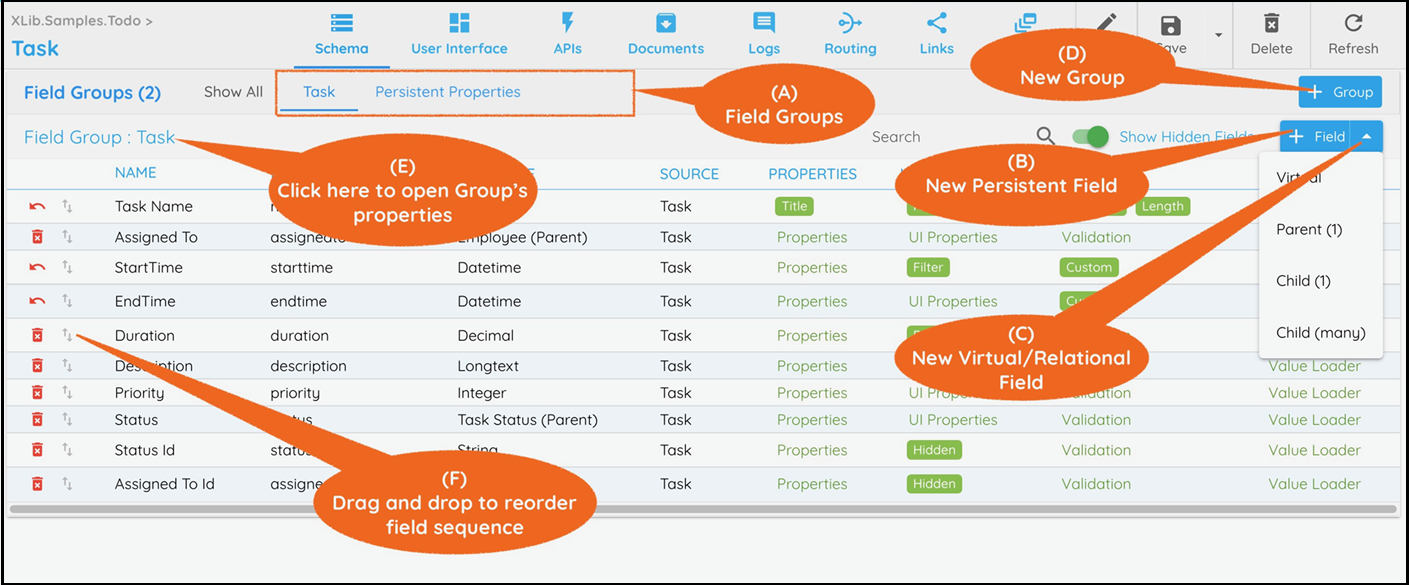
Entity Field Groups
Fields are arranged into Field Groups, viewable in the Schema view. When the Entity UI is generated, the layout follows the grouping in Field Groups.
Field Groups appear as tabs at the top (see A in image above).
To open a Group's properties, select the group tab and click its title above the field list.
Every Entity has a default group, always shown first. This group represents the Entity itself and shares its properties.
Create a Persistent Field
Select a group to add the field in.
Click Field on the top right (see B in the image above).
Enter the name of the field and click OK. You may create multiple fields at once using a comma-separated list.
Create a Relational Field
Select a group to add the field in.
Click the arrow next to the Field button (see C in the image above).
Choose the relation type: Parent(1), Child(1), or Child(many).
Enter the field name and click OK. Multiple relations can be created with a comma-separated list.
IMPORTANT:
When creating a Child(1/many) field, set the following properties:
Relation > Inverse Of
Relation > Key Mapping
Create a Virtual Field
Select a group to add the field in.
Click the arrow next to the Field button on the top right.
Click Virtual, enter the name, and click OK. You can create multiple virtual fields using a comma-separated list.
Create a Field Group in Entity/Data Model
Click + Group on the top right.
Enter the group name and click OK.
Changing a Field Type or Group
Change a fields type from its Properties > Member Type property.
Change a fields group from its Properties > Member Group property.
Reordering Field Sequence
To reorder fields on the UI:
Select a Field Group.
Drag and drop the fields to change their order.
Reordering Group Sequence

To change the Group order on the UI:
Select a Group.
Use the up/down arrows.
You cannot reorder the default group. It always appears first and shares the Entity name.
Primary Keys and Import Keys for a Persistent Entity
Primary Keys: These are the main key columns in the Entity’s database table. Mark a field as primary key using the Properties > Is Pk checkbox. If using a pattern from
XLib.*, an ID field is typically included as the primary key.Import Keys: These are used during data import to identify records, especially when primary key values are missing. Mark a field as an import key using the Properties > Is Import Key checkbox.