Parent Widget Data Path
A widget (screen) can be created and used as a sub widget in any other widget (which we can call as a "Parent widget"). To use the data of the "Parent widget" in this sub widget, "Parent Widget Data Bean Path" needs to be specified in the sub widget.
Use this functionality when you want to create multiple reports in an application where the SEARCH filter criteria is the same. Assuming that Location is the common search criteria for all the reports, create one screen (widget) where a Location combo box is present. You have to select locations registered in the system.
You can create multiple widgets for multiple reports, where the above widget is used as a sub widget. For creation of widgets, see CREATE WIDGET.
Set "Parent widget data path" in the sub widget as follows
Steps:
In the sub widget properties, click Data Mapping.
In the Data Path property, specify data as follows:
$widget.parentWidget.dataBeanClick SAVE.
To get data from the Parent Widget in this sub widget
Steps:
Right-click the Location combo box and click the OnChange event.
In the After Processing Script property, write the following script:
varparams = source.getWidget().getParentWidget().getDataBean();varlocation = params.locationid;// (locationid is data mapping field of Location combo in sub widget).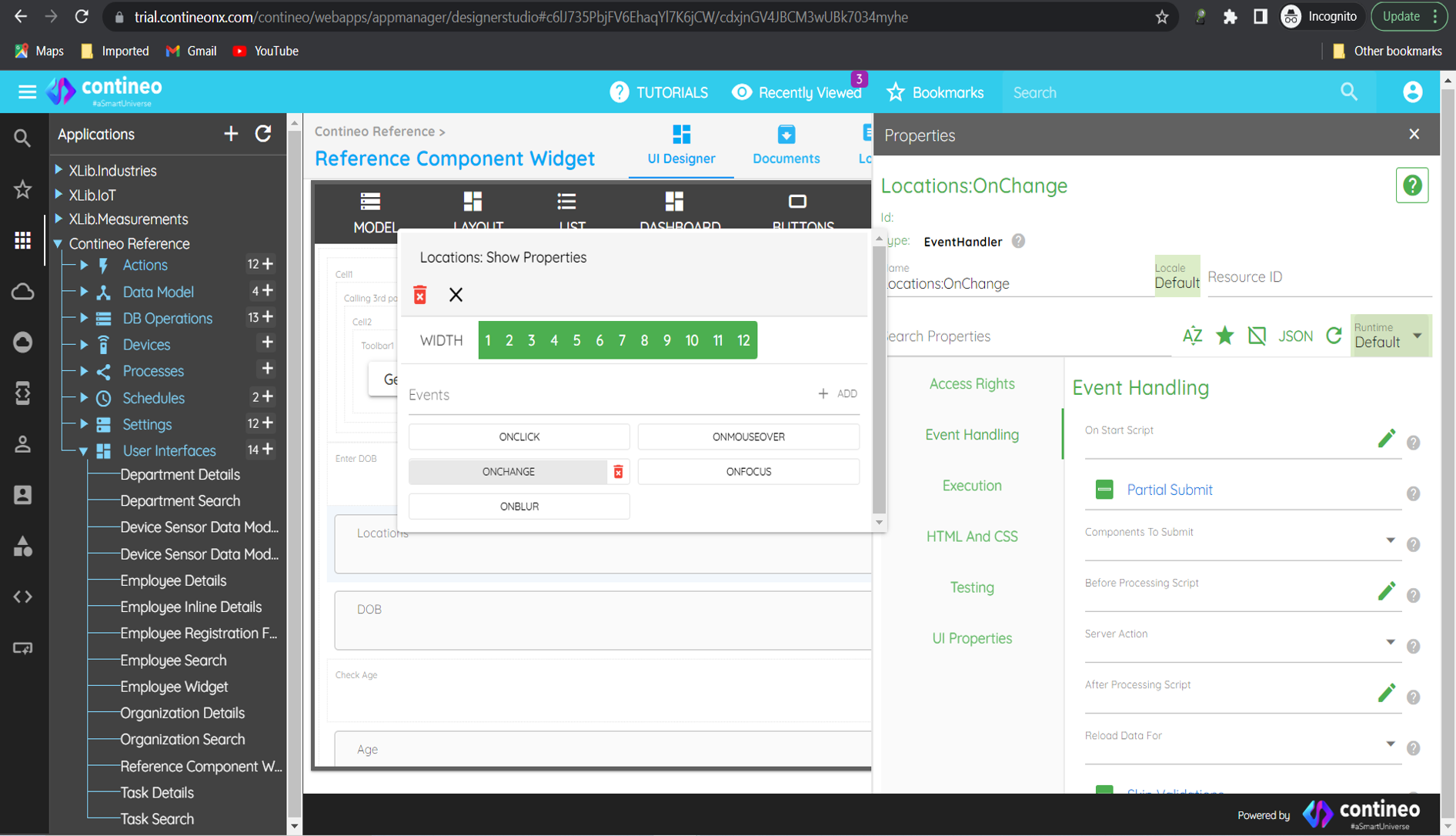
Click SAVE.