Pipeline Input and Output Handling
Pipeline Input and Output Handling - User Guide.
Overview
This section explains how to set inputs for pipeline calls, process outputs, and manage session continuity.
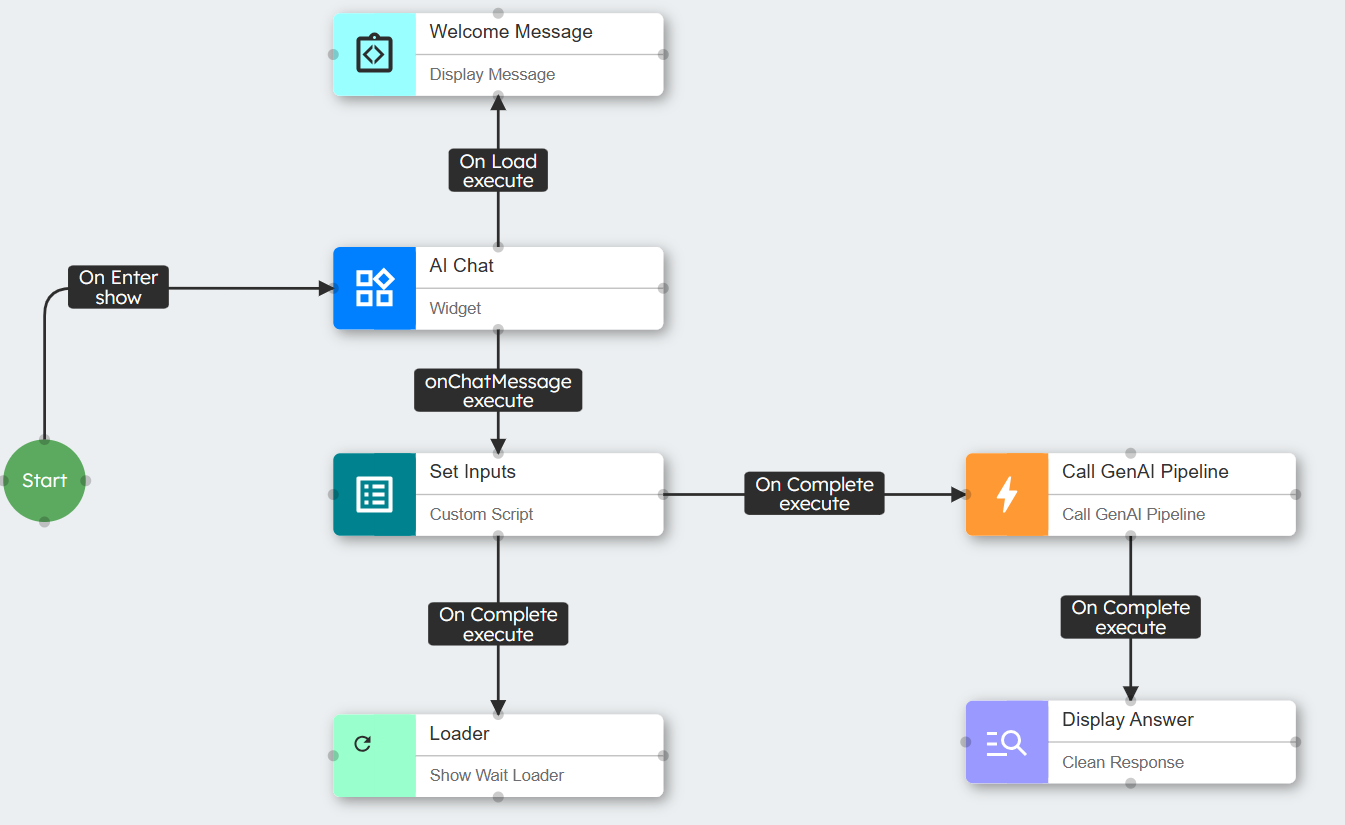
Pipeline Input Structure
The standard input structure for a pipeline call is:
{ "pipelineId": "Pipelines.contineo.designerai.chatappbuilder", "inputs": { "user_query": "How do I create a fitness plan?" } }
For conversation, you include a session ID:
{"pipelineId": "Pipelines.contineo.designerai.chatappbuilder","sessionId": "a6d5a0a3-7293-4fd0-a05e-ff8614c4af22","inputs": { "user_query": "How do I create a fitness plan?"}}
Types of Pipeline Calls
Standalone Pipeline Calls
You can use these for single requests where you do not need conversation context.
Conversational Pipeline Calls
You can use these to keep context between multiple calls. You must manage session IDs.
Setting Pipeline Inputs
Basic Input Example (Standalone)
// Basic input with user messagevar result = { question: args.$event.message};return result;
Conversational Input Example
// Input for conversational flowvar result = { prompt: args.$event.message, language: this.agent.data.language};// Include sessionId for context (works for both first and subsequent calls)result["sessionId"] = this.agent.data.sessionId;return result;
Document Handling
When users upload documents to the AI chat widget, the system automatically:
Upload to S3 storage.
Added to the
this.agent.data.uploadedFilesarray as URLs.Available for use in pipeline inputs.
// Input with document referenceslet userFiles = this.agent.data.uploadedFiles;console.log(userFiles);var result = { document_urls_list: userFiles, language: this.agent.data.language};return result;
The uploadedFiles array contains S3 URLs for each uploaded document. For example:
["https://s3.amazonaws.com/bucket-name/document1.pdf", "https://s3.amazonaws.com/bucket-name/document2.docx"]
When this is sent to the pipeline, the pipeline can:
Download the documents from the provided URLs.
Process documents based on the pipeline's purpose
Return insights or extracted content.
For a single document reference:
// Reference only the first uploaded documentvar result = { primary_document: this.agent.data.uploadedFiles[0], extraction_type: "text", language: this.agent.data.language};return result;
Multiple Input Example
// Multiple inputslet entities = this.agent.data.presentEntities;let documents = this.agent.data.documents_string;var result = { entity_list: entities, document_summaries: documents, prompt: args.$event.message, language: this.agent.data.language};this.agent.data.last_user_input = args.$event.message;return result;
Pipeline Output Structure
A standard pipeline response follows this structure:
{"status": "OK","result": { "text": { "status": 200, "data": [ { "result": { "fitness_plan": "Here is your personalized fitness plan...", "token_usage": [...] } }, { "sessionId": "a6d5a0a3-7293-4fd0-a05e-ff8614c4af22" } ] }},"actionId": 1743912983234}
Extracting Pipeline Outputs
Saving Specific Outputs
// Extract and save multiple values from responselet apiResponse = args.$event.result;this.agent.data.userIntent = apiResponse.text.data[0].result.intent;this.agent.data.userNeedsDescription = apiResponse.text.data[0].result.description;this.agent.data.suggestedFeatures = apiResponse.text.data[0].result.features;
Saving Session ID (For Conversational Flows)
// Extract and save session ID for future callslet apiResponse = args.$event.result;this.agent.data.sessionId = apiResponse.text.data[1].sessionId;
Using the Clean Response Component
The Clean Response component displays pipeline responses without additional code:
Add a Clean Response component after your Call GenAI Pipeline component.
Set the Response Content Path to the exact path of the content to display.
Example path:
text.data[0].result.chat_response
The component automatically extracts and displays the specified content from the pipeline response.
When to Use Session ID
Use Session ID When:
Build conversations with multiple turns.
Need context from previous interactions in the pipeline.
Generate follow-up responses to earlier questions.
Keep user preferences across multiple calls.
Do not use Session ID When:
Making standalone, independent pipeline calls.
Processing documents without conversational context.
Running one-time data analysis.
Generating content that does not depend on previous interactions.
Best Practices
Keep input preparation simple - Include only necessary fields.
Use the same script for all calls in a conversation - Include sessionID in all cases.
Save session ID immediately after receiving it - This is critical for conversation continuity.
Use Clean Response for simple outputs - Saves custom code for extraction.
Log inputs and outputs - This helps you with debugging pipeline interactions.
Always check uploadedFiles exists - Do this before referencing document URLs.
Troubleshooting
If you lose conversation context, verify that you save and reuse the session ID.
When you use Clean Response, ensure the path exactly matches the field location.
For document processing issues, check document URLs are valid.
If the response structure changes, use console.log to inspect the full response.
If uploaded documents do not process, verify the uploadedFiles array contains valid S3 URLs