Validation - UI Component Field Validations
Add validations to UI Component Properties.
Entity field validations supported in Contineo are as follows:
Required – Enforces a "Required" or "Not-Null" constraint on the property.
Static Range – Available for numeric properties only. Requires a Start Value and End Value to be provided for the property.
Dynamic Range – Available for numeric properties only. Requires JavaScript for Start Value Script and End Value Script to be provided for the property.
Pattern – Requires a regex pattern to be provided for validation. Also requires a pattern validation error message to be provided.
Length – Available for text properties only. Requires a Min Length and Max Length to be provided for the property.
Custom – Requires JavaScript for Custom Validation Script. Also requires a custom validation error message to be provided.
Select From List – Requires loader configuration for fetching the selection options for this property. If this validation type is specified, this property appears as a dropdown field on the auto-generated UI.
Note:
In validation JavaScript - the Entity Record is present in the variable source.
Example 1: Employee name is a required field in the Employee Registration form
Steps:
Open the UI Widget.
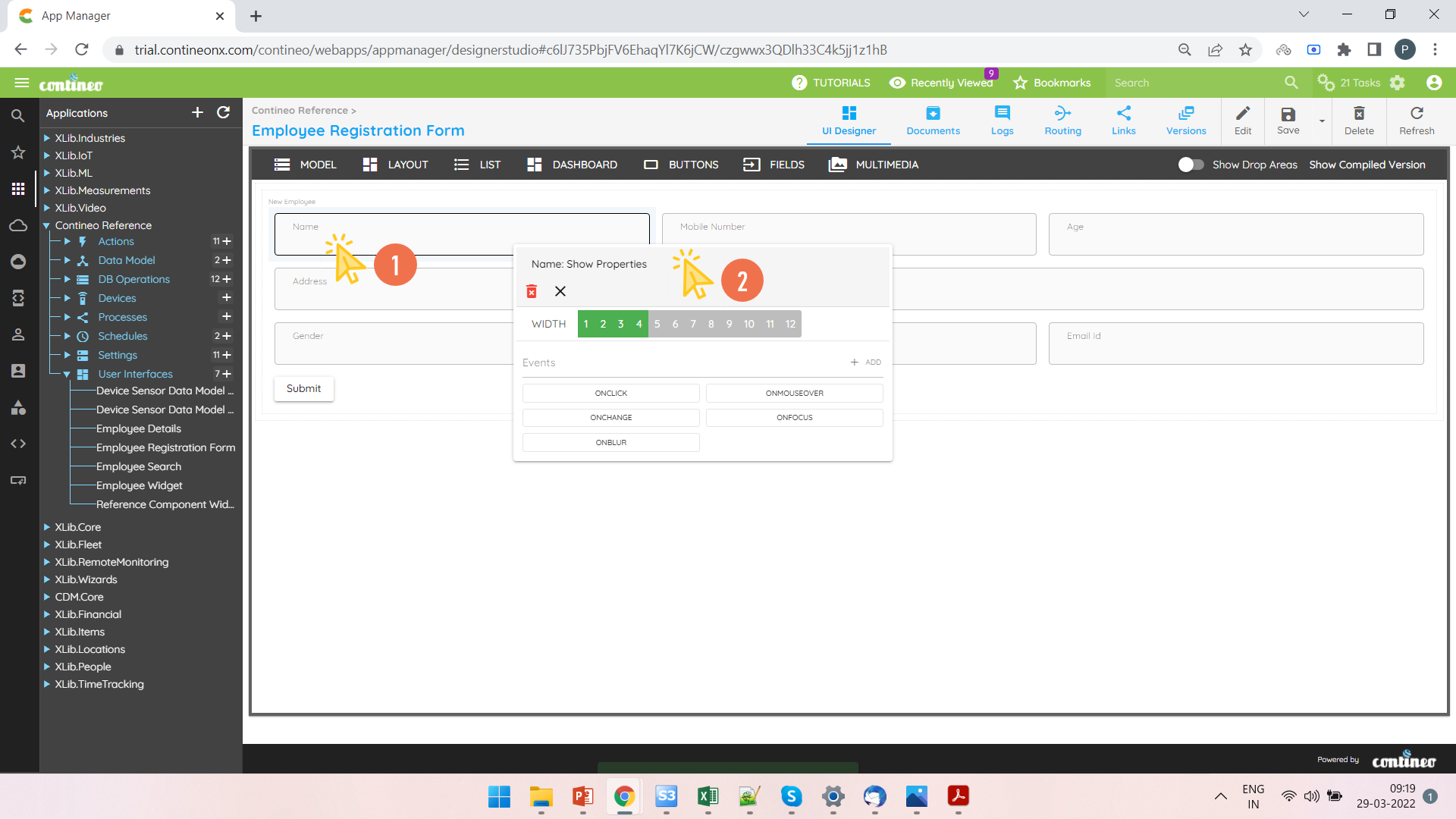
Right-click the Employee Name field and open the Properties Panel.
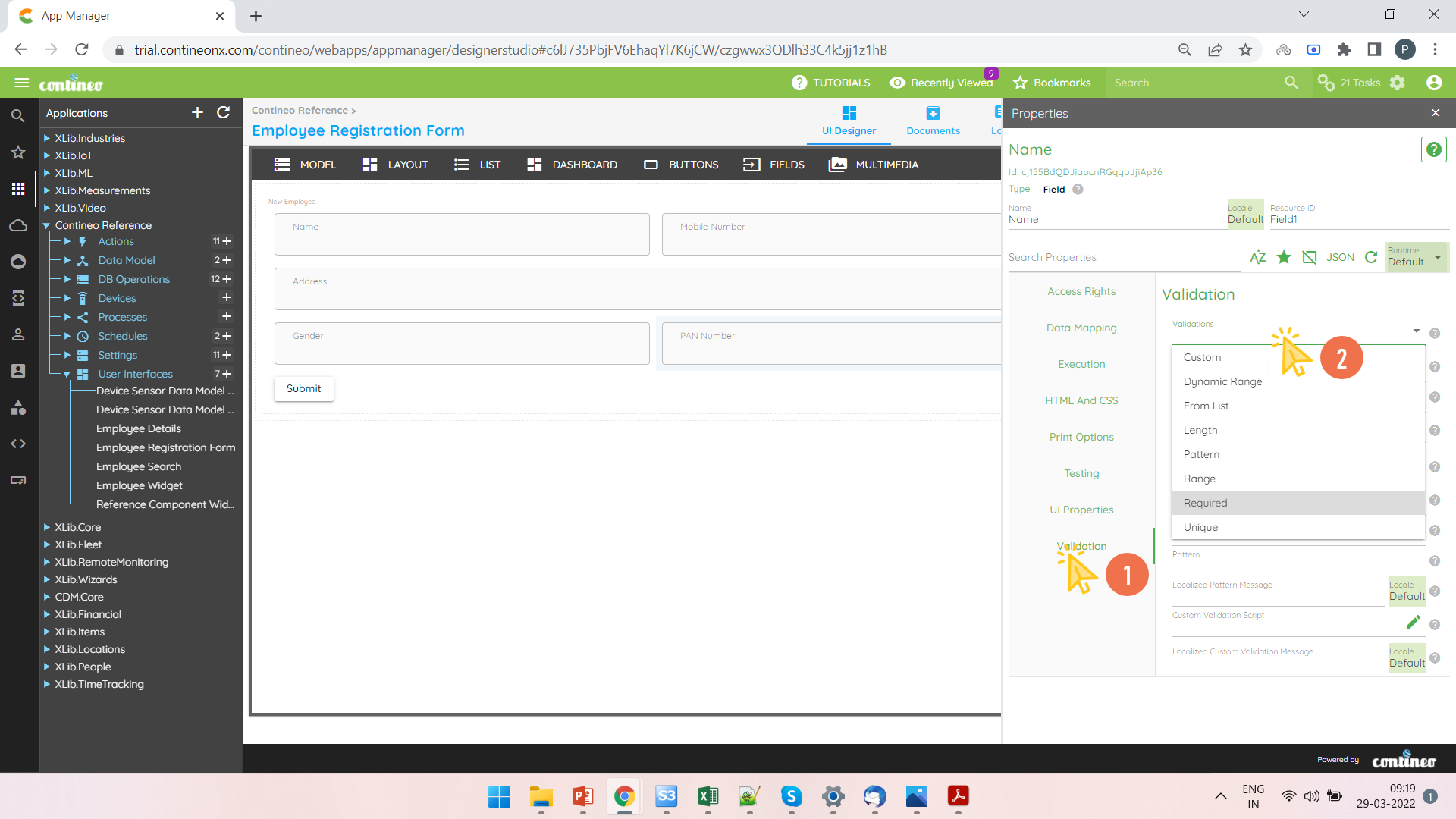
Select Required under Validation > Validations.
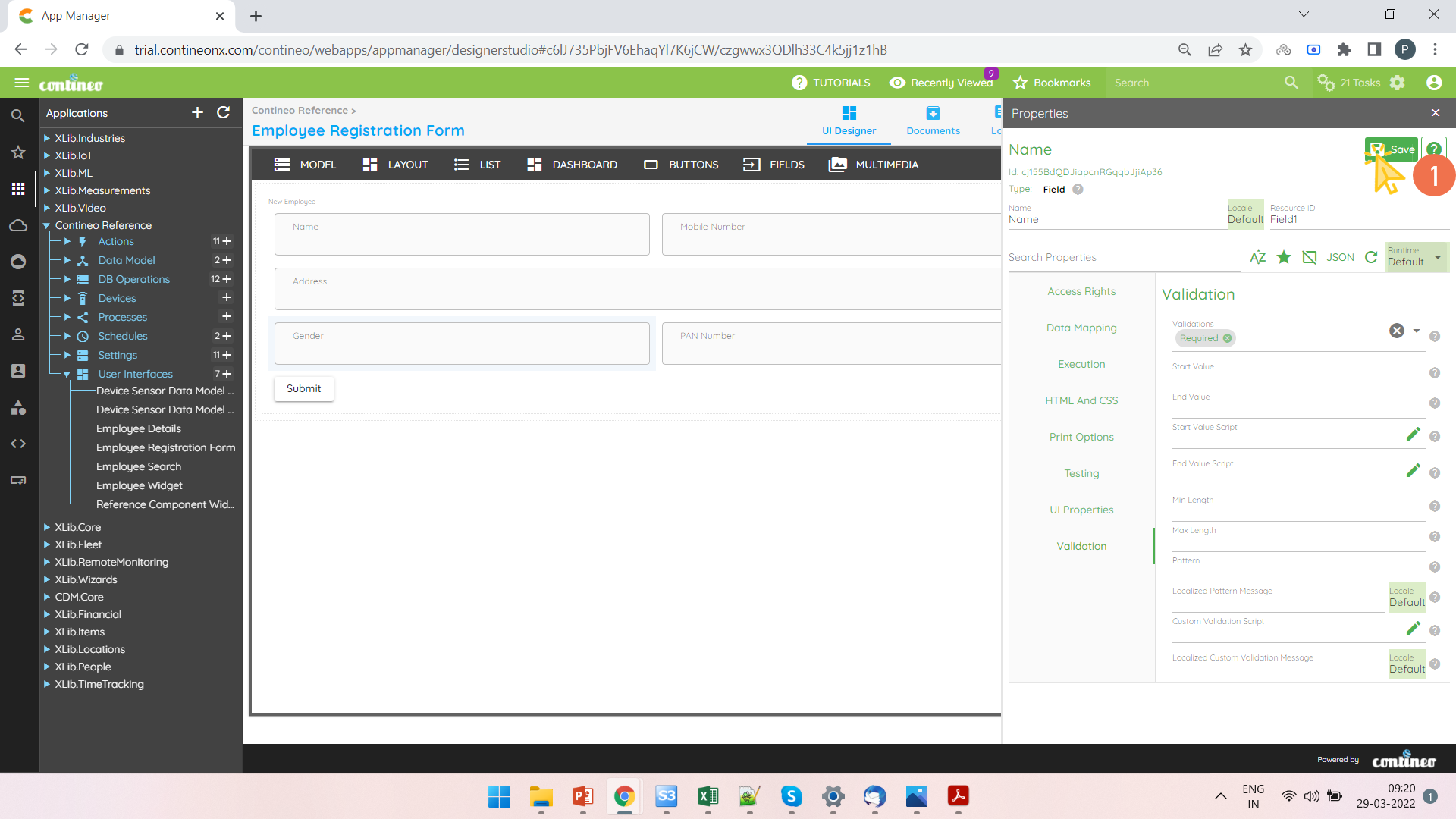
Click SAVE.
Example 2: Employee Mobile Number should be 10 digits in the Employee Registration form
Steps:
Open the UI Widget.
Right-click on the Employee Mobile Number field and open the Properties Panel.
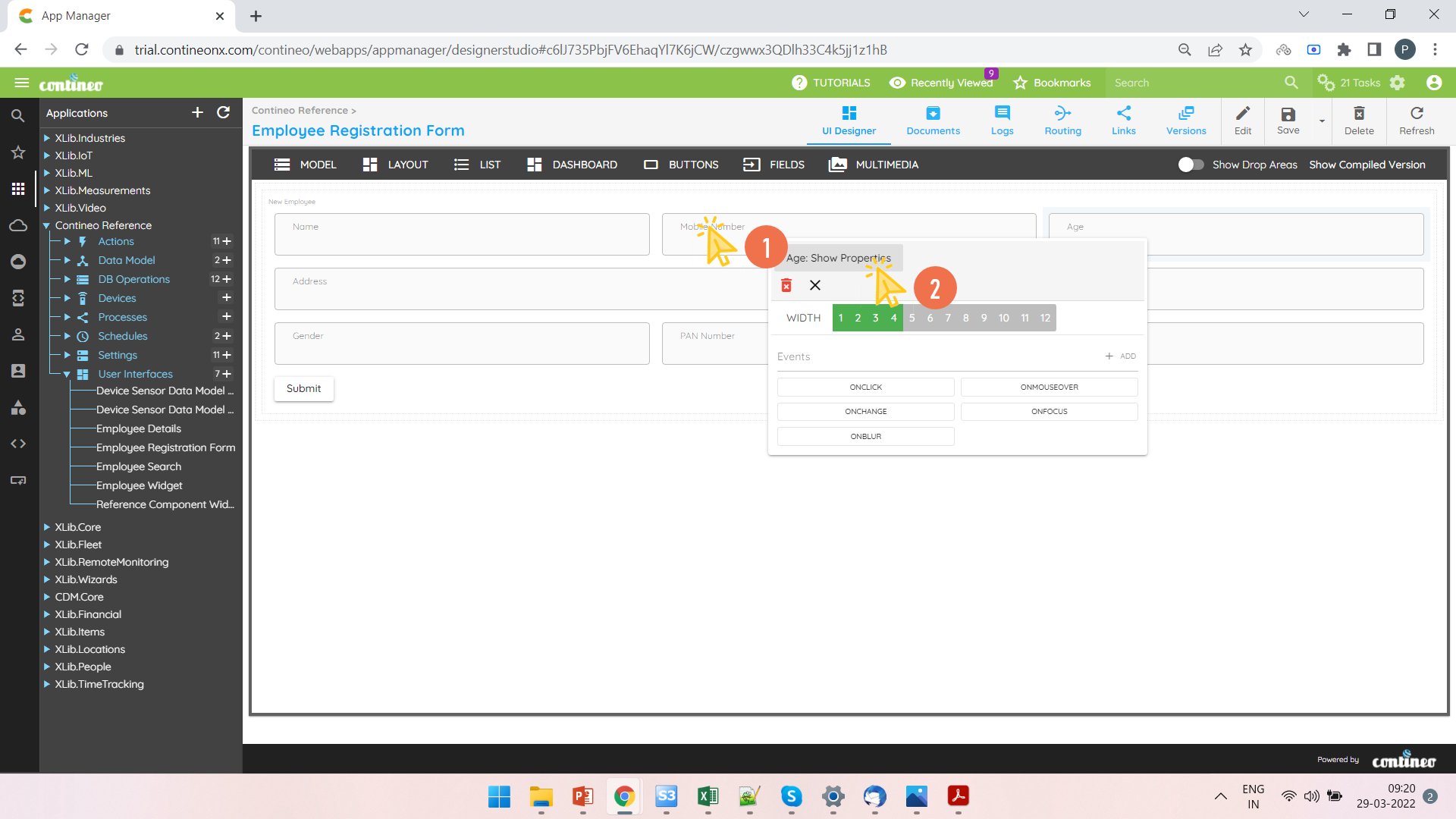
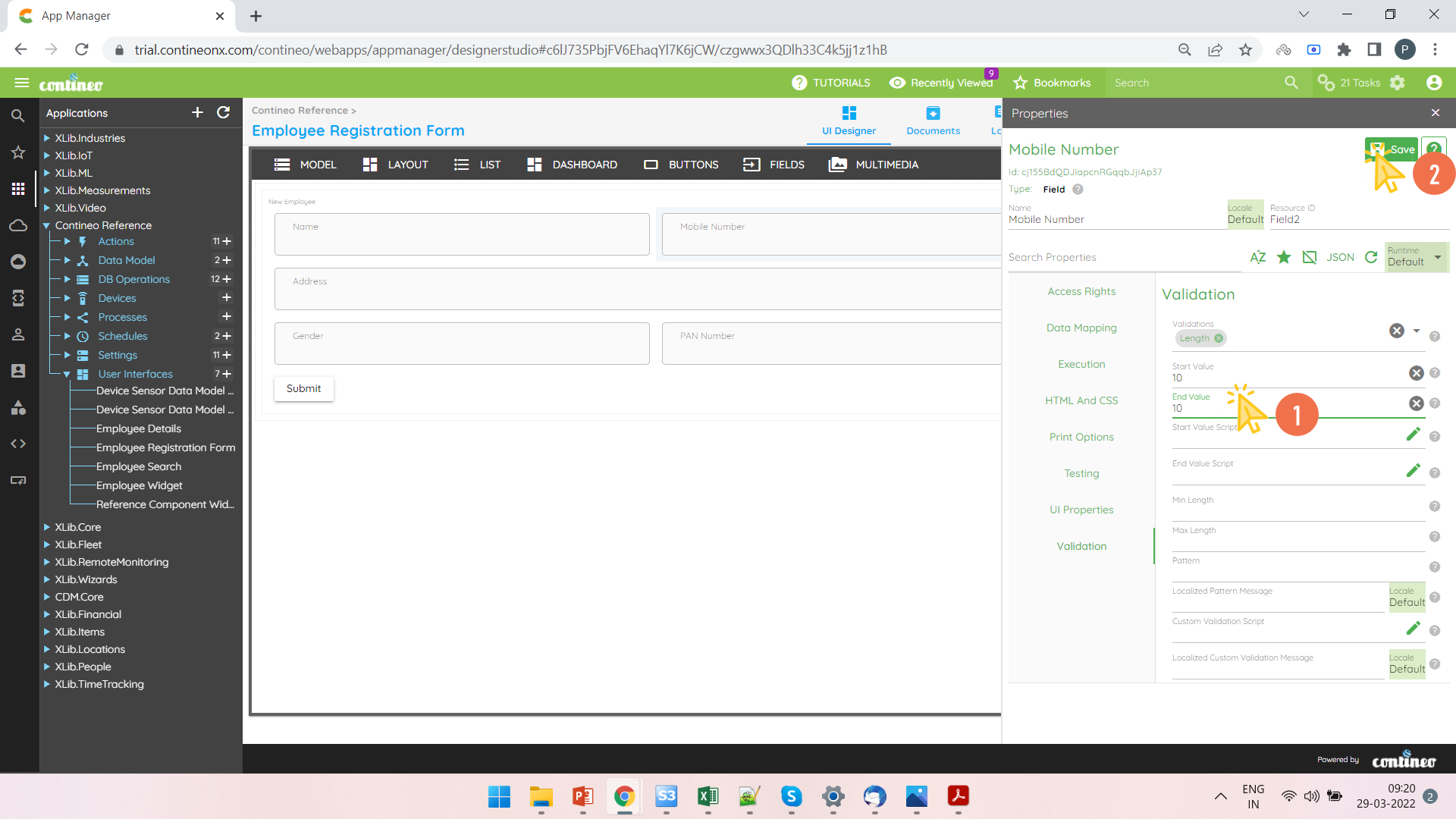
Select Length under Validation > Validations. Specify the Minimum length and Maximum length under Validation > Start Value and Validation > End Value respectively.
Click SAVE.
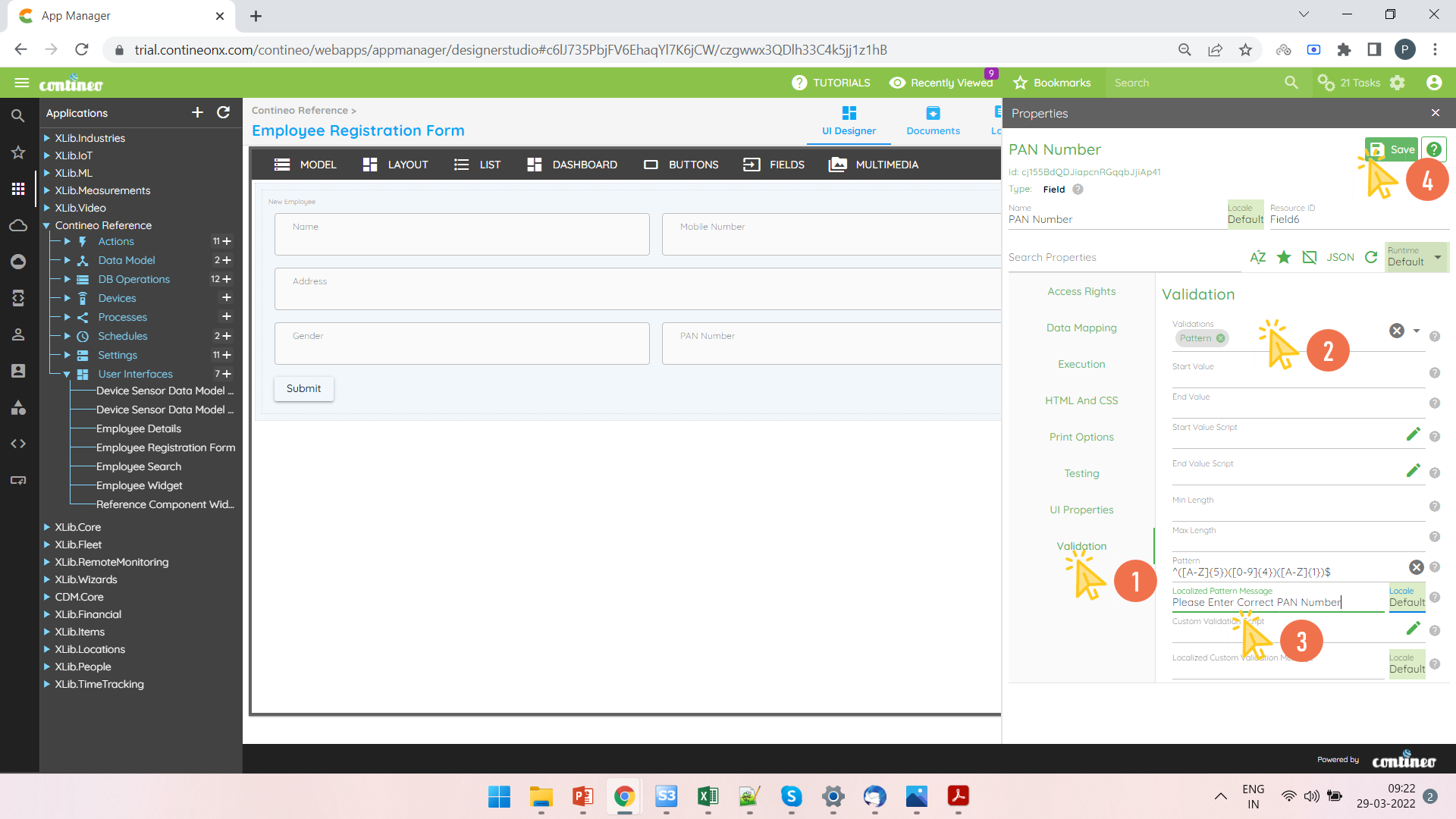
Example 3: Employee PAN Number should follow a specific pattern in the Employee Registration form
Steps:
Open the UI Widget.
Right-click the Employee PAN Number field and open the Properties Panel.
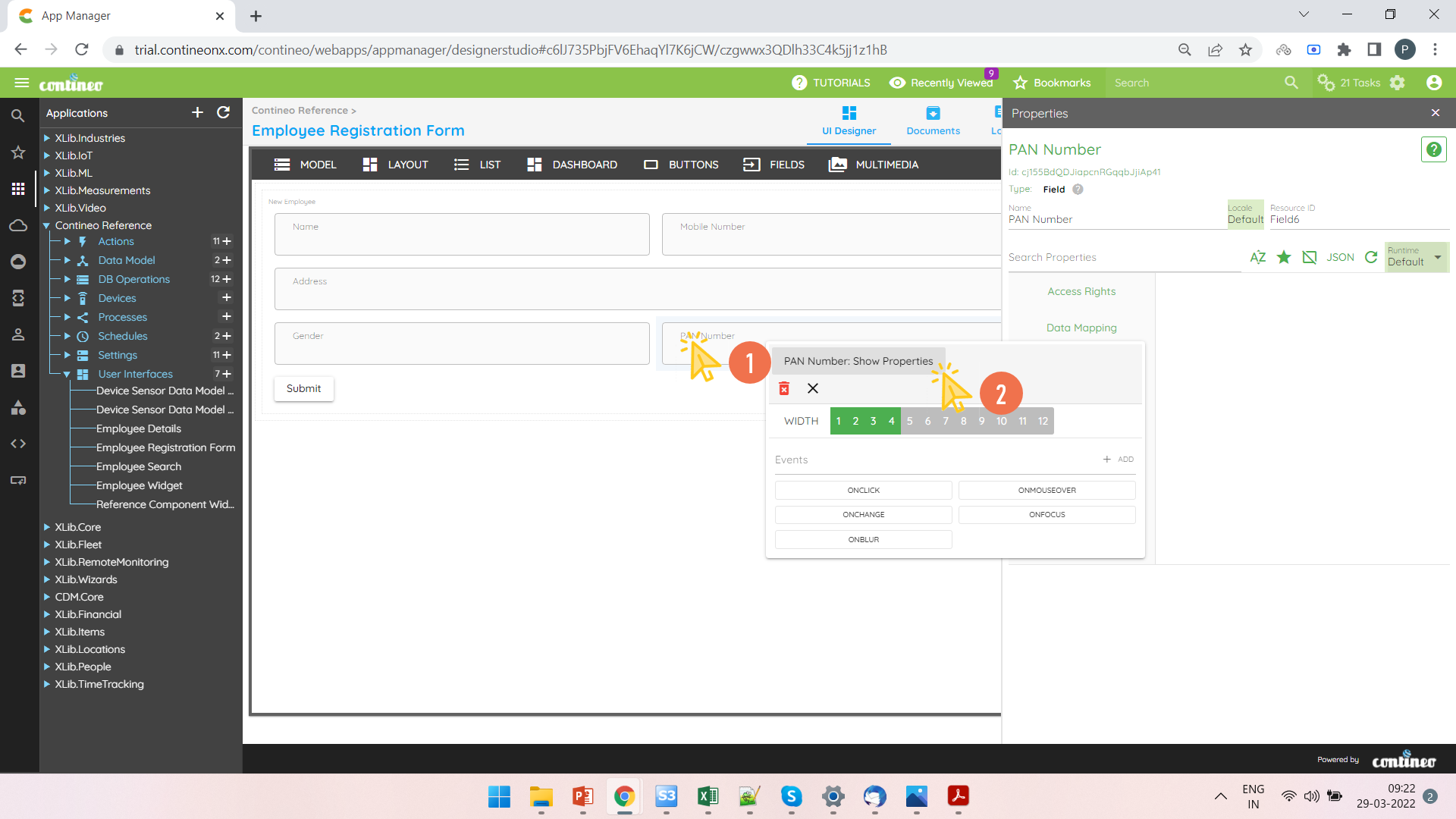
Select Pattern validation under Validation > Validations. Specify the regex pattern under Validation > Pattern.
Click SAVE.