Pipeline Builder Overview
Pipeline Designer is a drag-and-drop tool that helps you build automated workflows with low code. You can simply connect different blocks to create a step-by-step process that handles your process system. It turns complex tasks into visual diagrams that are easy to understand and modify.
Accessing the Pipeline Builder
To access the Pipeline Builder interface:
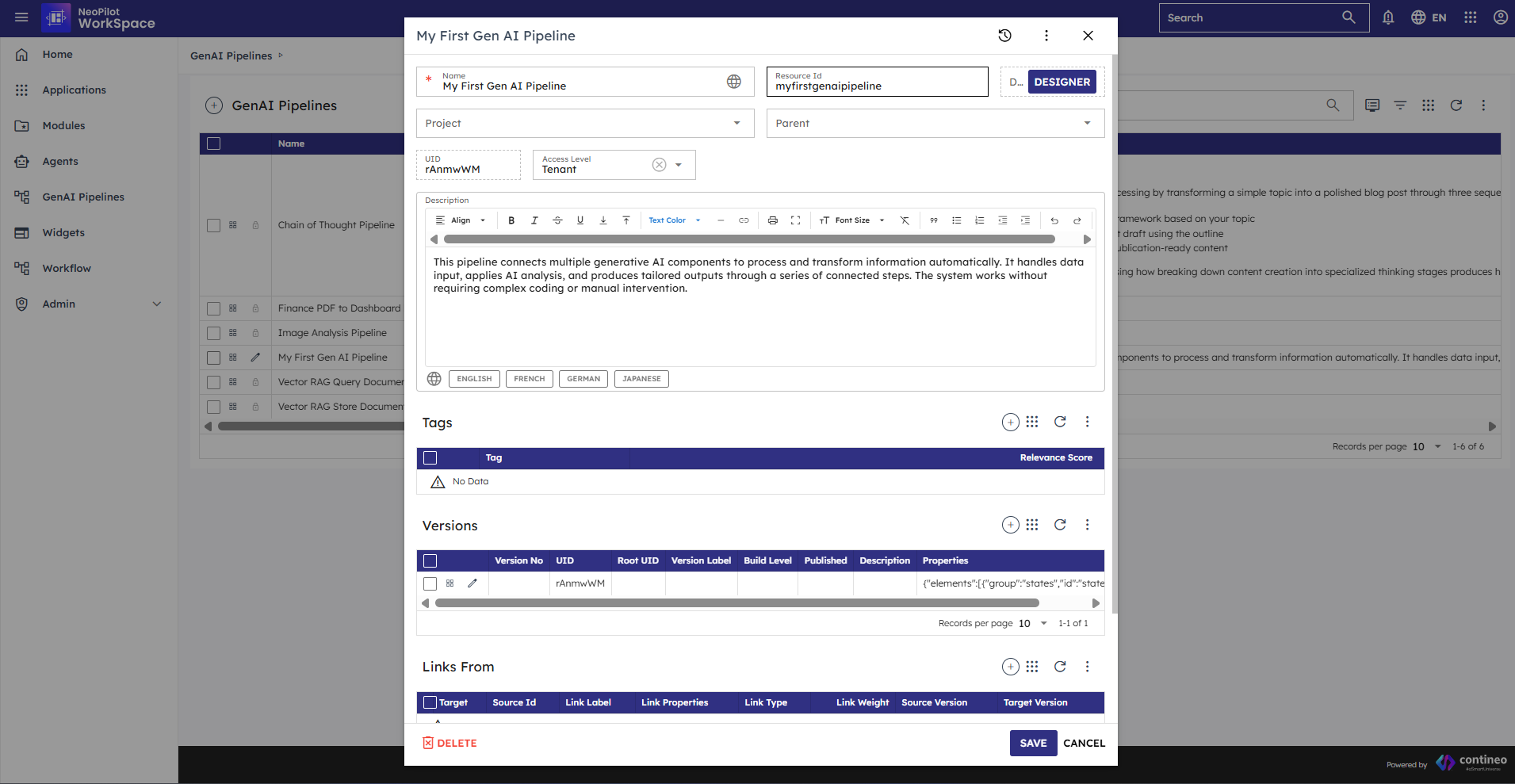
Create a pipeline or select an existing one from the GenAI Pipelines section.
Click DESIGNER in the top-right corner of the pipeline details page.
The Pipeline Builder interface opens, showing the canvas and components panel.
Pipeline Builder Interface
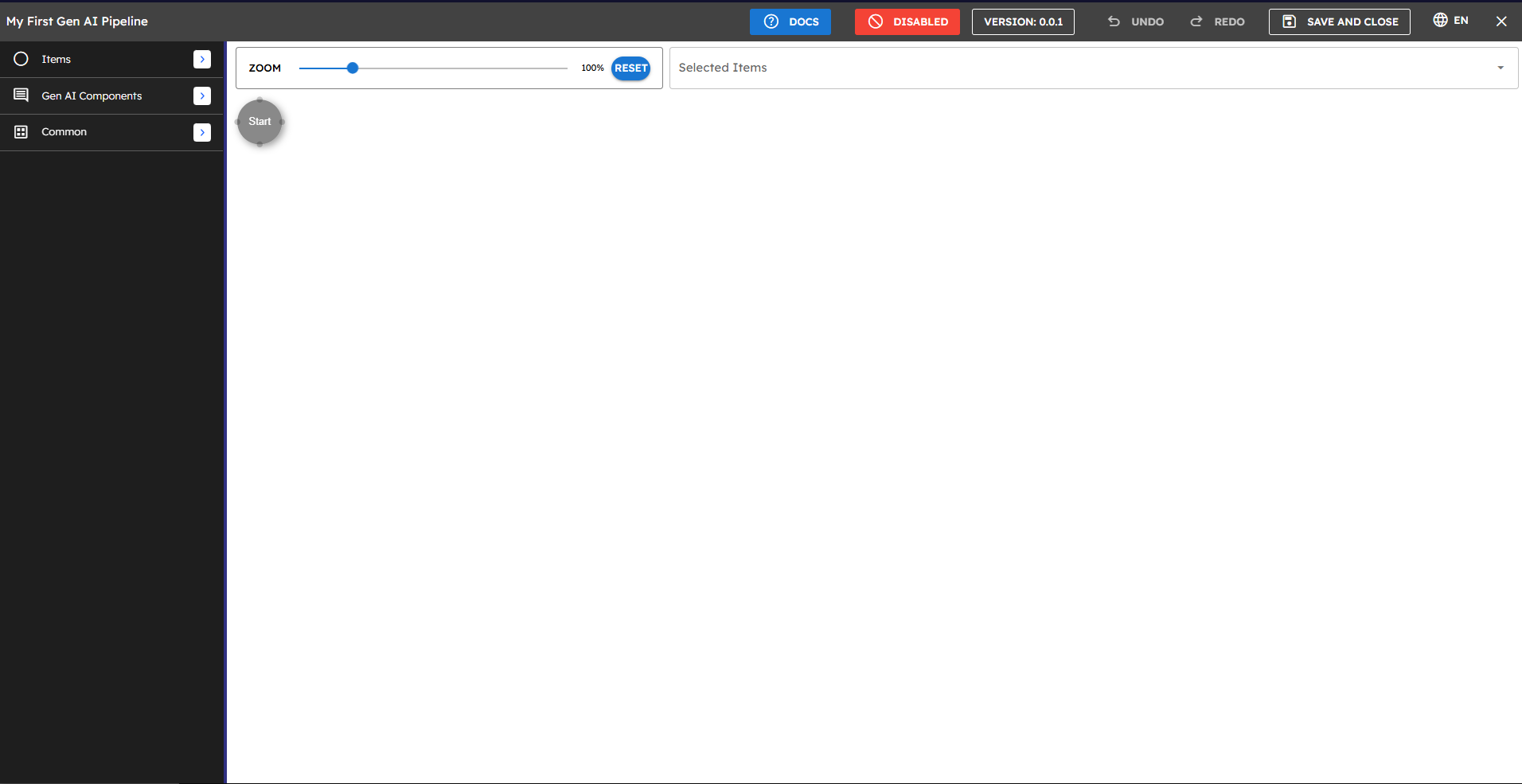
The Pipeline Builder interface is divided into several key areas, each serving a specific purpose in the pipeline creation process:
Left Panel (Component Library): Contains all available GenAI Components organized by category. This panel displays options like Items, Gen AI Components, and Common with expandable menus. You can browse through available components and drag them onto the canvas.
Main Canvas: The central workspace where you build your pipeline flow. This is where you place components and create connections between them. The canvas starts with the Start node and provides ample space for designing complex workflows.
Properties Panel: Appears on the right side when you select a component, allowing you to configure its specific settings. This panel adapts based on the type of component selected.
Zoom Controls: Located at the top of the canvas, allowing you to adjust the view of your pipeline for easier navigation of complex workflows.
Selected Items Panel: Shows details about currently selected components and allows for batch operations.
Toolbar Features
The toolbar at the top of the Pipeline Builder interface includes several important controls that help you manage your pipeline:
DOCS: Access comprehensive documentation for the Pipeline Builder and its components.
DISABLED/ENABLED Toggle: Controls the pipeline's visibility and availability in the GenAI Pipelines section. When set to DISABLED, the pipeline is not visible or accessible in the GenAI Pipelines listing. When ENABLED, the pipeline is fully operational and listed.
VERSION: Displays the current version number of your pipeline (such as "VERSION: 0.0.1"), helping you track changes over time.
UNDO/REDO Buttons: This allows you to reverse or reapply recent actions in the pipeline editor, providing flexibility while designing your workflow.
SAVE AND CLOSE: Saves all changes made to your pipeline and returns you to the pipeline listing screen.
Language Selector (EN): This lets you change the interface language to your preferred option.
Close Button (X): Closes the Pipeline Builder, prompting you to save changes if needed.
The ZOOM control lets you adjust the canvas zoom level with a slider or reset to 100% view, making it easier to work with both simple and complex pipelines.
Troubleshooting
Issue | Possible Cause | Solution |
|---|---|---|
Pipeline not visible in GenAI Pipelines | Pipeline is disabled | Click DISABLED in the toolbar to toggle it to ENABLED. |
Changes not saved | Exited without saving | Always use the SAVE AND CLOSE to preserve your work. |
Canvas view too zoomed in/out | Zoom level not optimal | Use the zoom slider or RESET button to adjust the canvas view. |
Basic Pipeline Structure
A pipeline in the Pipeline Builder consists of:
Start Node: Where execution begins - this is automatically placed on the canvas when you create a new pipeline.
Components: The building blocks that process data, such as GenAI components and workflow controls.
Connections: Lines showing how data flows between components, creating the logic flow of your pipeline.
Input and output mapping: Configuration that defines how data moves between components and how results are processed.