Chat With Attachment Response
The Chat With Attachments Response component enables conversational interactions that incorporate file attachments alongside text inputs. This advanced chat component extends beyond standard text-only exchanges by allowing users to upload and reference documents, PDFs, and other files during conversations.
Users can:
Configure an LLM provider
Define system prompts
Specify topics
Provide context
Set word limits for both chat history and attachment content
Additional settings allow you to:
Control attachment size limits
Define allowed tools for processing different file types
This component is ideal for:
Document analysis
Technical support with file sharing
Content-specific discussions where document-based information is essential
Overview
The Chat With Attachments Response component enhances conversational interfaces by allowing users to include file attachments alongside their text inputs.
This powerful component enables LLMs to analyze, reference, and incorporate information from attached text documents or PDFs while maintaining a natural conversational flow. It's designed for scenarios where users need to share specific files to provide context or ask questions about their content.
Key Terms
Term | Definition |
|---|---|
LLM Provider | The service that provides Large Language Model capabilities (e.g., OpenAI GPT, Claude, Gemini, Llama). |
System Prompt | Instructions that set the behavior, constraints, and personality of the AI assistant. Can include variables from pipeline data. |
Attachments | Files uploaded by the user during the conversation (e.g., PDF documents, code files). |
Context | Additional information provided to the LLM to help it generate accurate responses. |
Chat History | Record of previous exchanges between the user and the AI assistant. |
Attachment Summary | Condensed version of the attachment content to manage token usage. |
MCP Tools | Additional capabilities enabled for the LLM to process attachments and data. |
When to Use
Use Case | Description |
|---|---|
Document Q&A | When users need to ask specific questions about uploaded documents. |
Technical Support | When users need to share error logs or configuration files during support. |
Content Analysis | When users want AI-assisted analysis of data files, reports, or research papers. |
Educational Assistance | When students upload assignments or materials for review or explanation. |
Collaborative Workflows | When multiple users discuss and analyze shared documents in a chat format. |
Multi-document Comparison | When users need to compare information across multiple uploaded documents. |
Component Configuration
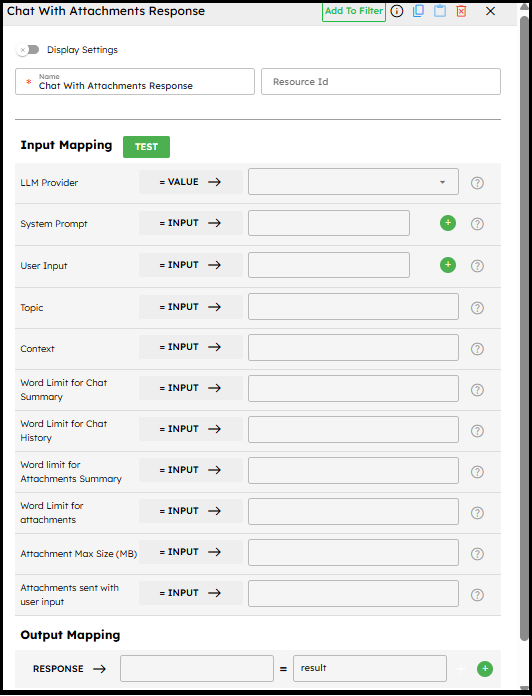
Required Inputs
Input | Description | Data Type | Example |
|---|---|---|---|
LLM Provider | Select the LLM provider that supports file attachments (e.g., GPT-4 Vision, Claude 3, Gemini Pro Vision). | LLMProvider |
|
User Input | The user's message sent to the LLM (e.g., questions or instructions about the attached files). | Text |
|
Topic | A meaningful description of the conversation’s intent or subject. | Text |
|
How It Works
File Attachment Processing
Uploaded documents are validated against size limits and supported formats.
Content is extracted for analysis.
Textual content (e.g., PDFs, text files) is prioritized.
Summarization is applied to manage word limits.
Conversation Flow
User input + attachment info are sent to the LLM.
System prompt instructs the LLM on how to handle attachments.
Responses reference and incorporate attachment data.
Chat history + context are maintained across turns.
Tool Integration
If an MCP Server URL is provided, the LLM can use tools defined in
allowed_tools.Tools (e.g., summarizer, analyzer) must exist on the MCP server.
Tool results are integrated into LLM responses.
Example Use Case: Resume and Cover Letter Review
Scenario:
A user wants AI-assisted feedback on their resume and cover letter before applying for a job.
Configuration:
LLM Provider: Anthropic Claude-4-Sonnet
System Prompt:
"You are a professional career advisor specializing in resume and cover letter optimization.
Provide constructive feedback focusing on overall impression, content strength, structure, tone, and improvement suggestions."
Topic: Job Application Review
Word Limit for Attachments: 2000
Word Limit for Attachment Summary: 500
Allowed Tools:
["file_reader", "document_analyzer"]
Conversation Flow Example:
First Interaction:
User: "I've attached my resume and cover letter. Could you review them?"
Attachments: \[resume.pdf, cover\_letter.txt]

AI: Provides detailed resume and cover letter feedback, including improvements.

Second Interaction:
User: "Thanks! Could you suggest a professional summary for my resume?"
Attachments: \[]

AI: Suggests a tailored professional summary highlighting skills, experience, and achievements.
Best Practices
Optimize document handling: Set appropriate word limits.
Craft detailed system prompts: Be explicit about analysis expectations.
Use clear document formats: Well-formatted PDFs/text files yield better results.
Manage token usage: Balance comprehensiveness with efficiency.
Guide users: Inform them about supported formats, size limits, and referencing.
Test with real documents: Validate performance with diverse samples.
Enable relevant tools: Ensure MCP server configuration matches required tools.
Troubleshooting
Issue | Possible Cause | Solution |
|---|---|---|
File not processed | Unsupported format or size exceeded | Verify format, size, or convert file. |
LLM not referencing content | Word limits too strict or poor prompt | Increase word limits, refine system prompt. |
Content not analyzed | Poor document formatting | Use cleaner, structured documents. |
Response timeout | Too many or too large attachments | Reduce size/number, adjust word limits. |
Inconsistent tool usage | MCP server misconfigured or missing tools | Check MCP server and ensure tools are available. |
Limitations and Considerations
Limitation / Consideration | Description |
|---|---|
File Format Support | Works best with PDFs and text-based files. |
Token Usage | Processing attachments consumes more tokens, impacting cost/speed. |
Content Extraction | Results depend on document structure/formatting quality. |
Privacy | Files are processed by third-party LLM providers — review security needs. |
Tool Availability | Tools must exist on the MCP server and need a valid URL. |
Context Window | Large/multiple attachments may exceed the LLM’s context window. |
MCP Server Requirements | Proper server setup is required for extended functionality. |