Check Condition
The Check Condition component evaluates a specified condition and determines the pipeline flow based on the result. Users can define a condition by specifying a field, selecting a condition type such as EQUALS or NOT_NULL, and optionally providing a value for comparison. Additionally, custom code can be used for more advanced condition checks. When the condition is evaluated, the pipeline proceeds according to true or false path logic.
How to use

Overview
The Check Condition component evaluates a specified condition and directs the Pipeline Builder flow based on the result of that evaluation. It acts as a decision point in your pipeline, allowing you to create conditional logic paths.
This component is exclusively used when pipelines require branching or conditional routing based on dynamic criteria, enabling different processing paths depending on the evaluation result. The component can access file paths, session data, request parameters, or any pipeline context to perform condition checks such as file format validation, data value comparisons, content analysis results, or complex business rule evaluations. It serves as the decision-making component that determines which branch of the pipeline should execute next, making it essential for scenarios such as separating image files from documents, validating data quality before processing, checking API response statuses, or implementing multi-criteria decision trees.
Note:
Unlike other components, this strictly returns boolean values (True/False) and should only be used when conditional flow control is explicitly required, not for general data processing or transformation.
Key Terms
Term |
Definition |
|---|---|
Condition |
A logical expression that evaluates to true or false. |
Conditional Branching |
The process of directing pipeline flow based on condition results. |
Custom Function |
User-defined Python code that performs custom condition evaluation. |
When to Use
Use when you need to create different processing paths based on data values.
Ideal for validating input data before proceeding with further processing.
Helpful when you need to handle error cases or exceptions separately.
Use when implementing business rules that require logical decision-making.
Component Interface
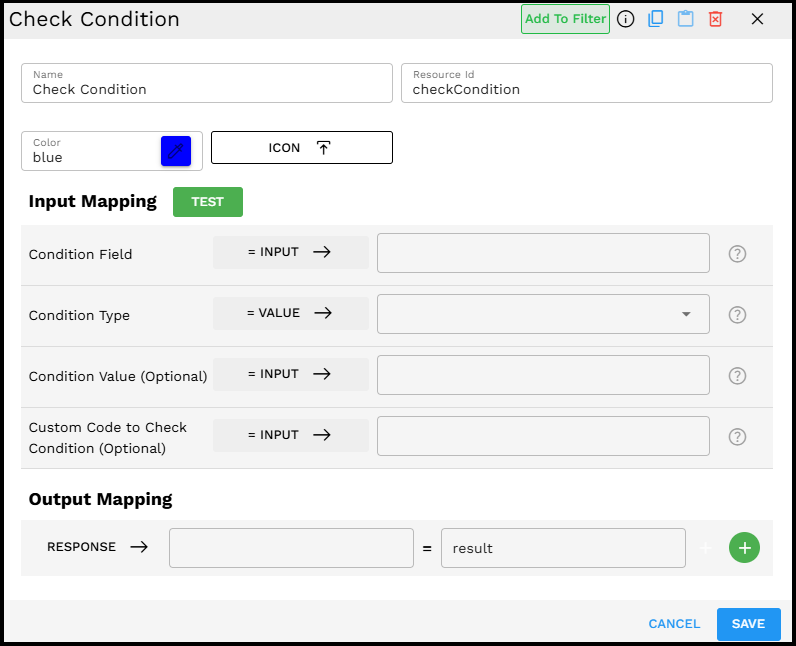
Component Configuration
Required Inputs
Input |
Description |
Data Type |
Example |
|---|---|---|---|
Condition Field |
Specifies the field from the input data for which the condition is to be checked |
Text |
|
Condition Type |
Defines the type of condition to evaluate (for example, EQUALS, NOT_NULL) |
Enum |
|
Optional Inputs
Input |
Description |
Data Type |
Example |
|---|---|---|---|
Condition Value |
The value to compare against when using condition types like EQUALS, and GREATER_THAN. |
Text |
|
Custom Code to Check Condition |
Python code that performs custom condition evaluation for complex scenarios. |
Text (Python) |
|
Condition Types
Condition Type |
Description |
Requires Value |
|---|---|---|
NOT_NULL |
Check if the field value is not null. |
No |
NOT_EMPTY |
Check if the field value is not empty (not null, undefined, empty string, empty array). |
No |
EQUALS |
Check if the field value equals the specified condition value. |
Yes |
NOT_EQUALS |
Check if the field value does not equal the specified condition value. |
Yes |
GREATER_THAN |
Check if the field value is greater than the specified condition value. |
Yes |
SMALLER_THAN |
Check if the field value is smaller than the specified condition value. |
Yes |
Output Paths
Path |
Description |
Color |
|---|---|---|
On Success |
This path is followed when the component completes its evaluation (regardless of the condition result). |
Green |
If True |
This path is followed when the evaluated condition returns true. |
Red |
If False |
This path is followed when the evaluated condition returns false. |
Blue |
How It Works
The component extracts the value of the specified field from the input data.
It evaluates the condition based on the selected condition type and value.
If custom function code is provided, it executes this Python code instead of using the built-in condition types.
Based on the evaluation result (true or false), the pipeline flow continues along the corresponding path.
The On Success path is always triggered regardless of the condition result, indicating that the component completed its evaluation.
Example Use Case
Scenario: Age verification in a user registration pipeline
Configuration:
Condition Field: user.age
Condition Type: GREATER_THAN
Condition Value: 18
Process:
When executed, the component extracts the age value from the user data.
It evaluates whether the age is greater than 18.
If user.age > 18, the pipeline follows the "If True" path, which might lead to a successful registration component.
If user.age ≤ 18, the pipeline follows the "If False" path, which might lead to an age restriction notification component.
The "On Success" path would confirm that the age verification check was completed successfully.
Advanced Example: Using Custom Code
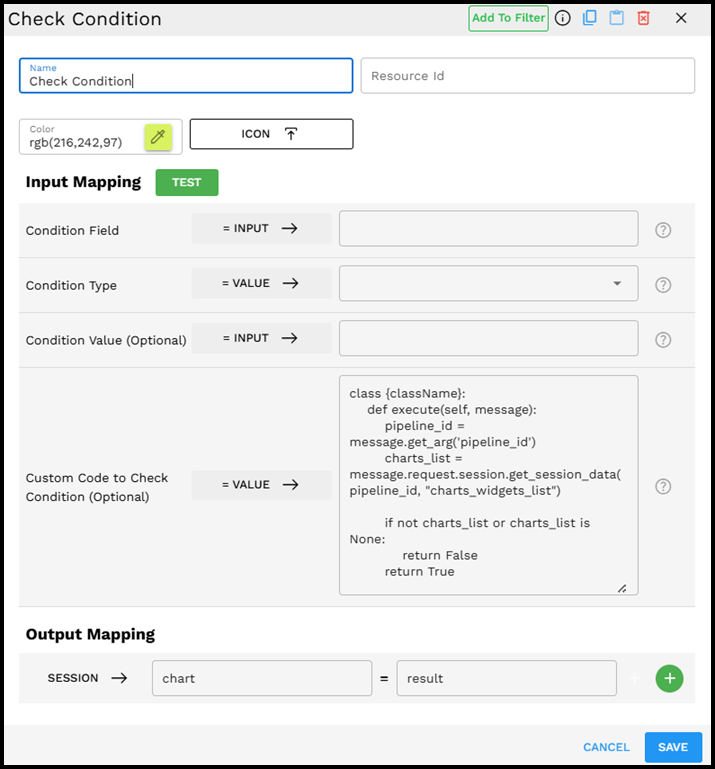
Scenario: Checking if charts exist in the session data
Configuration:
Custom Code to Check Condition:
class {className}:
defexecute(self, message):
pipeline_id = message.get_arg('pipeline_id')
charts_list = message.request.session.get_session_data(
pipeline_id, "charts_widgets_list")
ifnot charts_list or charts_list isNone:
returnFalsereturnTrue
Process:
The component executes the custom Python class with the input message.
The code retrieves the pipeline_ID from the message arguments.
It then attempts to get the charts_widgets_list from the session data.
If charts_list does not exist or is None, the function returns False and the pipeline follows the "If False" path.
Otherwise, it returns True and the pipeline follows the "If True" path.
Best Practices
Use descriptive names for your Check Condition components to indicate what is being evaluated.
For complex conditions, use the custom Python code option instead of trying to chain multiple Check Condition components.
Include error handling in your custom Python classes to prevent pipeline failures.
When comparing string values, be mindful of case sensitivity in your conditions.
Use the "On Success" path for logging or monitoring purposes, especially in complex pipelines.
Troubleshooting
Issue |
Possible Cause |
Solution |
|---|---|---|
Condition always evaluates to false |
Incorrect field path or the field does not exist in the input data. |
Verify the field path and check the input data structure to ensure the field exists |
Type mismatch in comparison |
Comparing different data types (such as string vs. number) |
Ensure the condition value matches the expected data type of the field, or use type conversion in custom Python code. |
Custom function errors |
Syntax errors or runtime exceptions in the Python custom code. |
Test your Python class separately, add error handling, and check for None values. |
Unexpected condition results |
Edge cases in data or complex logical errors. |
Add logging to trace the actual values being evaluated and check for edge cases. |
Limitations and Consideration
Type Conversion - The component does not automatically handle type conversion. Ensure that your condition value matches the expected type of the field.
Complex Objects - When working with nested objects or dictionaries, use appropriate Python notation in the condition field to access nested properties. For very complex structures, consider using custom Python code.
Performance Impact - Complex custom Python classes may impact pipeline performance. Keep your code efficient for production pipelines.
Error Handling - If the specified field does not exist, the component typically evaluates the condition as false. Add explicit error handling in critical workflows.
Integration with Other Components
The Check Condition component works well with:
Data Transformation components - To prepare data before condition evaluation.
API Request components - To make different API calls based on condition results.
Notification components - To send different notifications based on condition results.
Loop components - To implement conditional looping logic.
Sample Pipeline Flow
The following example shows how the Check Condition component can be used in a Loop flow in the Pipeline Builder:
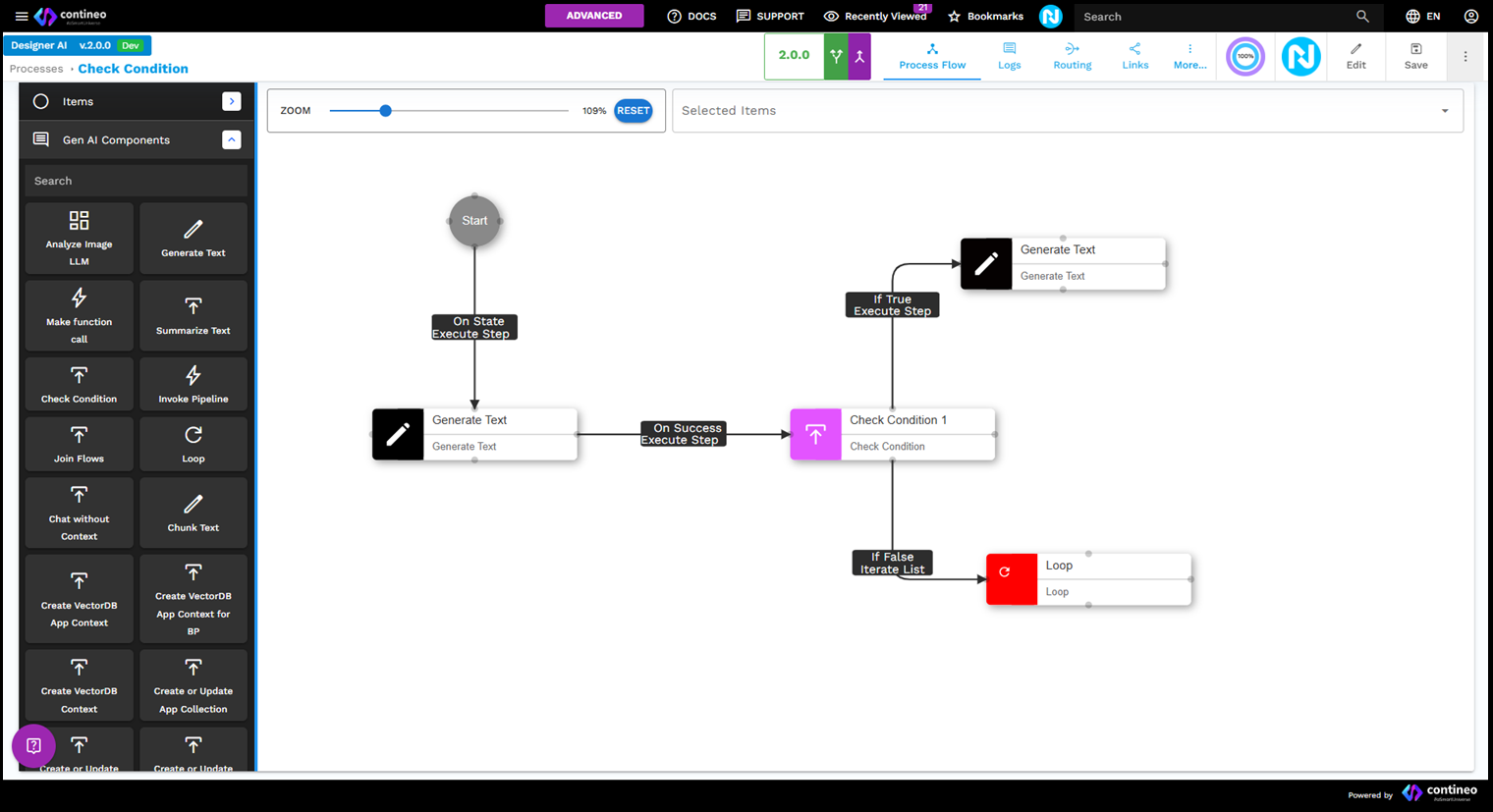
In this example:
The Check Condition component evaluates a condition after a Generate Text step.
If the condition is False, the flow continues to a Loop component for iterative processing.
If the condition is True, the flow continues to another Generate Text component.
This pattern demonstrates how Check Condition can be used to create branching logic in your pipeline.