Create VectorDB Context
The Create VectorDB Context component generates a context for LLM requests using a Vector Database. It allows you to specify a database provider and a unique collection ID to manage stored data efficiently. By applying filters and query texts, the component retrieves relevant context records, such as sentences or paragraphs, ensuring precise data extraction. Users can also define the number of records to return and select specific fields to be included in the context, optimizing the retrieval process for AI-driven applications.
Overview
The Create VectorDB Context component helps you retrieve the most relevant information from your vector database to use as the context in LLM requests. This is a key component in Retrieval Augmented Generation (RAG) systems, allowing your LLM to access and utilize external knowledge when generating responses.
When to Use This Component
Use the Create VectorDB Context component when you need to:
Retrieve specific, relevant information from a large dataset.
Provide contextual information to an LLM based on user queries.
Implement RAG functionality in your applications.
Create dynamic, knowledge-based responses that pull from your vector database.
Component Configuration
Required Inputs
Input | Description | Data Type | Example |
|---|---|---|---|
Collection ID | Enter the unique identifier of your vector database collection. This collection should contain the embedded data you want to search. | String |
|
Query Texts | Enter the text query that is used for the semantic search. This is typically the user's question or request. Supports multiple queries if needed. | String |
|
Number of Records | Specify how many relevant records should be returned. Enter a value between 1 and 100. The system returns the most semantically similar records to your query. | Integer |
|
Optional Inputs
Input | Description | Data Type | Example |
|---|---|---|---|
Filter by Column Values | Apply filters to narrow down search results. Must be provided in JSON format. | JSON |
|
Fields to be returned in context | Specify which columns from the vector database should be included in the returned context. Enter as an array of column names. If not specified, all fields are returned. | Array |
|
How It Works
The component takes your query text and converts it to a vector representation.
It searches your specified vector database collection for semantically similar content.
The search is filtered based on any column filters you've specified.
The top matching records (based on your "Number of Records" setting) are retrieved.
The specified fields from these records are returned as context.
This context can then be passed to an LLM for generating informed responses.
Example Use Case: UI Widget Selection
Suppose you have a collection of UI widget definitions in your vector database:
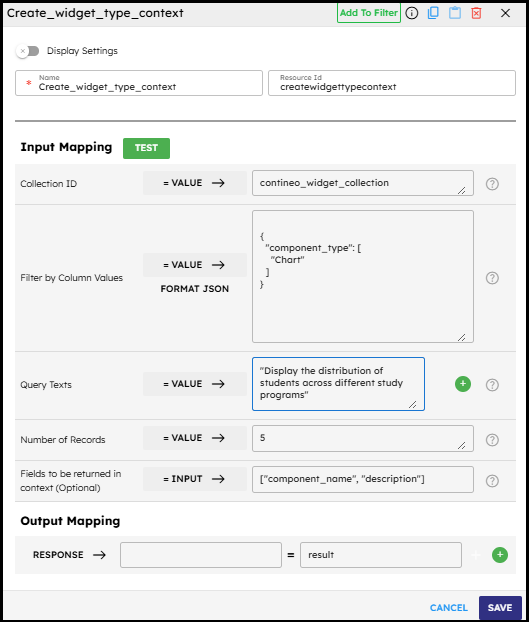
Set VectorDB Provider to "Milvus - default"
Enter your Collection ID, such as "contineo_widget_collection"
To filter for only chart widgets, add to Filter by Column Values:
{"component_type":["Chart"]}Set Query Texts to handle the user request, such as "Display the distribution of students across different study programs"
Set the Number of Records to 5 to get the top 5 most relevant widgets.
Specify Fields to be returned in context as
["component_name", "description"]
The component returns the most relevant chart widgets for displaying student distribution data, which can then be used by your LLM to recommend the appropriate visualization component.
Output Format
The output is a JSON array of objects containing the fields you specified. For example:
[{"description":"Pie Chart\nThe Pie Chart widget is a circular statistical graphic that divides data into slices to illustrate numerical proportions. It's ideal for displaying the composition of a whole or comparing parts of a total.","component_name":"cnx-pie-chart"},{"description":"A 'Bar Chart' widget uses rectangular bars to represent data values for different categories. The length of each bar is proportional to the value it represents.","component_name":"cnx-bar-chart"}]Tips for Best Results
Be specific in your query texts for more accurate results.
Use filters to narrow down results when you know the category information.
Experiment with the number of records - too few might miss the important context, and too many might include irrelevant information.
Select only the fields you need in context to keep the response focused.
Troubleshooting
If you are not getting relevant results, try rephrasing your query text.
Ensure your collection ID is correct and the collection contains the expected data.
Check your JSON syntax in the filter field if the filters are not working as expected.
Make sure your vector database provider is properly configured.