Data Loader - Auto Load Data
Configure UI to load data when the page is rendered.
This section explains the steps to
Configuring Data Loader.
Set up Data bean path.
Rendering data in a UI.
Part 1: Create UI
Open or Create a Custom Widget.
Drag and drop Section (Parent component).
Add child components (such as Field, Label) to the Section.
Part 2: Configure Action to fetch data
Action to fetch the data can be a DB Action, a JavaScript Action, or an Action to get data from a third-party application.
Depending on the Parent component type, the data fetched by the Action should be a JSON Object or a JSON Array:
If the Parent component supports repeating data or multiple data points (for example, Grid, Chart, Map), the Action should return a JSON array.
If the Parent component does not support repeating data (for example, Section), the Action should return a JSON object.
Although the following example refers to a DB Action, these steps are applicable to any Action.
Steps:
Click
<Application Name>> DB Operations > +.Give a unique name.
Select appropriate Action Type. In this example, select FindOne, since Section is selected as the Parent component.
Open the Properties Panel.
Enter a query to return a single row or multiple rows depending on the selected Action Type. In this case, the query should return a single row.
Select the Data Source.
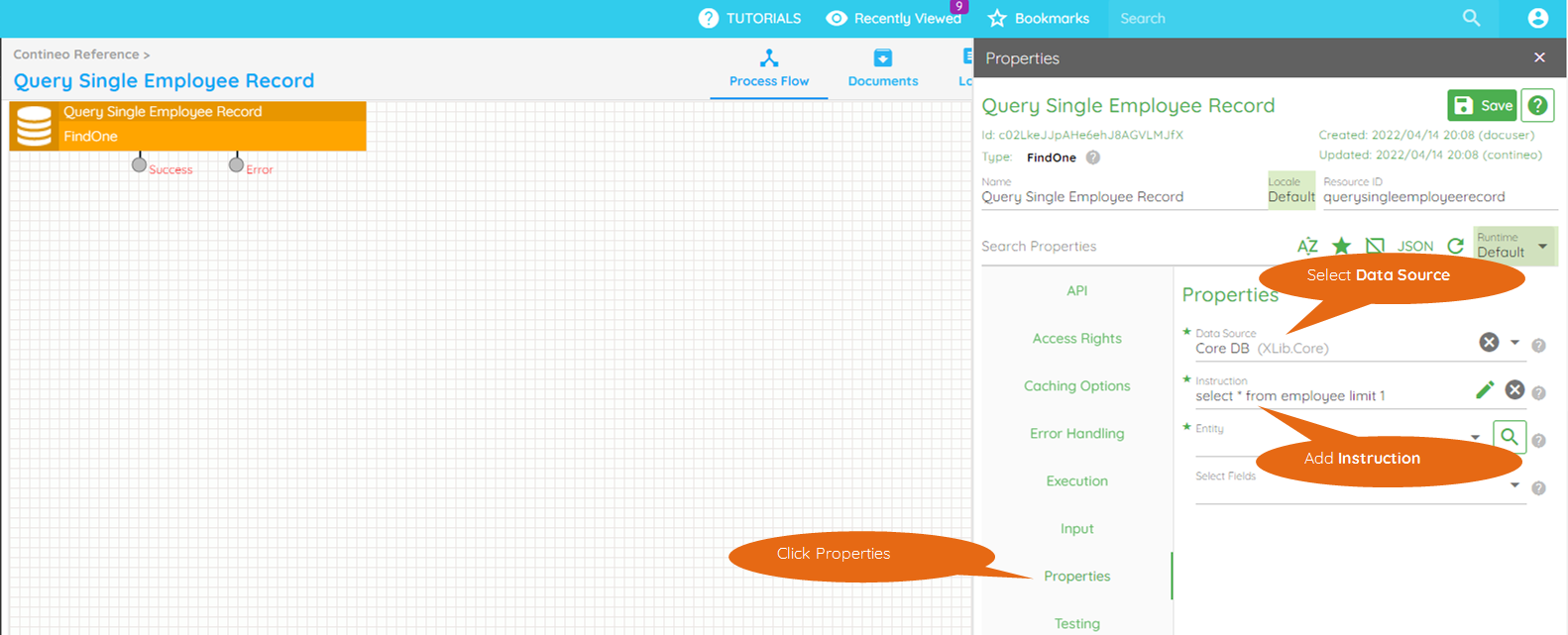
Part 3: This part describes how to add the Action to the UI
Steps:
Open the User Interface by expanding User Interfaces and selecting the page created in step 1.
Expand the item explorer (DB Operations or Actions) containing the data-fetching Action.
Click the Model tab in the User Interface.
Drag the Action into the Drag and drop items section.
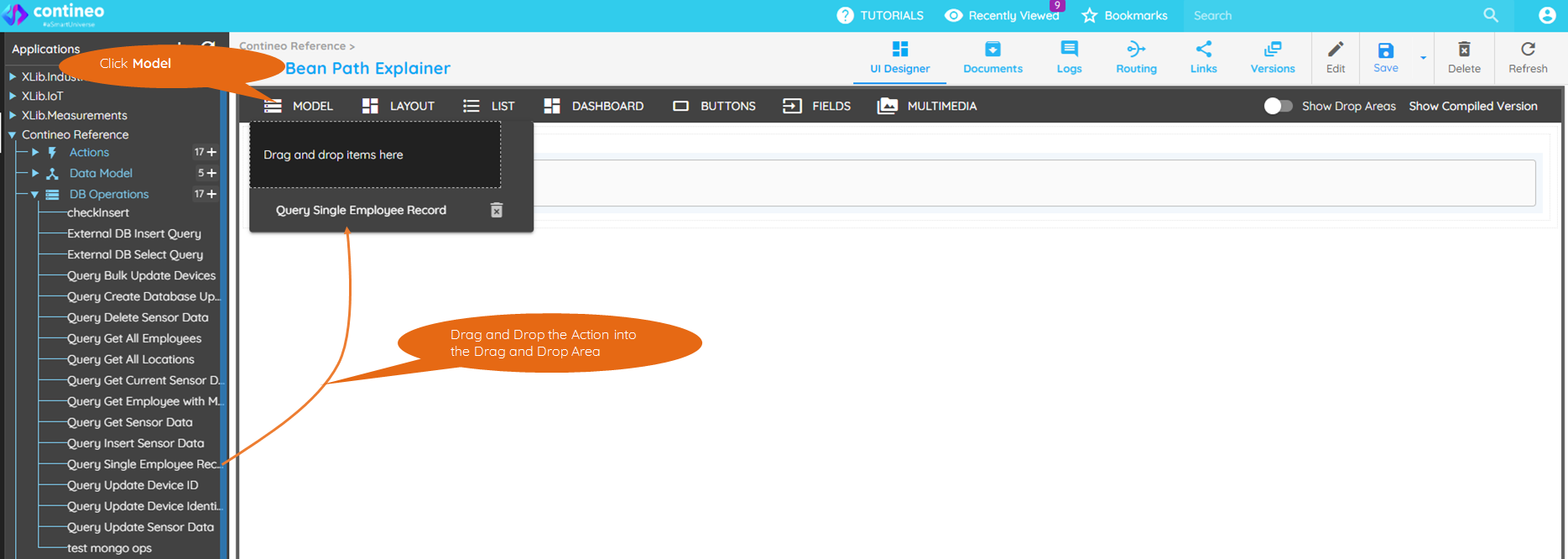
Part 4: Configure data loader
Actions dragged and dropped in "User Interface > Model" (Step 3) can be used as Data Loaders by UI components.
Steps:
Select the Parent Component (such as Section, Grid, Chart, Widget).
Click Data Mapping.
Select the Action from the Data Loader dropdown list. This dropdown lists all Actions dragged and dropped in Step 3.
Provide a unique name for the Data Bean Path.
Select Autoload Data checkbox. This loads the data whenever the page is rendered.
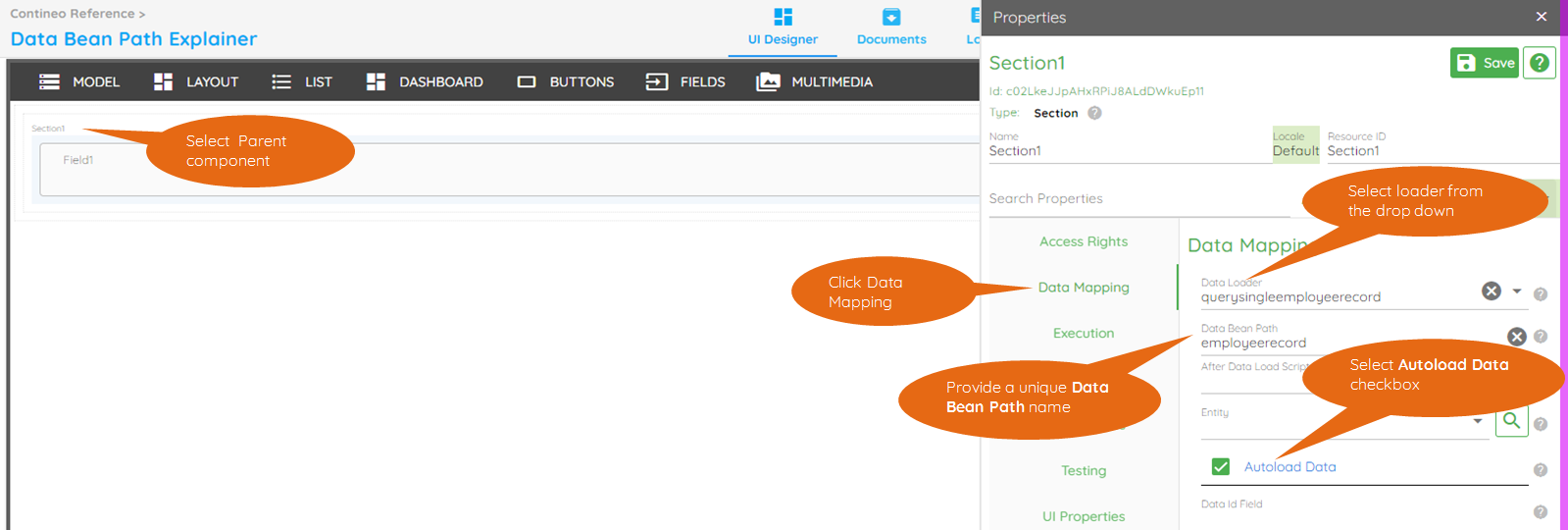
This step loads the data in the parent component when the page is loaded/refreshed. The loaded data can be consumed by the child components.
Part 5: Configure child components to render data
This part explains how the child components can access the data loaded by the parent component.
Previously, data is loaded for the parent component Section.
The data loaded must be either:
JSON Object
{"<key 1>":"<value 1>","<key 2>":"<value 2>",
  ...
}
OR
JSON Array
[{"<key 1>":"<value 1>","<key 2>":"<value 2>",
    ...
  },{"<key 1>":"<value 1>","<key 2>":"<value 2>",
    ...
  }]
The current example executes a FindOne query:
"select * from employee limit 1", which creates the JSON Object: {"id": <id>, "employeename": <employeename>, ...}
Child components render data by referring to the "key" elements in the JSON object or array.
Steps:
Select the child object such as the Text box.
Click Data Mapping.
Enter the name of the JSON key in the Field Name.
Repeat steps 1–3 for each child element.
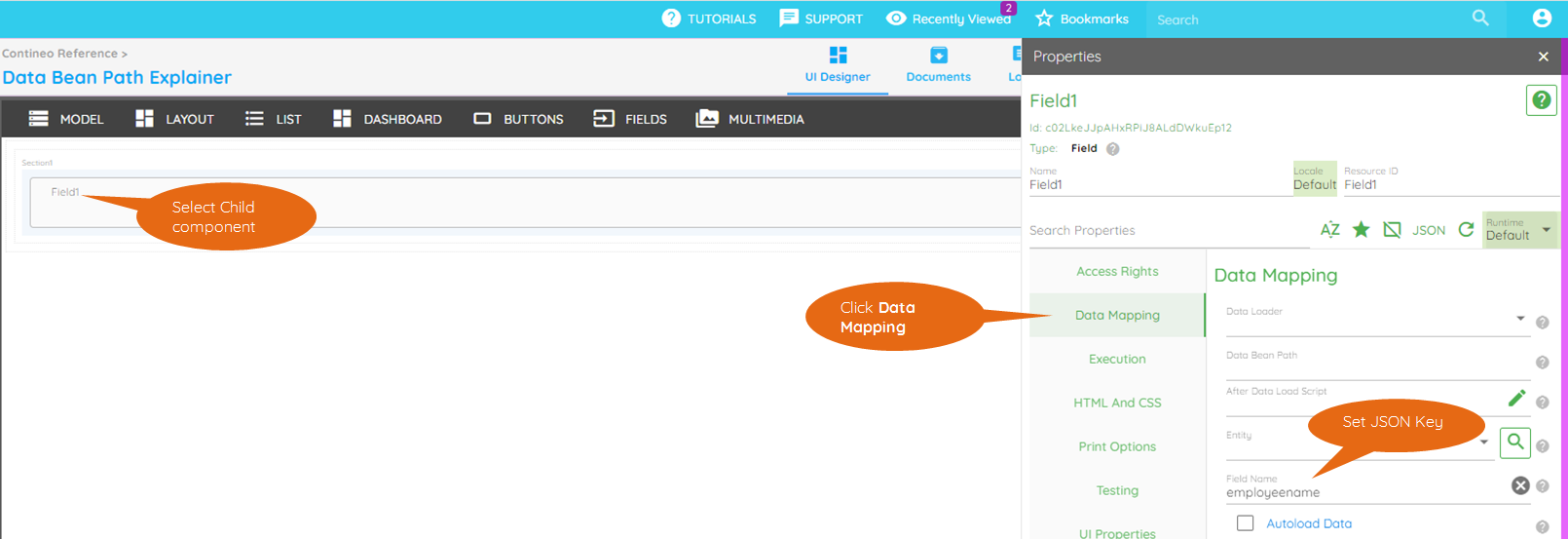
Part 6: Testing
Add the screen to a web module and launch the web module.