Dialog - Opening and Closing a Dialog Box
Learn how to create a dialog and open or close the dialog box.
Using Dialog Boxes
Use a dialog box when you want to enter some information or notify a warning or an error message.
Showing a Message
Define a method that shows a message in your application's custom UI script:
functionshowMessage(message, level, showCancel, onOkay) {app.showDialog({show: true,message: message,icon:"warning",showCancel: showCancel,okButtonText:"Ok",cancelButtonText:"Cancel",onOk: onOkay});}Call the method wherever you want to display the message:
var message = "Failed to perform the operation. Please try again. Error: " + response.result; showMessage(message, "Error", false, null);
Showing a Custom Dialog Box
Steps:
Create a Dialog widget
Select the screen where the dialog box should be added.
From the top menu in the UI designer, drag Layout > Dialog into the screen's drop area.
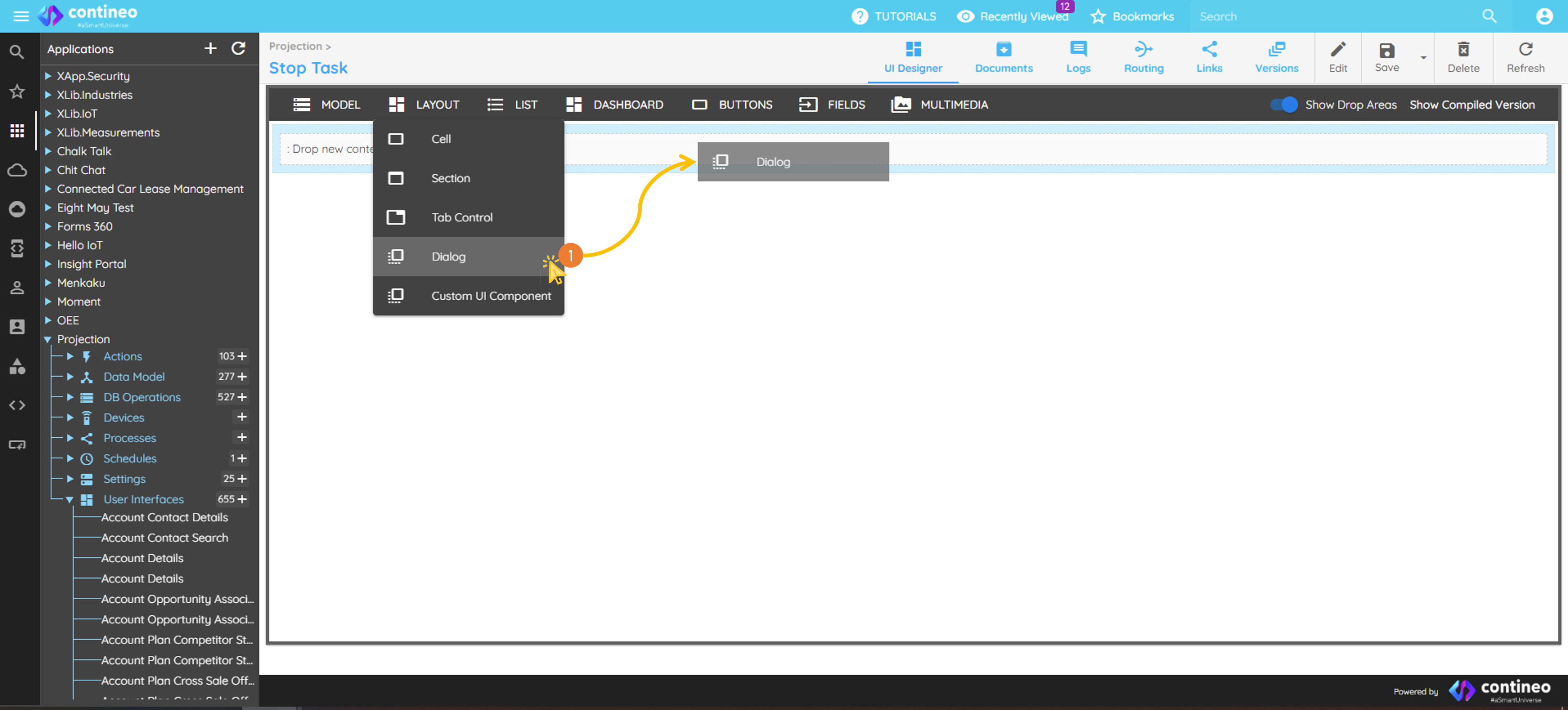
Assign a meaningful resource ID to the dialog box.
Opening the dialog box To open the dialog box on a button click or custom event handler:
// open the dialogopenDialog("stoptaskdialog");Closing the dialog box
// close the dialogcloseDialog("stoptaskdialog");
Showing a Pop-Up
Create a Popup section
Select the screen where the popup is to be added.
From the top menu in the UI designer, drag Layout > Section into the drop area.
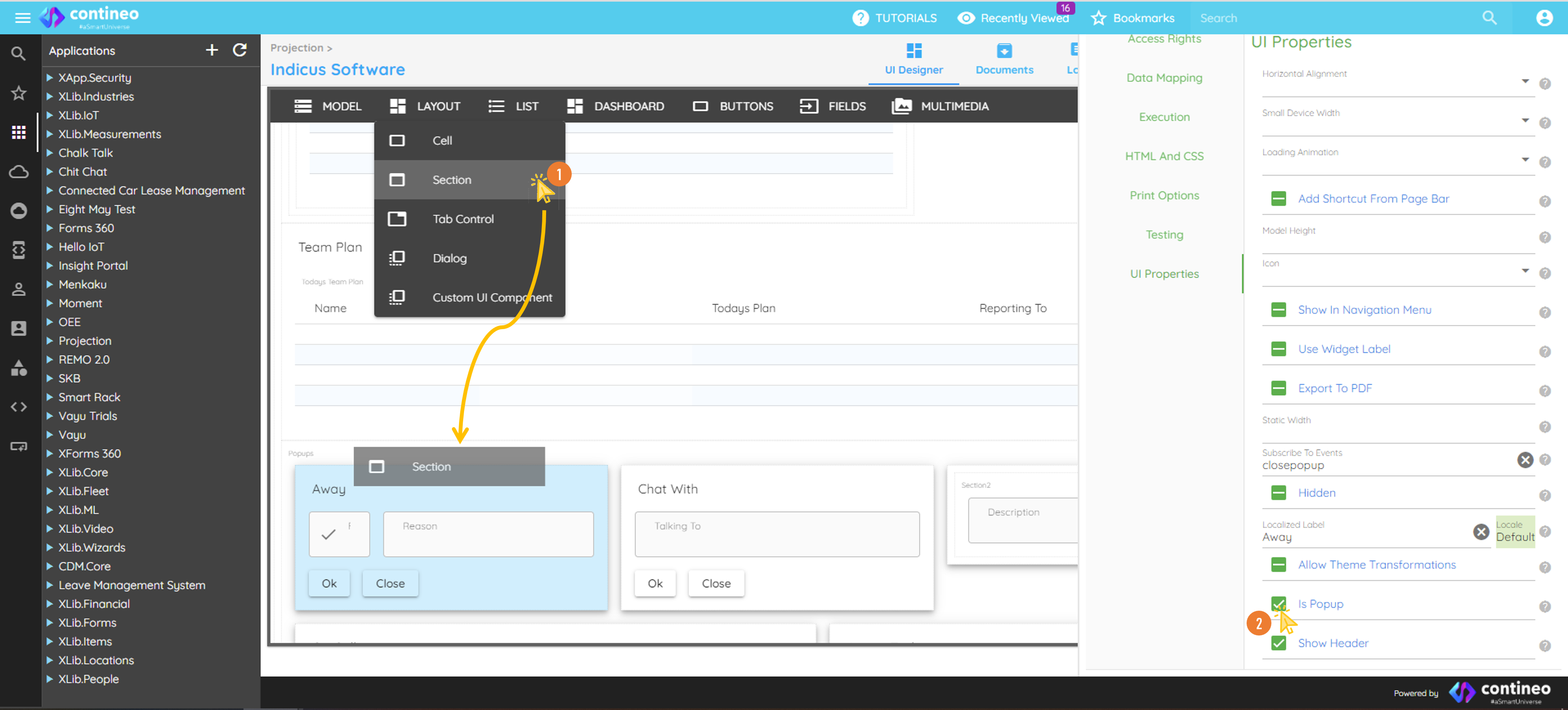
Enable popup behavior
Select the UI Properties > Is Popup checkbox.
Make the section conditionally visible
Add a custom visibility script in the section's property panel:
// show the popup when the awayClicked flag is truevar result = data.dashboarddata.awayClicked;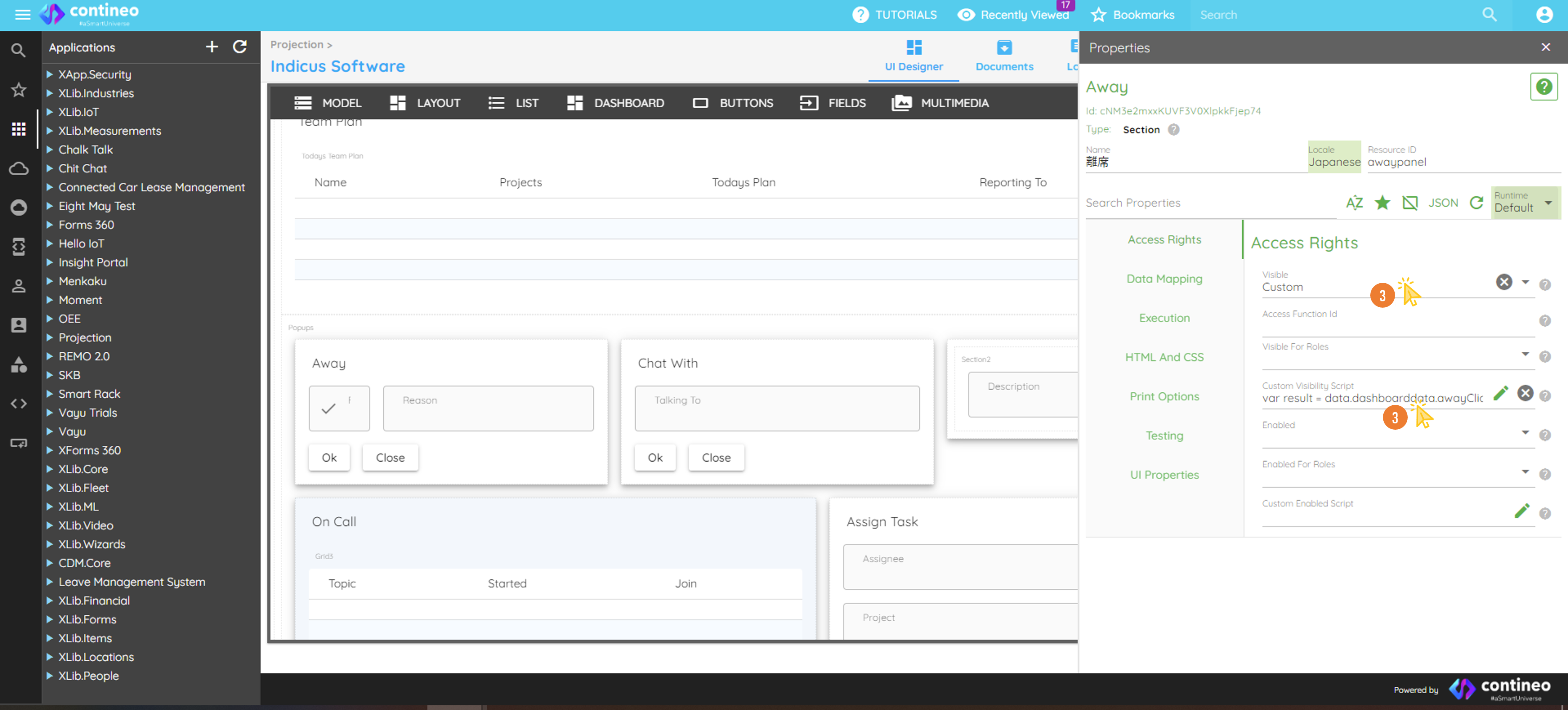
Set default visibility on load
In the Before Data Load Script of the main widget:
data.dashboarddata.awayClicked = false;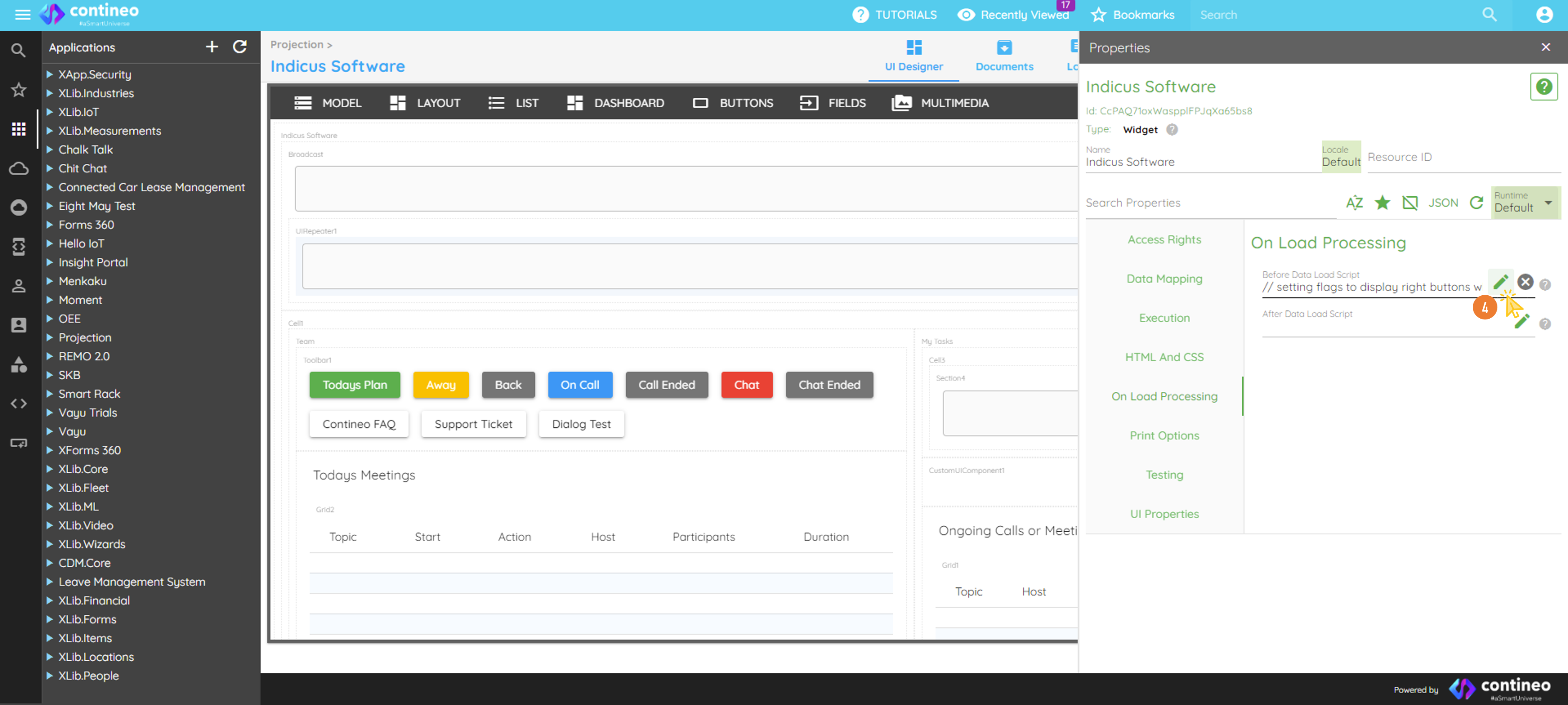
Note:
Initialize
data.dashboarddatabefore assigning:data.dashboarddata = utils.createMap();Assign
dashboarddataas the main Data Bean Path of the topmost widget.
Showing the popup
Set the flag and refresh the popup section:
// show the popup
    data.dashboarddata.awayClicked = true;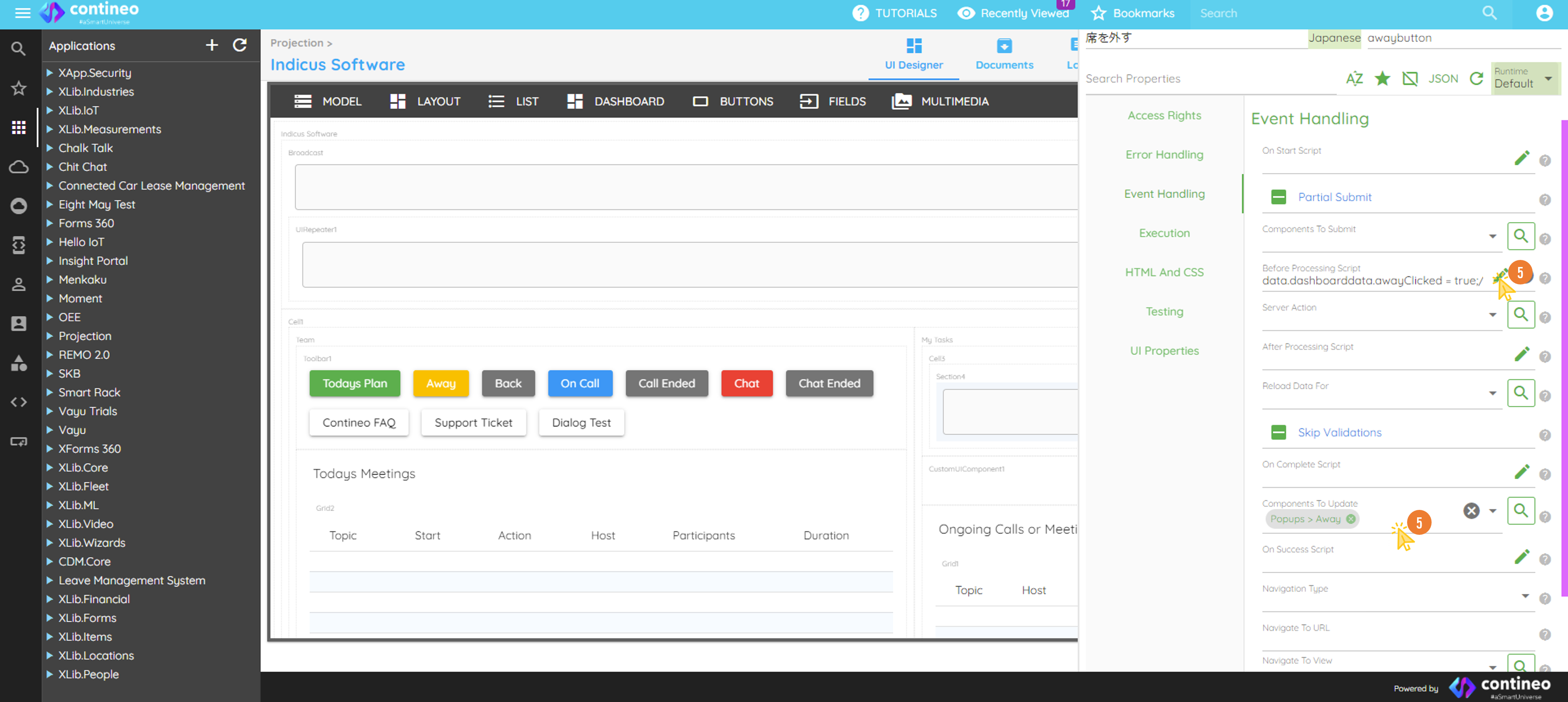
Alternatively, update using
updateModelItemState:updateModelItemState(data, "awaypopup", data.awaypopup, false);
Closing the popup
// close the popup
data.dashboarddata.awayClicked = false;