Download From S3
The Download From S3 component retrieves files from publicly accessible Amazon S3 URLs and saves them locally in your pipeline builder environment. It features sophisticated file type detection that automatically identifies file formats through multiple validation methods and saves files with appropriate extensions. The component supports a wide range of file types including documents, images, spreadsheets, presentations, and various data formats.
Overview
The Download From S3 component serves as the mandatory entry point for all document processing workflows since the framework exclusively accepts Amazon S3 URLs rather than direct file uploads. It validates file size against user-defined limits. By default, the limit is 10MB which can be configured up to maximum 100MB. The component generates unique timestamped filenames to prevent conflicts and returns both the local file path and detected file type. It is essential for initializing any document analysis, text extraction, image processing, or data analysis pipeline that requires access to files stored in S3.
How to use:

Key Terms
Term |
Definition |
|---|---|
S3 |
Amazon Simple Storage Service is a scalable object storage service offered by Amazon Web Services (AWS). |
S3 URL |
A Uniform Resource Locator that points to an object stored in an Amazon S3 bucket. |
file Type |
Multipurpose Internet Mail Extensions type, a standard that indicates the nature and format of a file. |
File Signature |
Also known as "magic numbers", these are specific byte patterns at the beginning of a file that identifies its type. |
When to Use
Use it when you need to download any document from S3 that is publicly available and then use the extract text component to extract the data and do your desired operations on that data.
Component Configuration
Required Inputs
Input |
Description |
Data Type |
Example |
|---|---|---|---|
S3 File URL |
The complete S3 URL of the file you want to download. This can be a direct S3 URL or a pre-signed URL with temporary access permissions. |
Text |
|
How It Works
The component validates the provided S3 File URL to ensure it is a valid S3 URL or signed URL.
It downloads the file content from the specified URL.
The component performs sophisticated file type detection using:
File signatures/magic numbers analysis.
Content structure examination.
Format-specific validation for ambiguous types.
The file is saved locally with an appropriate extension based on the detected file type.
A unique filename is generated using a timestamp and random identifier to prevent conflicts.
The component returns the local file path and the detected file type.
Supported File Types
The component supports a wide range of file formats, including:
Category |
Supported Formats |
|---|---|
Documents |
PDF, DOC, DOCX, RTF, ODT, TXT, MD |
Spreadsheets |
XLS, XLSX, XLSB, CSV, ODS |
Presentations |
PPT, PPTX, ODP |
Images |
JPEG, PNG, GIF, SVG, WEBP, TIFF |
Data Formats |
JSON, XML, YAML |
Archives |
ZIP, RAR, 7Z, GZ |
Web Formats |
HTML, CSS, JS |
Example Use Case
Scenario: Downloading a document from S3 for processing in a document analysis pipeline.
Configuration: S3 File URL: https://contineo-documentation.s3.ap-south-1.amazonaws.com/Images/Pipeline%20Builder/S3%20Download%20Demo%20Link.png
Process:
The component validates the S3 URL.
It downloads the file from the provided URL.
The component detects that it is a PNG image (file type: png)
A unique filename is generated with a .png extension.
The file is saved locally.
The file path and file type are returned.
Output Mapping:
Recommended mapping: Set
RESPONSE→file_path=result.file_pathto ensure proper integration with downstream componentsAlternative mapping: If you need both file path and file type, you can set
RESPONSE→file_path=result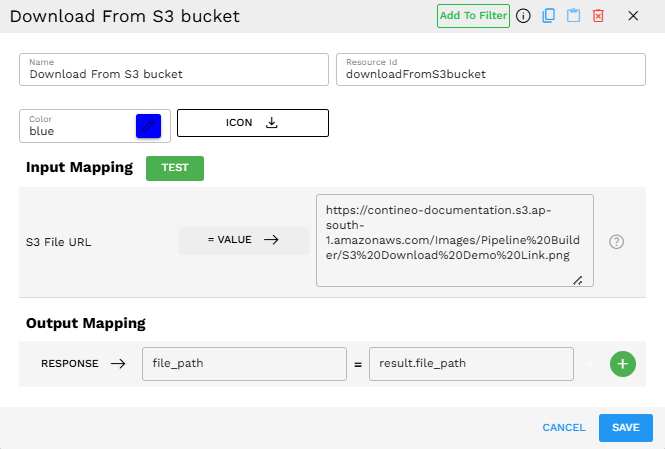
Output Format
The component returns a JSON object with the following properties:
{"file_path":"/opt/python_genai/GenAI-Pipeline/temp/download_20250404_145710_bbbd76dc.png","file_type":"png"}
There are two ways to map this output for downstream components:
Mapping Option |
Configuration |
Resulting Output |
Use Case |
|---|---|---|---|
File Path Only (Recommended) |
|
|
Preferred for most downstream components that only need the file location. |
Complete Response |
|
|
Use when you need both file path and file type information. |
Recommendation: For most use cases, we recommend mapping result.file_path as shown in the first option. The file type is primarily used internally for file type detection and is generally not needed by downstream components.
The component generates unique filenames using the pattern: download_[timestamp]_[random_id].[extension]
Best Practices
Ensure that the given link can be publicly accessed. This component does not use AWS credentials, so it only works with publicly available S3 URLs or pre-signed URLs with temporary access permissions.
Verify that the S3 URL is correct and accessible before configuring the component.
For large files, consider the storage capacity of your Pipeline Builder environment.
When working with sensitive data, ensure that the S3 bucket has appropriate security measures in place.
For most use cases, map the output as
result.file_pathfor use in downstream components.Only map the complete
resultobject if you specifically need the file type in addition to the file path.
Limitations and Considerations
File Size Limitations - Very large files may impact performance or exceed storage capacity.
Authentication - The component relies on pre-configured AWS credentials or signed URLs.
File Type Detection - While robust, file type detection may not identify all specialized or uncommon formats.
Storage Management - Downloaded files remain in the temporary storage until manually cleaned up or the environment is reset.
Network Dependency - The component requires internet access to connect to AWS S3 services.