Generate Text
The Generate Text component provides text responses from a Large Language Model (LLM) based on user-defined prompts. You can define what text the AI should generate through a prompt and provide input values for meaningful context. It processes these inputs and generates a smart response such as completing a sentence, answering a question, summarizing data, or creating content. It is helpful when you want to automate responses, generate content, or perform any task that requires natural language generation with advanced reasoning.
Skill Level
Understanding basic Prompt Engineering concepts is helpful. No Python or JavaScript knowledge is required.
How to use:

Overview
This component allows you to leverage the power of various LLM providers to analyze, transform, generate, and reason with textual data. It can classify content, extract insights, convert data formats, answer questions, generate reports, create code, and perform complex text transformations.
The component takes textual inputs from various sources, processes them through configurable AI prompts with specific system roles, and produces intelligent text outputs. Essential for any workflow requiring natural language understanding, content analysis, intelligent data transformation, or AI-driven decision making.
For any structured output requirement such as JSON, HTML, lists, or other specific formats, emphasize multiple times in prompts that output must be ONLY that structure with no markdown, no explanations, no additional text.
Include sample schemas/templates for consistency. LLMs tend to add explanatory text which can break downstream processing. For complex tasks, emphasize professional presentation, language consistency, and quality expectations. Include specific formatting requirements, error handling expectations, and performance standards appropriate to task complexity level.
Key Capabilities
Free-Form Text Generate natural, conversational prose for blogs, emails, dialogues, or summaries.
Structured Output Produce structured-readable formats—JSON objects, Markdown tables, bullet lists, CSV strings—by guiding the model with the right prompt.
Key Terms
Term |
Definition |
|---|---|
LLM |
Large Language Model - an AI model trained to understand and generate human-like text. |
Prompt |
Text input that guides the LLM in generating a relevant response. |
System Prompt |
Internal instructions shape how the LLM responds, setting context and boundaries. |
When to Use
Term |
Description |
|---|---|
Content Generation |
When you need to generate creative or informative content based on specific inputs. |
Conversational Interfaces |
When building conversational interfaces that require human-like responses. |
Text Transformation |
When you need to transform, summarize, or expand existing text. |
HTML Report Generation |
When you need to create formatted HTML reports with styling and structured content. |
JSON Generation |
When you need to produce structured JSON data for API responses or configuration files. |
Markdown Formatting |
When you want to create well-formatted documentation with tables, headers, and lists. |
CSV Data Creation |
When you need to generate tabular data in a comma-separated format for data processing. |
Structured Outputs |
When your Pipeline Builder requires specifically formatted data for downstream components. |
Component Configuration
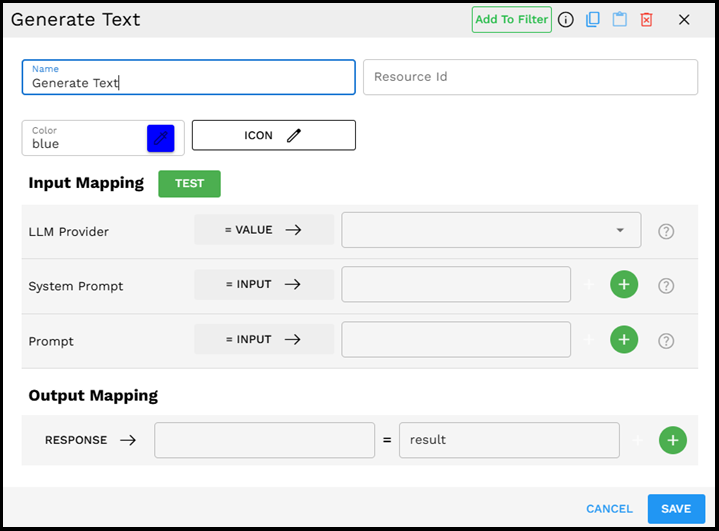
Required Inputs
Input |
Description |
Data Type |
Example |
|---|---|---|---|
LLM Provider |
The provider of the large language model to be used for text generation. Select from a dropdown of available models from different providers (OpenAI, Anthropic Claude, Gemini, etc.). New providers and models are added to the dropdown as they become available. |
LLMProvider |
|
Prompt |
The user-provided text prompt that guides the LLM in generating the desired output. This is the primary instruction that determines what text is generated. Multiple prompt inputs can be added using the + button and combined with a delimiter. |
Text |
|
Optional Inputs
Input |
Description |
Data Type |
Example |
|---|---|---|---|
System Prompt |
An internal system prompt that provides context and instructions for the LLM. This helps shape the style, tone, and boundaries of the generated text. Multiple system prompts can be provided by clicking the + button. |
Text |
|
Join with Delimiter |
When multiple prompt inputs are provided, this field specifies how they should be combined. You can use newlines ("\n"), commas, or any other delimiter to join multiple inputs. |
Text |
|
Join with Sentence |
An alternative to Join with Delimiter provides a more structured way to combine inputs into coherent sentences or paragraphs. This is useful when you need to create a formatted prompt that incorporates multiple parts in a readable flow. |
Text |
A structured paragraph like "The customer's issue is: {0}. Their contact information is: {1}." |
Possible Chaining
The Generate Text component is extremely versatile and can be integrated at any point in your Pipeline Builder workflow. It accepts inputs from any preceding component and produces text that can be used by various downstream components.
Integration Possibilities:
AI Agents: Feed the generated text into agent components to create dynamic, intelligent workflows that enhance decision-making capabilities.
Text Analysis: Further process the generated text for sentiment, entities, or other insights.
Another Generate Text Component: Chain multiple LLM calls for complex reasoning or iterative text refinement.
The flexibility of Generate Text makes it a foundational component for creating sophisticated AI-powered workflows in the Pipeline Builder.
Example Use Case: Customer Support Response Generator
Scenario: Creating an automated system to generate helpful responses to common customer support questions about your products.
Configuration:
LLM Provider:
Anthropic Claude - Claude-3.5-SonnetSystem Prompt:
You are a helpful customer service representative for TechGadgets Inc. Your responses should be professional, empathetic, and concise. Always provide specific information when possible and suggest next steps. Never make up information about policies or products.Prompt:
The customer has asked: "I received my wireless headphones yesterday, but it is not connecting to my iPhone. I have tried restarting both devices but it is not working. What should I do?" Generate a helpful response.
If you need to handle multiple types of information in your prompt, you can click + to add fields:
Prompt (first field):
Customer question: I received my wireless headphones yesterday, but it is not connecting to my iPhone. I have tried restarting both devices but it is not working. What should I do?Prompt (second field):
Product information: TechBuds Pro Wireless Headphones support Bluetooth 5.0 and are compatible with iOS 12.0 and above.Join with Delimiter:
\n\n(two newlines to create paragraph separation)
Process:
Enter your configuration details as shown above.
Click TEST to preview how your component works.
In the test interface, click EXECUTE to see the generated response.
The AI generates a helpful customer service response like this:
I'm sorry to hear you're having trouble connecting your new TechBuds Pro Wireless Headphones to your iPhone. Let's try a few troubleshooting steps beyond the restart you've already attempted:
1. Make sure Bluetooth is enabled on your iPhone (Settings > Bluetooth)
2. Put your headphones in pairing mode by holding down the power button for 5-7 seconds until you see the LED indicator flashing blue/red
3. On your iPhone, go to Settings > Bluetooth and look for "TechBuds Pro" in the list of available devices
4. If you see the headphones but can't connect, try "forgetting" the device in your Bluetooth settings and then reconnecting
5. Ensure your iOS is version 12.0 or higher, as this is required for compatibility
If these steps don't resolve the issue, our support team is available at support@techgadgets.com or by phone at 1-800-TECH-HELP (Monday-Friday, 9am-6pm EST).
Would you like me to walk you through any of these steps in more detail?
This response is helpful because it:
Acknowledges the customer's frustration.
Provides clear, step-by-step troubleshooting instructions.
References the specific product information.
Offers alternative support options if needed.
Ends with an open question to continue the conversation.
Output Format
The output is a text string containing the LLM's generated response. For example:
I'm sorry to hear you're having trouble connecting your new TechBuds Pro Wireless Headphones to your iPhone. Let's try a few troubleshooting steps beyond the restart you've already attempted: 1. Make sure Bluetooth is enabled on your iPhone (Settings > Bluetooth) 2. Put your headphones in pairing mode by holding down the power button for 5-7 seconds until you see the LED indicator flashing blue/red 3. On your iPhone, go to Settings > Bluetooth and look for "TechBuds Pro" in the list of available devices 4. If you see the headphones but can't connect, try "forgetting" the device in your Bluetooth settings and then reconnecting 5. Ensure your iOS is version 12.0 or higher, as this is required for compatibility If these steps don't resolve the issue, our support team is available at support@techgadgets.com or by phone at 1-800-TECH-HELP (Monday-Friday, 9am-6pm EST). Would you like me to walk you through any of these steps in more detail?
Testing Your Component
The Generate Text component includes a testing interface to help you verify your configuration. Click the green TEST button to open the testing interface.
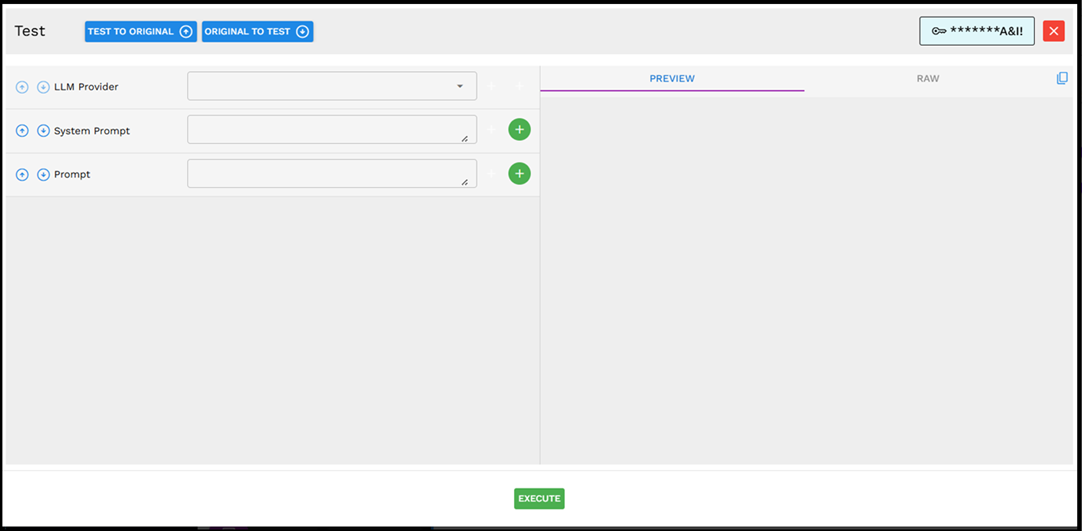
The testing interface provides these useful features:
TEST TO ORIGINAL/ORIGINAL TO TEST: Switch between your test inputs and the configured component.
PREVIEW/RAW: Toggle between viewing the formatted response and the raw output.
EXECUTE: Run the test with your current settings.
Testing your component before saving it helps ensure that you get the expected results when it runs in your actual Pipeline Builder.
Best Practices
Select the appropriate LLM model for your needs - Different models have different strengths and cost profiles. For simple tasks, smaller models like GPT-4o-mini or Claude-3.5-Haiku may be sufficient and more cost-effective.
Use the TEST button - The green TEST button allows you to verify your component configuration before saving it.
Leverage multiple input types - Combine static VALUES with dynamic INPUTS and SESSION variables for flexible prompt construction.
Be specific in your prompts - The more detailed and clear your prompt, the better is the generated text.
Use system prompts effectively - System prompts can significantly shape the output style, tone, and content boundaries.
Choose an appropriate delimiter - When joining multiple inputs, select a delimiter that makes sense for your content (newlines for separate paragraphs, commas for lists).
Consider context limits - Be aware that LLMs have maximum context lengths; very long prompts may get truncated.
Chain with other components - Use the RESPONSE output mapping to feed the generated text into other components for more complex Pipeline Builder workflows.
Component Interface Guide
The Generate Text component interface is designed to be intuitive:
Basic Information: At the top, you can set the component name, resource ID, color, and icon.
Input Mapping: This section defines your inputs with a green TEST button to verify your configuration.
LLM Provider: A dropdown menu to select which AI model to use (OpenAI, Anthropic Claude, Gemini, etc.).
System Prompt: The field where you enter context and instructions for the AI. Click the green "+" to add multiple system prompts if needed.
Prompt: The main text field where you enter your specific question or instruction for the AI. Click the green "+" to add multiple prompts.
Joining Options: When using multiple prompts, you can join them using either a delimiter (like "\n") or a sentence template.
Output Mapping: Where you specify how the AI's response is stored for use in your Pipeline Builder.
The interface includes green "+" buttons that allow you to add additional input fields, making it easy to build complex prompts when needed.
Troubleshooting
Issue |
Possible Cause |
Solution |
|---|---|---|
No response generated |
LLM Provider API keys may be invalid or expired. |
Check your API credentials and ensure they are properly configured. |
Generated text is irrelevant or off-topic |
The prompt may be too vague or ambiguous. |
Make your prompt more specific and provide clearer instructions. |
Multiple prompts not working as expected |
Delimiter issues or prompt combination problems. |
Check that the JOIN WITH DELIMITER field is correctly set (for example, "\n" for newlines). |
Text generation takes too long |
Network issues or high server load at the provider. |
Consider using a smaller, faster model (like GPT-4o-mini or Claude-3.5-Haiku). |
Output is cut off or incomplete |
The response exceeded the maximum token limit. |
Modify your prompt to request more concise outputs or increase the token limit if the provider allows it. |
Advanced Capabilities
The Generate Text component can handle complex data structures and tasks:
JSON Processing: You can input JSON data to the AI and ask it to analyze or transform the structure.
JSON Output: You can request the AI to respond with structured data in JSON format, making it easier to process in subsequent components.
Multi-language Support: The component works with all languages supported by the selected LLM provider.
Content Creation: Generate blog posts, product descriptions, or marketing copy based on simple instructions.
Data Summarization: Condense large amounts of text into concise summaries.
Code Generation: Create code snippets or entire scripts based on functional requirements.
The capabilities of this component are primarily determined by the underlying LLM provider you select, with more advanced models generally offering better performance on complex tasks.
Limitations and Considerations
Limitation/Consideration |
Description |
|---|---|
Provider Limitations |
Different LLM providers have different capabilities, token limits, and pricing structures. The dropdown menu shows currently available models, which may expand over time as new models are released. |
Input Types |
Be careful when mixing different input types (VALUE, INPUT, SESSION) as they may contain data in different formats that need appropriate delimiters. |
Content Moderation |
All LLM providers have content filters that may block the generation of certain types of content. |
Accuracy |
LLMs may occasionally generate incorrect information or "hallucinate" facts. Consider adding fact-checking components for critical applications. |
Cost Considerations |
Text generation typically incurs costs based on token usage; complex or frequent requests can add up. Smaller models like GPT-4o-mini or Claude-3.5-Haiku are more cost-effective for simpler tasks. |
Latency |
Response times can vary based on prompt complexity, server load, and network conditions. Test your Pipeline Builder with the expected input volume during development. |
Session Management |
When using SESSION variables, ensure they are properly set before the Generate Text component is executed in your workflow. |