Get Agent Data
The Get Agent Data component stores values from the agent's data cache using specific key names. This component requires a Data Key parameter and checks stored values—especially when they contain JavaScript expressions. This enables dynamic data retrieval based on the current execution.
The onComplete event is triggered when data from the agent is successfully retrieved. The onError event is triggered when the key does not exist or data retrieval fails.
The component's ability to interpret and check stored references makes it essential for maintaining state management, implementing conditional logic, and enabling context-aware agent workflows.
Skill Level
Basic understanding of JavaScript.
Overview
The Get Agent Data component gets key-value pairs from the agent's data cache. This component serves as a mechanism to access previously stored information during an agent's execution. It lets other components in the same agent workflow get and use this data.
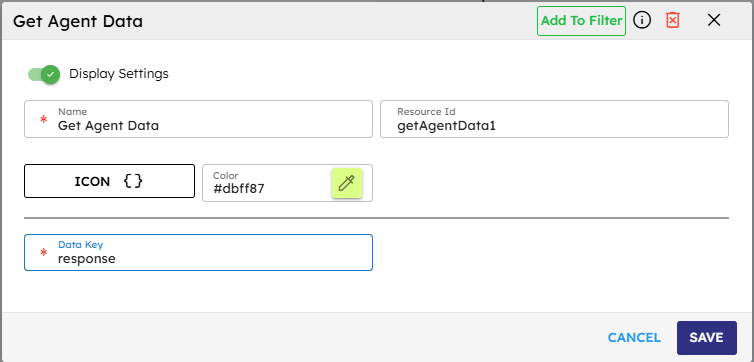
The component needs a Data Key (the identifier for getting retrieving the value). When the specific key is found, the component returns the stored value and starts the onComplete event. If the key is not found or another error occurs, the onError event starts.
The Get Agent Data component works with the Set Agent Data component. This lets agents keep state and context during their execution. This is important for creating multi-step interactive workflows.
Input
Name | Code | Type | Description | Data Type |
|---|---|---|---|---|
Name |
| text | Name of the component. | string |
Resource ID |
| text | Unique ID of the component. | string |
Data Key |
| text | Key name to retrieve from the agent data cache. | string |
Method
ID | Name | Description | Input | Output |
|---|---|---|---|---|
| Execute | Gets the value linked to the specific key from the agent data cache. | None | The value associated with the specified key. |
Events
ID | Name | Description | Event Data | Source Methods |
|---|---|---|---|---|
onComplete | On Complete | Starts when the data is successfully obtained from the agent's data cache. | JSON object containing the retrieved value, key name, and timestamp. Example: | Execute |
onError | On Error | Starts when an error occurs during the process of getting data. | JSON object containing the error message, component name, timestamp, and the key that caused the error. Example: | Execute |
Typical Chaining of Components
You typically use the Get Agent Data component to get stored information that other components can then use. A common use flow is:
Data Storage: You store data with the Set Agent Data component at different points in the workflow.
Data Retrieval: The Get Agent Data component gets this information when needed.
Data Processing: Custom Script or other components use the data you have.
Response Generation: Call GenAI Pipeline or other components to create responses based on the data you got.
Source Components
Source Component | Purpose | Description |
|---|---|---|
| Store Data | Store data that the Get Agent Data component get later. |
| Trigger Retrieval | User interaction that requires accessing previously stored data. |
| Dynamic Key Selection | Decided which key to get based on workflow context. |
Target Components
Target Component | Purpose | Description |
|---|---|---|
| Process Retrieved Data | Use the data you got for further processing or changes. |
| Use Stored Context | Use the data you got as context or input for AI processing. |
| Show Retrieved Data | Show the data you got to the user. |
Implementation Example
This example shows how to use the Get Agent Data component in a Quiz Builder agent workflow:
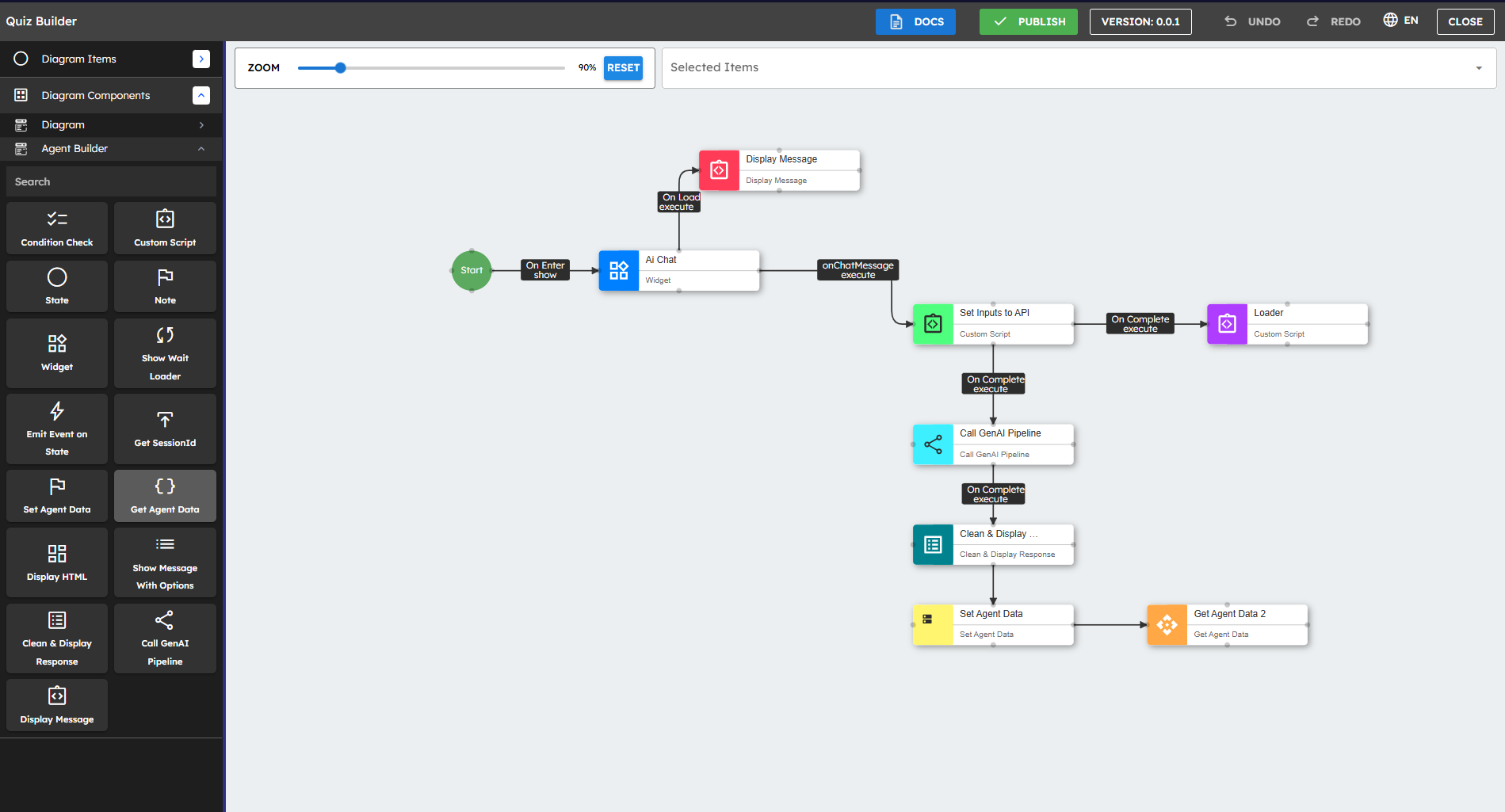
To use the Get Agent Data component in the flow shown above:
Drag the Get Agent Data component to the canvas.
Set up the Data Key field with the exact name of the key you want to get (such as "quizResponses").
Connect a correct source component to start the Get Agent Data component.
Connect the
onCompleteandonErrorevents to correct later components.
See the following example of a Quiz Builder agent:
The flow starts with a Start component that sets up the agent.
When the user enters the flow, an AI Chat widget gets the user's message.
When the system gets a chat message (
onChatMessageevent), a Custom Script component (Set Inputs to API) prepares data for API processing.The Call GenAI Pipeline component uses that input and processes the data.
When the pipeline completes, a Clean & Display Response component formats the response for the user.
The Set Agent Data component stores the AI response information.
The Get Agent Data component then gets this stored information. This makes it available for more processing in the workflow.
This example demonstrates how you can store and then get data at different points in the agent workflow. This lets information continue across different components and interactions.
Example Code
// Example of using the retrieved data in a Custom Script component// that receives data from a Get Agent Data component// The retrieved data is available in args.$event.valueconst retrievedData = args.$event.value;// Process the retrieved dataif (retrievedData) { // Example: Process quiz responsesconst responses = retrievedData.responses || []; const totalScore = responses.reduce((sum, response) => sum + (response.score || 0), 0); // Generate a result objectvar result = { totalScore: totalScore, responseCount: responses.length, averageScore: responses.length > 0 ? totalScore / responses.length : 0, lastResponse: responses.length > 0 ? responses[responses.length - 1] : null }; return result;} else { // Handle case where no data was retrievedreturn { error: "No data found", timestamp: newDate().toISOString() };}Enhanced Usage
You can improve your setup by using dynamic key names or conditional retrievals:
// Example of a Custom Script that dynamically determines which key to retrieve// This could be connected to the Data Key field of a Get Agent Data component// Determine the appropriate key based on the current state or user inputconst userId = this.agent.data.currentUserId || "default";const sessionId = this.agent.data.sessionId || "default";// Create a user-specific key for personalized data retrievalvar result = `userPreferences_${userId}_${sessionId}`;return result;This example shows how you can create key names based on user information or session context. This allows for more personalized data-getting patterns.
Best Practices
Key Consistency: Make sure the key names used in Get Agent Data exactly match those used in Set Agent Data.
Error Handling: Always add correct error handling for cases where the key may not exist.
Data Validation: Check the data you got before using it, as the structure or content may have changed since you stored it.
Performance Considerations: For large data structures, get only the specific data you need instead of entire objects.
Security: Do not store sensitive information in the agent's data cache. Add correct access controls if needed.
Naming Conventions: Use clear key names that show the purpose and content of the stored data.
Documentation: Write down the expected data structure for each key to make sure it stays consistent in the agent workflow.
Common Use Cases
Use Case | Description | Example Key-Value |
|---|---|---|
User Preferences Retrieval | Get stored user preferences to personalize interactions. | Key: "userPreferences" |
Conversation History Access | Get previous interactions to keep the context in ongoing conversations. | Key: "chatHistory" |
Multi-step Form Data | Get form data you collected before to continue a multi-step process. | Key: "formData" |
Workflow State Retrieval | Get the current state of a multi-step workflow to decide the next actions. | Key: "workflowState" |
Session Information | Get session identifiers or authentication information. | Key: "sessionData" |
Cached API Results | Get API responses you saved before to avoid repeat calls. | Key: "cachedWeather" |
User Activity History | Get the user's past activities or interactions with the system. | Key: "userActivityLog" |