Loop
The Loop component iterates over a given list. Users provide an array as input, and the loop processes each element sequentially. The component enables structured iteration in workflow automation, allowing conditional execution based on iteration results.
Overview
The Loop component enables iteration over a list of items, processing each element individually. It simplifies repetitive operations by automatically executing the same actions on multiple data points, making it a fundamental control flow component in the Pipeline Builder.
This component is the foundation for batch processing, data transformation across multiple items, and parallel processing workflows. It takes a list as input and makes each element available as 'loop_item' to all components connected via forEach. The loop maintains separate execution contexts for each iteration, preserving session data isolation while collecting outputs from specified components into arrays using the result.stepId format where stepId refers to the unique identifier of components within the forEach chain. The result collection system works by specifying result.stepId (for example, result.generateText1_ABC123, result.customFunction2_XYZ789) in the output mappings, where each result.stepId creates an array containing that specific component's output from every iteration. You can collect results from any component within the forEach chain - first component, last component, middle components, or multiple components simultaneously by configuring multiple result.stepId mappings.
Each result.stepId mapping can independently target session variables, response variables, or both, allowing flexible result handling. The component supports complex internal workflows with multiple sequential components connected via onSuccess within the forEach chain, conditional branching within iterations, and highly flexible output collection from any combination of components. After all iterations complete, each configured result.stepId produces an array where array[0] contains results from iteration 1, array[1] from iteration 2, and so on, maintaining perfect iteration order.
How to use:

Key Terms
Term |
Definition |
|---|---|
Iteration |
The process of repeatedly executing a set of operations on each item in a list. |
For Each |
The connection path leads to the components that is executed for each item in the list. |
On Success |
The connection path is followed after all iterations have been completed successfully. |
When to Use
Use when you need to perform the same operations on multiple items.
Ideal for processing arrays or collections of data where each item requires similar treatment.
Helpful when automating repetitive tasks that operate on lists of records, files, or data entries.
Use when you want to apply transformations to each element in a dataset.
Component Configuration
Required Inputs
Input |
Description |
Data Type |
Example |
|---|---|---|---|
List |
The array of elements that the component iterates through, processing each item sequentially. |
Array |
|
Link Labels
Link Type |
Description |
|---|---|
Iterate List (input) |
Default label for connections leading to the Loop component. |
For Each (output) |
Connection path that leads to components that execute for each item in the list. |
On Success (output) |
Connection path that is followed after all iterations have been completed successfully. |
How It Works
The Loop component receives an array input through the List parameter.
For each element in the array, the component:
Makes the current element available to subsequent components.
Follows the "For Each" path to execute connected components.
After processing all elements in the list, the component follows the "On Success" path.
If the input list is empty, the component skips the "For Each" path and immediately follow the "On Success" path.
Output Mapping
The Loop component needs to know which results to collect from each loop iteration. This is done through the Output Mapping section:
Output Mapping tells the Loop which specific piece of information to save each time it processes an item.
The Loop saves these results in a list that you can use after all items have been processed.
This is useful when you process items through multiple steps but only need the result from one of those steps.
How to set up Output Mapping:
Open your Loop component and find the Output Mapping section.
Click + to create a new mapping.
On the left side, create a name for your collection of results (for example, "processed_items").
On the right side, enter
result.followed by the ID of the component whose output you want to collect.
Think of it like: "For each item in my list, process it through all these steps, but only keep the result from step X."
How Data Flows Through the Loop
Understanding how data moves through the Loop component is important for using it effectively:
What Happens During Each Loop
When the Loop processes each item in your list, it makes that item available to all connected components. This happens like this:
// If your list contains simple items like names: { "current_item": "John"// First loop// Then: "current_item": "Mary" // Second loop// Then: "current_item": "Alex" // Third loop } // If your list contains objects with multiple properties: { "current_item": { "id": 101, "name": "John Doe", "email": "john@example.com" } // First loop// Then next person's data in second loop// Then next person's data in third loop }
Final Result After All Loops
After processing all items, the Loop creates a collection of all the outputs you requested:
// If you set up Output Mapping with the name "customer_summaries": { "customer_summaries": [ { /* Data collected from first person */ }, { /* Data collected from second person */ }, { /* Data collected from third person */ } // ...and so on for each person in your original list ] }
This final collection is then available to components connected to the "On Success" path of your Loop.
How to Set Up Output Collection
To collect specific outputs from your Loop, follow these simple steps:
Identify which component's output you want to collect from each iteration.
Click on that component to view its details.
Find the Resource ID in its settings panel (this is a unique identifier for the component).
In your Loop component's "Output Mapping" section:
Create a descriptive name for your collection on the left side (for example: "customer_emails").
On the right side, enter:
result.followed by the Resource ID you found.
Tip: Think of the Output Mapping as telling the Loop, "After you process each item, please save the result from this specific step."
Example Implementation
Below is a basic example of the Loop component configuration.
Real-World Example:
Here's how you might use a Loop component in a real situation:
Your Loop component receives a list of items to process (such as customer records).
For each item in the list, the Loop runs a series of connected components that process that item.
You want to collect the output from a specific component in that chain for each item.
After processing all items, the Loop creates a single list containing all the collected results.
This is similar to saying: "For each customer in my list, process their information and collect just their email addresses into a new list."
Step-by-Step Example
Let's walk through a practical example of using the Loop component to process customer feedback and analyze sentiment:
Scenario: Analyzing Customer Feedback
Imagine you have collected feedback from customers about your product and want to analyze the sentiment of each comment automatically.
The Data
Your customer feedback data might look like this:
[{"customer":"John Smith","feedback":"I love the product! It works exactly as described."},{"customer":"Sarah Johnson","feedback":"The product is okay, but could use some improvements."},{"customer":"Michael Brown","feedback":"I'm disappointed with the durability. It broke after a week."}]
Setting Up the Pipeline
Here is the overall pipeline we create:
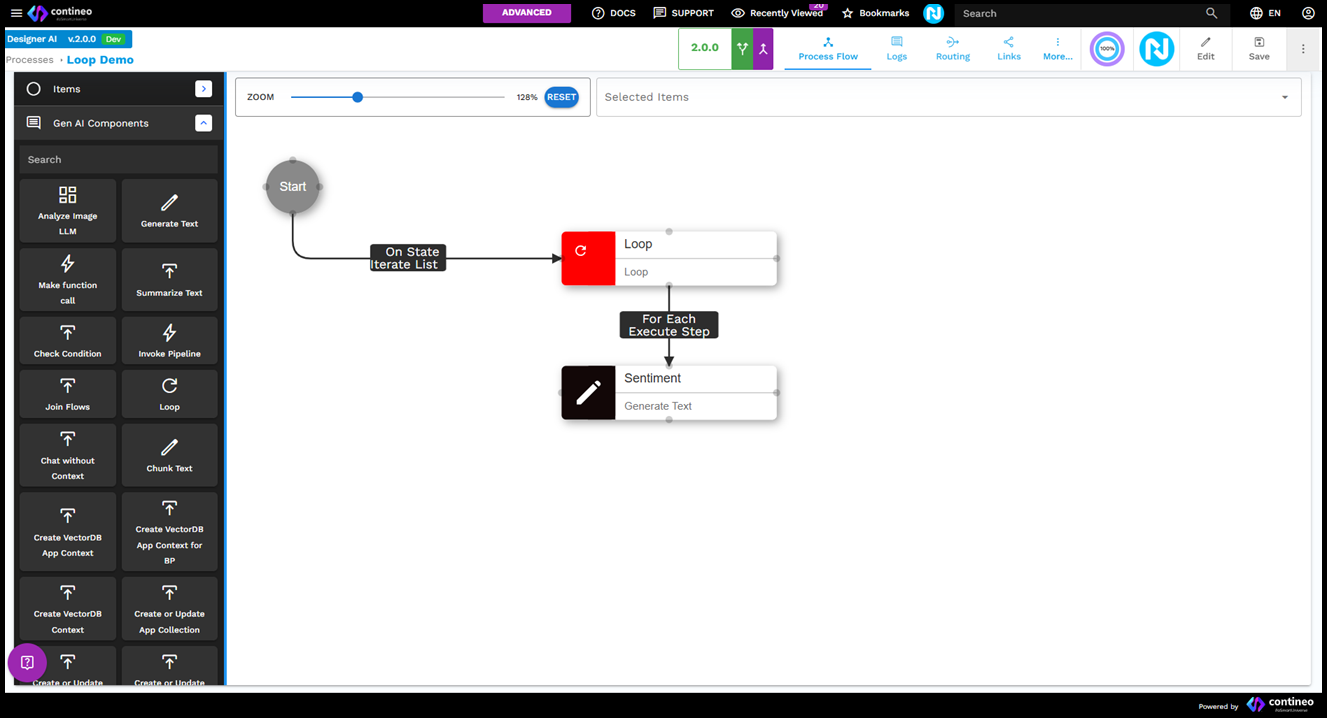
Create your data source with the customer feedback list.
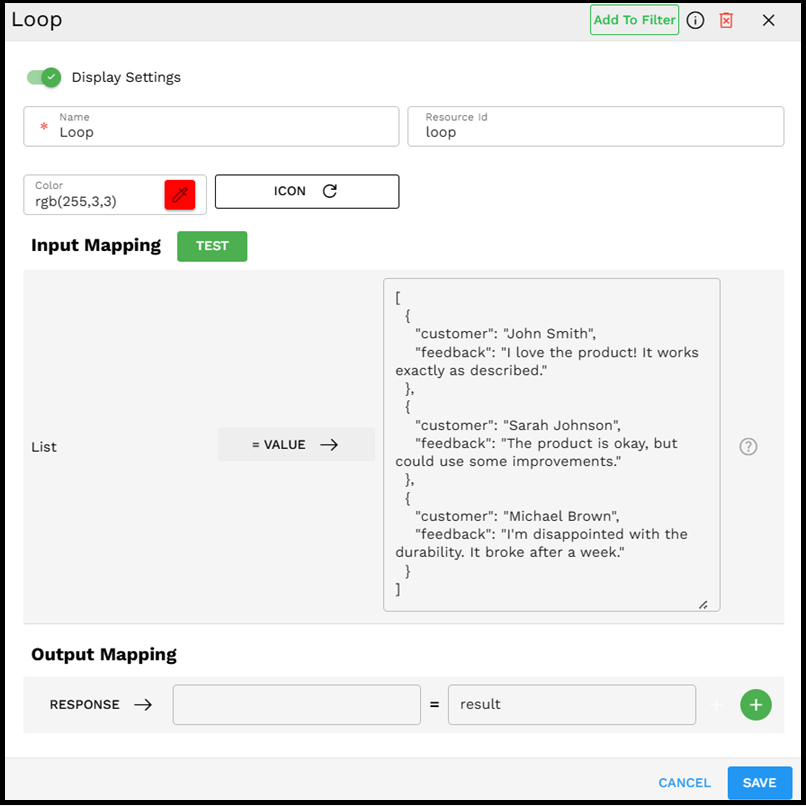
Add a Loop component to your pipeline.
Configure the Loop's Input Mapping:. Set the "List" input to your customer feedback array
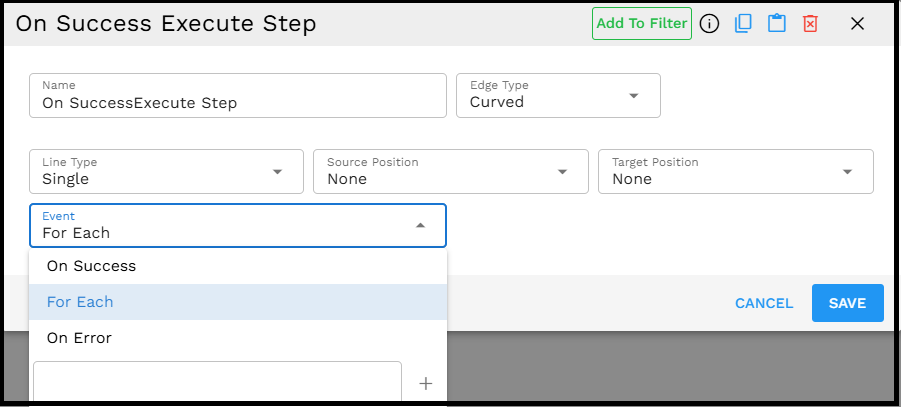
Connect components to the "For Each" path. To connect to the "For Each" path, select the appropriate connection.
Add a Generate Text component that can analyze each feedback entry.
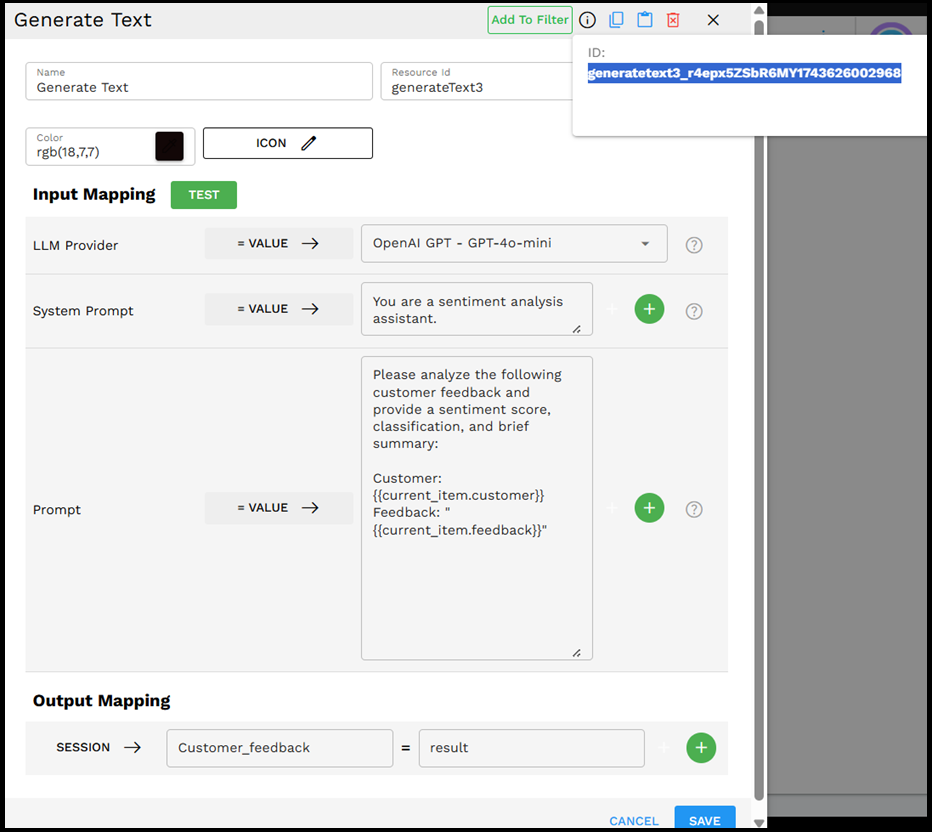
Configure the Generate Text component:
System Prompt: "You are a sentiment analysis assistant."
User Prompt:
Please analyze the following customer feedback and provide a sentiment score, classification, and brief summary: Customer: {{current_item.customer}} Feedback: "{{current_item.feedback}}"Note the Resource ID of this component (you'll need it for the Output Mapping)
Configure the Loop's Output Mapping:
Create a new mapping called "sentiment_results"
Map it to the output of the Generate Text component using its Resource ID (result.generatetext3_...)
How It Works:
The Loop receives the list of customer feedback.
For each feedback entry:
The current feedback item is passed to the Generate Text component.
The Generate Text component analyzes the sentiment and returns a score and summary.
This result is collected by the Loop component.
After all feedback entries are processed, the Loop outputs an array containing all the sentiment analysis results.
Final Output
The final output from the Loop (via Output Mapping) would look something like this:
{"sentiment_results":[{"customer":"John Smith","sentiment":"positive","score":0.85,"summary":"Customer loves the product"},{"customer":"Sarah Johnson","sentiment":"neutral","score":0.45,"summary":"Customer finds product acceptable but sees room for improvement"},{"customer":"Michael Brown","sentiment":"negative","score":0.15,"summary":"Customer experienced durability issues"}]}
Selecting Specific Component Output
When your Loop contains multiple components in its execution path, you have the flexibility to select which component's output you want to collect. This powerful feature allows you to build complex processing chains while maintaining control over what data gets collected.
How to Select Specific Component Outputs
Inside a Loop that contains multiple components, you can choose to collect the response from any specific component by following these steps:
Identify the component whose output you want to collect during each iteration.
Find that component's Resource ID (visible in the component's settings).
In the Loop's Output Mapping section, create a new mapping entry.
For the mapping value, use
result.followed by the specific component's Resource ID.
Example: If your Loop contains three components (Analyze Image LLM, Generate Text, and Make Function Call), but you only want to collect the output from the Make Function Call component, you would:
Find the Resource ID of the Make Function Call component (for example, "makefunctioncall_12345")
In the Loop's Output Mapping, create a mapping like:
function_call_results → result.makefunctioncall_12345
This allows you to build pipelines that process data through multiple steps but only collect the final or most relevant outputs from specific components in the chain.
Multiple Output Mappings
You can also create multiple output mappings to collect results from different components in the same Loop:
// Example of multiple output mappings: { "processed_text": [ // Results from the TextProcessor component for each iteration ], "sentiment_scores": [ // Results from the SentimentAnalyzer component for each iteration ], "key_extractions": [ // Results from the KeywordExtractor component for each iteration ] }
This approach is particularly useful when you need to collect different types of information from the same data processing pipeline.
Best Practices
Ensure the input list is properly formatted as an array before passing it to the Loop component.
Keep the operations within the loop focused and efficient to avoid performance issues when processing large lists.
Consider adding error-handling components within the loop to manage failures for individual items.
If the order of processing matters, make sure your input list is sorted accordingly before entering the Loop component.
For very large lists, consider implementing pagination or batching strategies to avoid timeout issues.
Troubleshooting
Issue |
Possible Cause |
Solution |
|---|---|---|
Loop not iterating |
Input is not an array or is empty. |
Verify that the input is a valid, non-empty array using a logging component before the Loop. |
Unexpected iteration behavior |
Input array contains null or undefined values |
Filter out null or undefined values from the array before passing it to the Loop component. |
Performance issues with large lists |
Too many items are being processed sequentially. |
Consider implementing a pagination or batching strategy by splitting the list into smaller chunks. |
Limitations and Considerations
Sequential Processing - The Loop component processes items sequentially, not in parallel, which may impact performance for large lists.
Data Structure Requirements - The input must be a properly formatted array for the component to function correctly.
Memory Usage - Processing very large arrays may consume significant memory resources.
Timeout Concerns - For pipelines with time constraints, be cautious about looping through large datasets as it may cause timeout issues.