Process Response
The Process Response (Old name: Clean and Display Response) component transforms and formats data from various sources (AI responses, APIs, or agent storage) for display in a chat interface. It navigates complex object paths to extract specific content, supports both text and JSON formatting with metadata removal, and provides options to display or silently store the processed results. This versatile utility bridges raw data and user-friendly presentations while making formatted information available throughout your agent workflow.
Skill Level
A basic understanding of JavaScript is required to provide the input data path to the component.
Overview
The Process Response component handles, formats, and shows responses from different sources in your agent workflow. It gets data from either event objects or agent data storage, processes the data according to the specified settings, and can display the results in a chat widget while also storing them in the agent's memory for future use.
This powerful component supports both plain text and JSON data processing. It offers features for cleaning text responses, formatting JSON data, and providing flexible handling of structured data. Use this component to display API responses, AI-generated content, or any structured data that you need to present to users in a readable format.
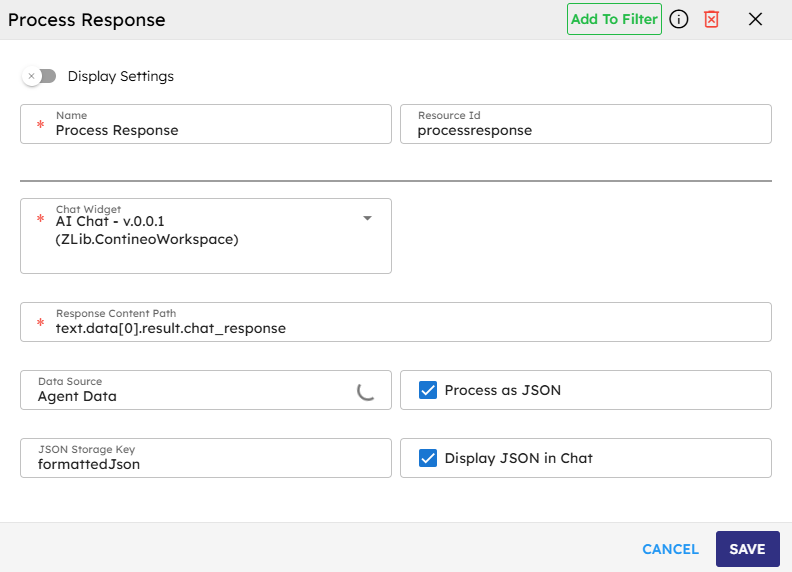
Input
Name | Code | Type | Description | Data Type |
|---|---|---|---|---|
Chat Widget |
| module-selector | Select the chat widget to send messages to. | string |
Response Content Path |
| text | Enter the path to response content (for example, | string |
Data Source |
| module-selector | Select where to find the response content (Event Data or Agent Data). | string |
Process as JSON |
| checkbox | Check if the content at the specified path is JSON that needs formatting. | boolean |
JSON Storage Key |
| text | Enter the key name to store the formatted JSON in agent data. | string |
Display JSON in Chat |
| checkbox | Check to display formatted JSON in chat, uncheck to only store it. | boolean |
Methods
Id | Name | Description | Input | Output |
|---|---|---|---|---|
| Execute | The component processes response data according to the configuration, formats the data, and displays the data in the chat widget. | Event data containing result or agent data | Formatted message text and processed data |
| Format JSON | Formats JSON data by structuring and cleaning it. | JSON object | Formatted JSON object |
| JSON to Readable Text | Converts JSON object to HTML-formatted readable text. | JSON object | HTML string |
| Deep Stringify | Converts complex nested objects to strings with depth control. | Object, maximum depth (optional) | String representation |
| Clean and Format Output | Cleans and formats text output by removing metadata and improving readability. | Input text or object | Formatted text string |
Events
Id | Name | Description | Event Data | Source Methods |
|---|---|---|---|---|
onComplete | On Complete | Starts when response processing completes successfully. | name, result, resource | Execute |
onError | On Error | Starts when an error occurs during response processing. | name, error, resource | Execute |
Typical Chaining of Components
Source Component | Purpose | Description |
|---|---|---|
| Process AI Response | Process and show responses from AI models in the chat interface. |
| Format API Response | Clean and format responses from external API calls. |
| Display Processed Data | Show results from custom data processing in the chat widget. |
Target Component | Purpose | Description |
|---|---|---|
| Further Processing | Perform additional operations on the formatted data. |
| Conditional Logic | Route workflow based on the content of the processed response. |
| Follow-up Actions | Make API calls based on processed response data. |
Implementation Example
Example: Display AI Response in Chat
This example shows how to process and display a response using the Process Response Component from a Task Pipeline component in a chat.
Set up the Process Response component
Place the Process Response component next to the component where you want to perform the processing, for example, Call Task Pipeline or Custom Script.
Configure input fields
Select the target chat widget from the dropdown menu.
Set the response path to
data[0].result.[propertyName]to process the Task Pipeline response as input. If you use different data, specify the correct agent data path as the input.Select 'Event Data' as the data source if the Process Response component gathers input from the Task Pipeline response. Select 'Agent Data' if the data comes from agent data.
Leave 'Process as JSON' unchecked for plain text responses. Check this only if the response contains JSON data that requires processing.
Provide the 'Storage Key' if you want to store the processed data in the agent for future use.
Check 'Display JSON in Chat' if you want to show the processed JSON input on the screen.
Connect event handlers
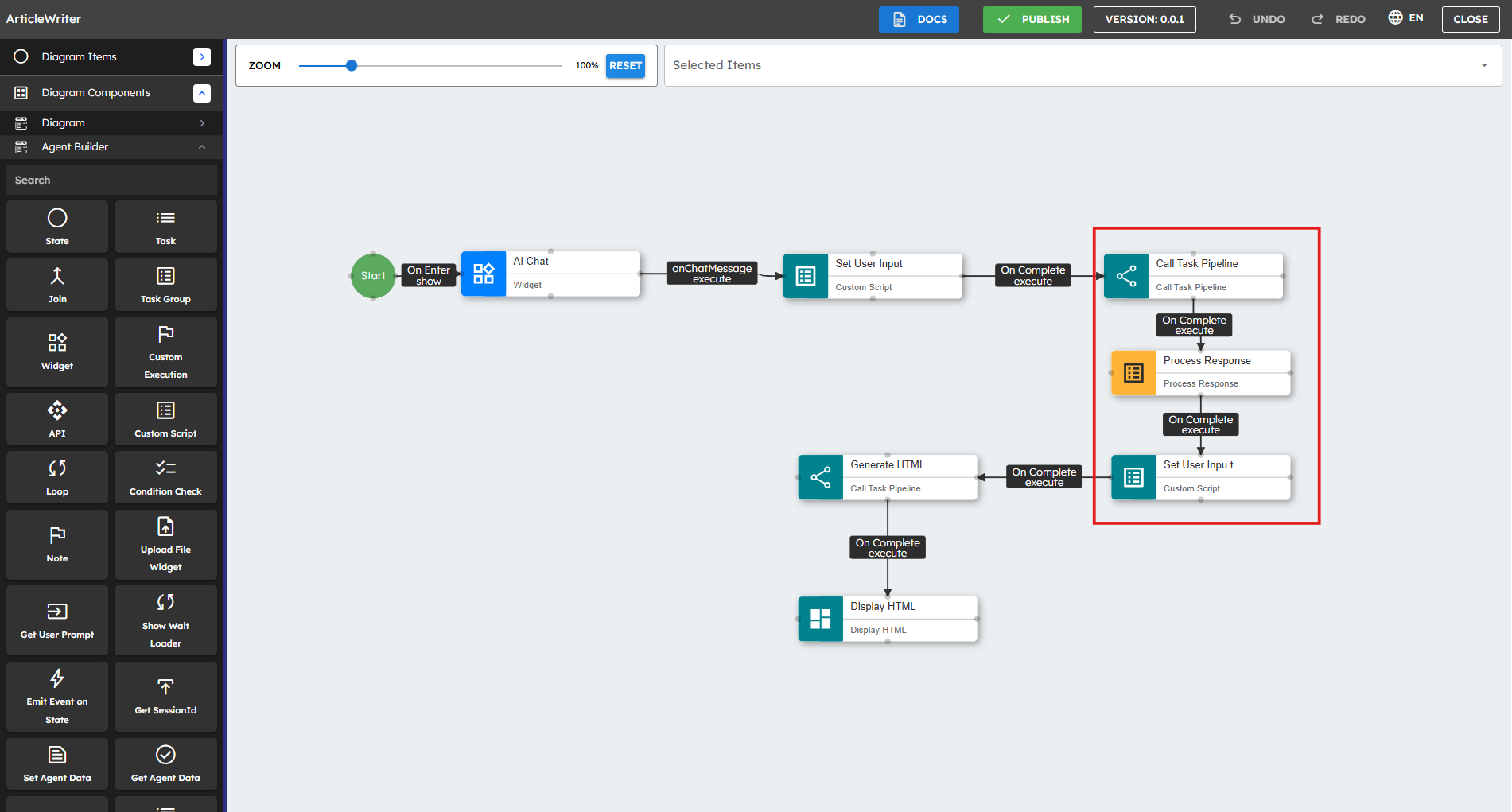
Run the agent to view the implemented changes
Text Processing Example
To process Text data instead of JSON:
Provide the agent data path to process as text (such as
this.agent.data.[propertyName]).Uncheck the Process as JSON option.
Provide a storage key (such as
"productData").Uncheck Display JSON in Chat.
This formats the text data, store it at agent.data.[propertyName], and display it in the chat with proper formatting.
Best Practices
Verify response paths: Double-check that the response path correctly points to the data you want to process, as incorrect paths are a common source of errors.
Handle JSON appropriately: Use the JSON processing option for structured data that needs to be both displayed and stored for further use.
Error handling: Always connect the onError event to appropriate error handling components to provide fallback behavior.
Test with sample data: Test your component with sample responses to make sure it processes correctly and displays the data as expected.
Consider data sources: Be clear about whether your data comes from event results or agent storage and configure accordingly.
Balance display and storage: For complex JSON, consider storing it without display and using more focused components to present specific parts of the data.
Clean formatting: Utilize the built-in cleaning function to remove technical metadata before presenting responses to users.
Proper chaining: Ensure this component is properly triggered by components that generate responses and connect it to appropriate follow-up components.
Common Use Cases
Use Case | Description |
|---|---|
AI Response Display | Format and display responses from AI models in the chat interface. |
API Data Visualization | Present API response data in a readable format. |
JSON Data Processing | Structure, store, and optionally display JSON data from various sources. |
Response Cleaning | Remove technical metadata and improve the formatting of raw responses. |
Data Storage with Display | Store data for later use while displaying it to users. |
Multiple Response Handling | Process and show different types of responses from various workflow components. |
Chat Bot Responses | Format and show responses from automated chat systems. |