Set Agent Data
The Set Agent Data component manages information flow within agent workflows. It enables the storage of key-value pairs in the agent's data cache, allowing information to persist throughout the agent's execution lifecycle. This component requires both a Data Key (identifier) and Data Value (content to be stored) and supports both static text values and dynamically evaluated JavaScript expressions. The component can intelligently parse and evaluate expressions that reference agent data, event arguments, or window objects, making it flexible for various data-capturing scenarios and information sharing between components.
Skill Level
Basic understanding of JavaScript expressions or ability to use simple key-value pairs.
Overview
The Set Agent Data component stores key-value pairs in the agent's data cache. This component serves as a mechanism to persist information throughout an agent's execution lifecycle, allowing data to be saved and accessed by other components within the same agent workflow.
The component requires a Data Key (the identifier for storing the value) and a Data Value (the content to be stored). You can store plain text values as well as dynamically evaluated JavaScript expressions, making it versatile for various data storage needs.
When the system stores the data successfully, it starts the onComplete event. When validation fails or another error occurs during storage, the system starts an onError event.
The component evaluates expressions that reference agent data, event arguments, or window objects. This allows dynamic data capture from various sources within the agent's execution context.
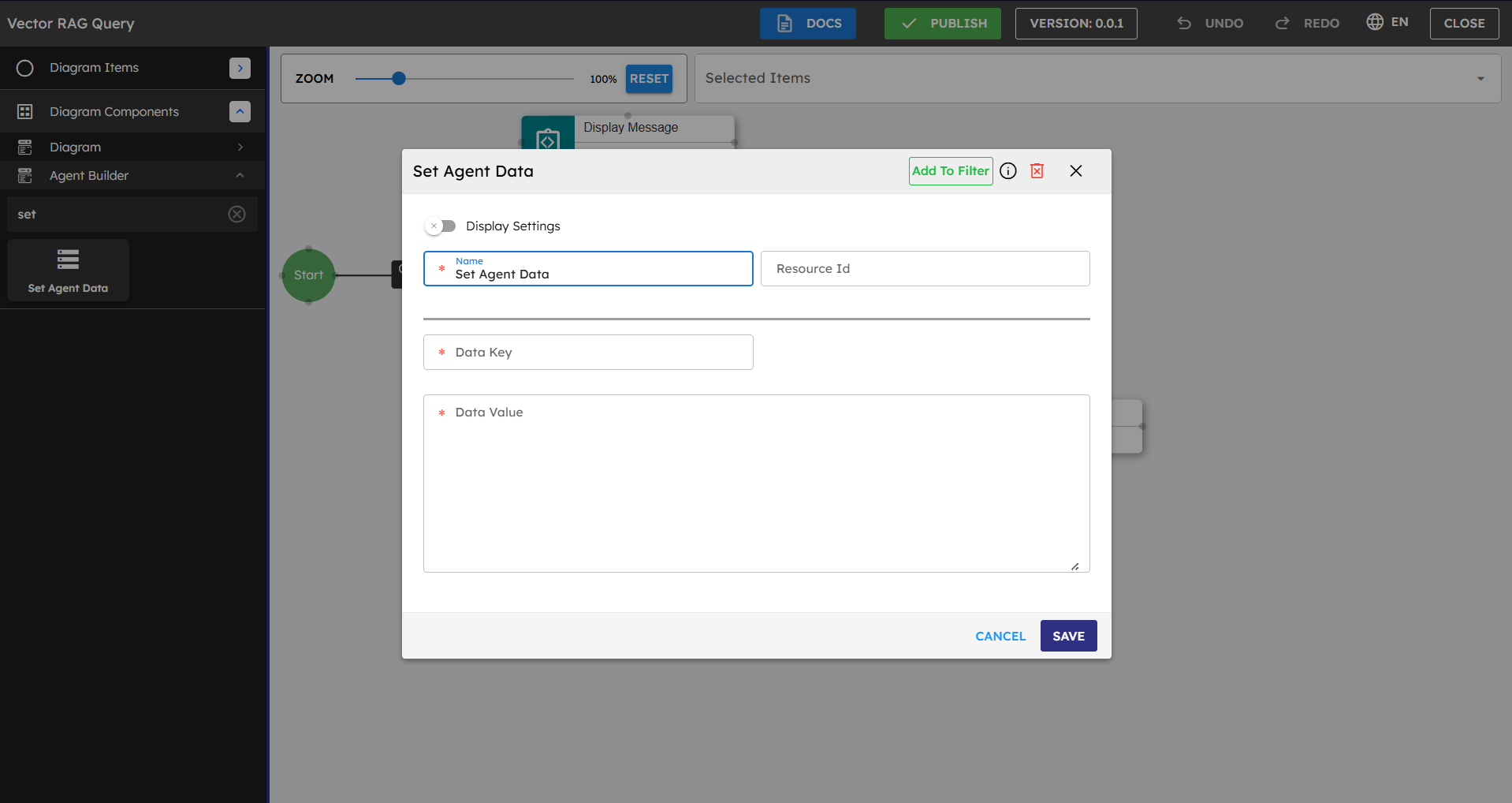
Input
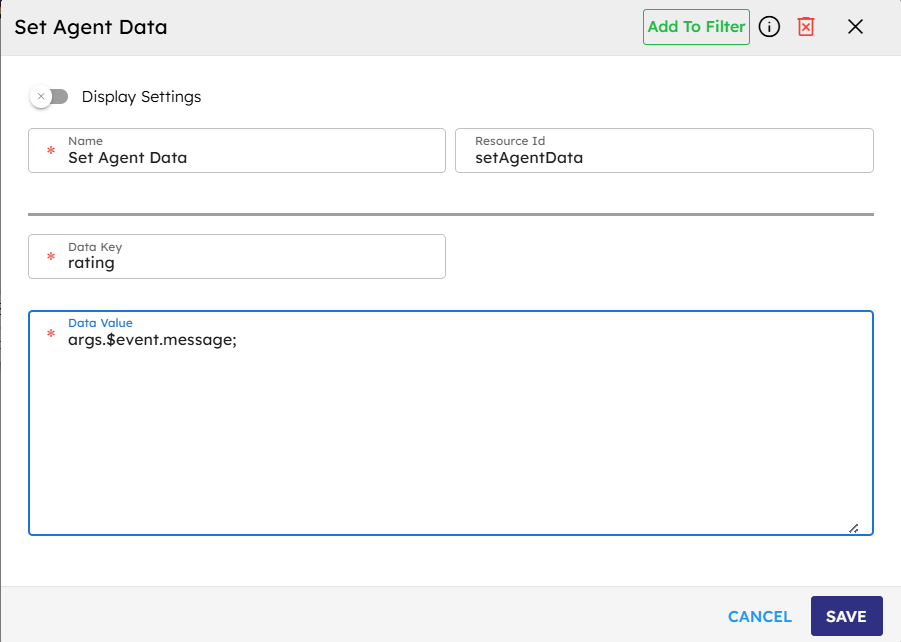
Name | Code | Type | Description | Data Type |
|---|---|---|---|---|
Name |
| text | Name of the component. | string |
Resource ID |
| text | Unique ID of the component. | string |
Data Key |
| text | Key name to store in the agent data cache. | string |
Data Value |
| textarea | Value to store for the specified key. | string |
Methods
ID | Name | Description | Input | Output |
|---|---|---|---|---|
| Execute | Validates the inputs and stores the key-value pair in the agent data cache. | Event arguments (optional) | JSON object with operation status details |
Events
ID | Name | Description | Event Data | Source Methods |
|---|---|---|---|---|
onComplete | On Complete | Starts when the data is successfully stored in the agent's data cache. | JSON object that contains success status, key name, value type, evaluation status, and timestamp. Example: | Execute |
onError | On Error | Starts when an error occurs during the validation or storage process. | JSON object that contains an error message, component name, timestamp, and details about the key and value that caused the error. Example: | Execute |
---
Typical Chaining of Components
You typically use the Set Agent Data component in a workflow that captures user input, processes it, and stores the results. A common implementation flow is as follows:
User Input Capture: The user's input is initially captured through components such as AI Chat.
Data Preparation: The Custom Script component processes this input and prepares it for the pipeline.
AI Processing: The Call GenAI Pipeline component uses the prepared data.
Response Display: Clean & Display Response component shows the results to the user.
Data Storage: Set Agent Data component stores the response or relevant data for future reference.
// Create an object to hold the input message from the eventvar result = { input: args.$event.message, // Store the input message};// Return the result object containing the input messagereturn result;Note:
For pipelines requiring only a single input, you can use the Get User Prompt component directly. This component lets you set variable names that match what your pipeline expects, which simplifies the process of capturing and passing user inputs or attachments.
Source Components
Source Component | Purpose | Description |
|---|---|---|
| Capture User Input | Captures the user's message or uploaded files that must be processed |
| Process Input | Transforms user input into the structure that the pipeline requires. |
| Generate Response | Processes the structured input and generates an AI response. |
Target Components
Target Component | Purpose | Description |
|---|---|---|
| Show Response | Formats and displays the pipeline response to the user. |
| Process Response | Further processes or transforms the response data if needed. |
| Show Confirmation | Displays confirmation that the system has successfully stored the data. |
Implementation Example
The following example demonstrates how to use the Set Agent Data component in a Quiz Builder agent workflow:
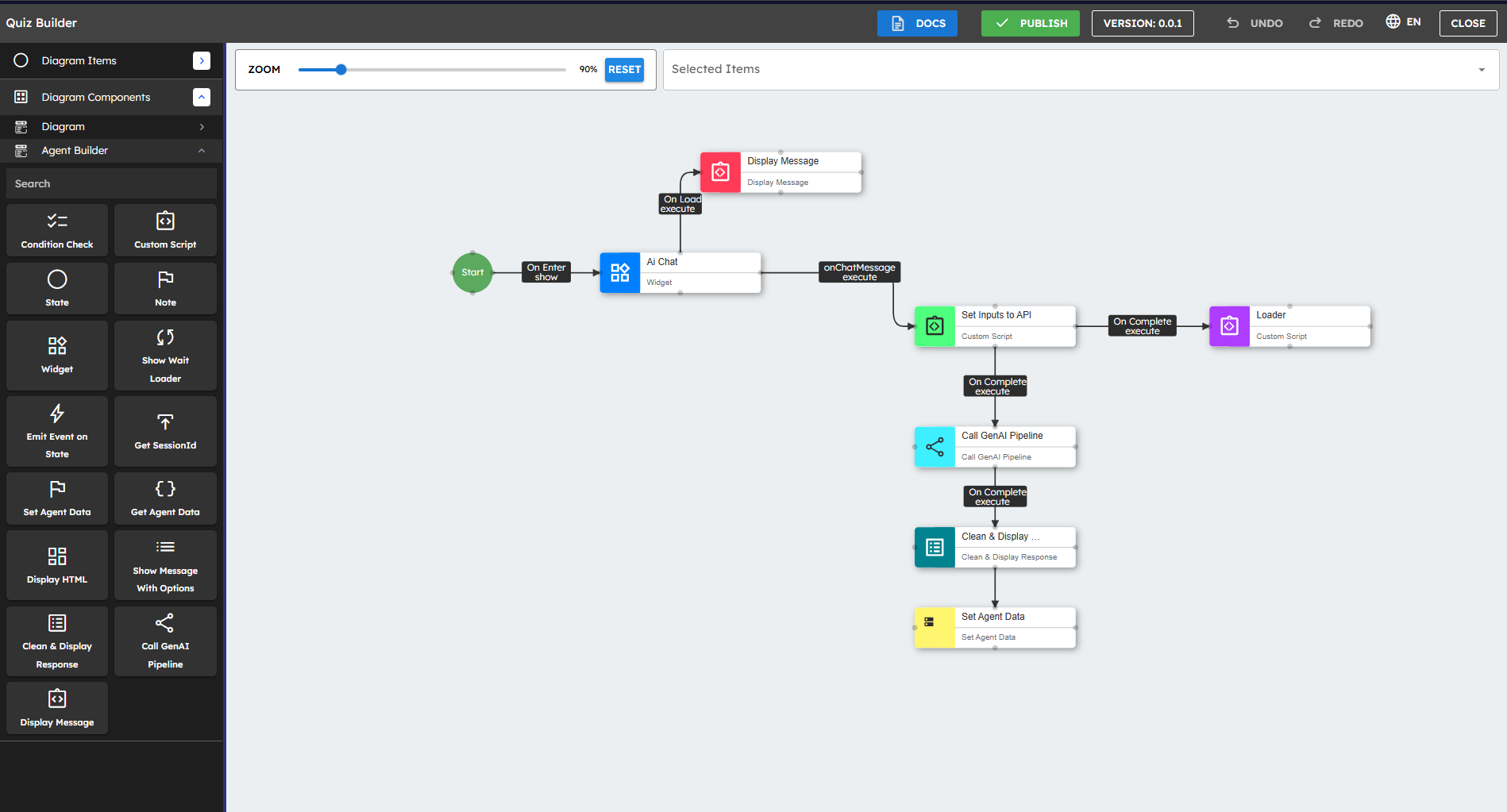
Follow these steps to implement the flow shown in the diagram above:
Drag the Set Agent Data component to the canvas.
Set up the Data Key field with a meaningful identifier (for example, "rating" as shown in the example).
Set the Data Value to either a static value or a dynamic expression (for example, "args.$event.message" to capture event data).
Connect appropriate source components to start the Set Agent Data component.
Connect the
onCompleteandonErrorevents to appropriate downstream components.
In this implementation example, the Quiz Builder agent has the following workflow:
The flow begins with a Start component that initializes the agent.
When the user enters the flow, an AI Chat widget captures the user's message.
When the system receives a chat message (
onChatMessageevent), a Custom Script component prepares data for API processing.The Call GenAI Pipeline component processes the data.
When the pipeline completes, a Clean & Display Response component formats the response for the user.
Finally, the Set Agent Data component stores relevant information, which allows the agent to maintain context between interactions.
Example of using a static JSON value
// Data Key: userPreferences// Data Value:{ "preferredLanguage": "English", "secondaryLanguage": "Spanish", "notifications": true}Example of using a dynamic expression to capture event data
// Data Key: lastUserMessage// Data Value:
args.$event.message
Example of using JavaScript expression evaluation
// Data Key: currentTimestamp// Data Value:newDate().toISOString()
Enhanced Version
You can enhance your implementation by using more complex expressions and accessing various agent data elements:
// Data Key: conversationContext// Data Value:{ userMessage: args.$event.message, timestamp: newDate().toISOString(), sessionId: this.agent.data.sessionId || Math.random().toString(36).substring(2), messageCount: (this.agent.data.messageCount || 0) + 1}This example shows how you can create a complex data structure that combines event data, current time, and existing agent data values to build a rich conversation context.
Best Practices
Naming Convention: Use clear, descriptive key names that indicate the purpose and content of the stored data.
Data Structure: For complex data, use JSON structures with proper formatting to maintain readability and ease of access.
Validation: Include validation in your agent flow before storing data to ensure data integrity.
Error Handling: Always connect the onError event to appropriate error handling components or notifications.
Data Lifecycle: Consider the lifecycle of stored data and implement clearing mechanisms for sensitive or temporary data.
Expression Evaluation: When you use JavaScript expressions, ensure they are valid within the context of execution.
Documentation: Document the data structure and purpose in your agent's documentation for maintainability.
Common Use Cases
Use Case | Description | Example Key-Value |
|---|---|---|
User Preferences Storage | Store user preferences such as language, theme, or notification settings for personalized experiences. | Key: "userPreferences" |
Conversation Context | Maintain conversation context by storing previous interactions or user inputs. | Key: "chatHistory" |
Session Management | Store session identifiers or authentication tokens for maintaining user sessions. | Key: "sessionToken" |
Workflow State | Track the current state of multi-step workflows or processes. | Key: "currentStep" |
Configuration Settings | Store configuration settings for components or integrations. | Key: "apiConfig" |
Cache API Results | Cache results from external API calls to reduce redundant requests | Key: "cachedResults" |
Form Data Collection | Collect and store form data across multiple interaction steps. | Key: "formData" |