Vector Search Collection
The Vector Search Collection component performs similarity searches within a VectorDB collection. You can provide a collection ID and query text to find relevant entries based on vector similarity. Filtering options and result customization allow for precise and efficient data retrieval.
Overview
The Vector Search Collection component enables semantic search functionality within your Pipeline Builder's GenAI pipelines. This component retrieves the most relevant information from your vector database based on a query, making it a fundamental building block for Retrieval Augmented Generation (RAG) applications.
Performs semantic similarity searches within vector database collections and returns structured results with similarity scores, enabling custom processing and iteration over retrieved chunks. This component is designed for advanced RAG scenarios where users need programmatic access to individual search results for custom logic implementation, chunk-level analysis, or complex processing workflows. It returns a detailed array structure containing similarity distance scores, document metadata, and unique identifiers for each retrieved chunk, making it ideal for scenarios requiring iteration over results, custom ranking algorithms, or multi-step processing pipelines.
Use this component when you need specific logic operations on retrieved chunks, custom processing of search results, iteration over individual chunks, analysis of similarity scores, or any scenario requiring programmatic manipulation of retrieval results before passing to LLM.
The component supports advanced RAG techniques including query expansion (where multiple enhanced queries can be processed), reranking workflows (where initial broad retrieval is followed by custom scoring), hybrid search patterns (combining multiple retrieval strategies), and multi-step retrieval pipelines.
The component integrates seamlessly with advanced RAG architectures including HyDE implementations (where hypothetical documents enhance retrieval), self-querying systems (where LLMs generate metadata filters), corrective RAG (where retrieval quality is evaluated), and agentic workflows (where multiple retrieval strategies are orchestrated).
How to use:

Common use cases
Building custom reranking pipelines
Implementing iterative retrieval refinement
Developing multi-criteria search systems
Creating advanced RAG agents with sophisticated retrieval logic.
CRITICAL USAGE RULE: Use this component only when user requirements explicitly mention custom processing, iteration over chunks, or complex logic operations on search results. For simple RAG query pipelines without custom chunk processing, use Create VectorDB Context instead.
Key Terms
Term |
Definition |
|---|---|
Vector Database |
A specialized database that stores and retrieves data based on vector embeddings, enabling semantic similarity search. |
RAG |
Retrieval Augmented Generation - a technique that enhances language models by providing relevant external information before generating responses. |
Semantic Search |
Search that understands the intent and contextual meaning of query terms, rather than just matching keywords. |
Collection |
A group of related documents or data entries stored in a vector database. |
When to Use
Use when you need to retrieve context-aware information from your knowledge base.
Ideal for building RAG pipelines that enhance LLM responses with external knowledge.
Helpful when you need to search through large volumes of data based on semantic meaning rather than exact keyword matches.
Component Configuration
Required Inputs
Input |
Description |
Data Type |
Example |
|---|---|---|---|
Collection ID |
Unique identifier of the saved vector database collection. This identifies which collection to search within. |
String |
|
Filter by Column Values |
Values of the filter by a column that should be selected while creating context. Allows narrowing down search results based on specific metadata criteria. If you do not need to filter results, use an empty JSON object: |
JSON |
|
Query Texts |
The text is based on which context is created. This is typically the user query or question that is converted to a vector for similarity search. |
Text |
|
Optional Inputs
Input |
Description |
Data Type |
Example |
|---|---|---|---|
Number of Records |
Maximum number of records to return from the search results. Controls how many matching items are included in the context. |
Integer |
|
Fields to be returned in query response |
An Array of column names should be included in the query response. Allows specifying which fields from the matching documents should be returned. |
Array |
|
How It Works
The component takes the Query Texts and converts them into vector embeddings.
It searches the specified vector database Collection ID for semantically similar content.
If filter-by-Column values are provided, the search results are filtered based on these criteria.
The component retrieves up to the specified number of records that are most similar to the query.
If the fields to be returned are specified, only those fields are included in the results; otherwise, all fields are returned.
The results are provided as a structured output that can be passed to subsequent Pipeline Builder components.
Example Use Case
Scenario: Building a component recommendation system for a UI builder
Configuration:
Collection ID:
contineo_widget_collectionFilter by Column Values:
{"component_type": ["Input Field"]}Query Texts:
Which component should be used for checkbox?Number of Records:
5Fields to be returned:
["component_id", "component_name", "component_type"]
Process:
The query "Which component should be used for the checkbox?" is converted to a vector embedding.
The vector database searches the "contineo_widget_collection" for similar components.
Results are filtered to only include components with the type "Input Field".
The top 5 matching components are retrieved.
For each component, only the component_id, component_name, and component_type fields are returned.
These results can then be passed to an LLM component in the Pipeline Builder to generate a recommendation.
Component Configuration in Pipeline Builder:
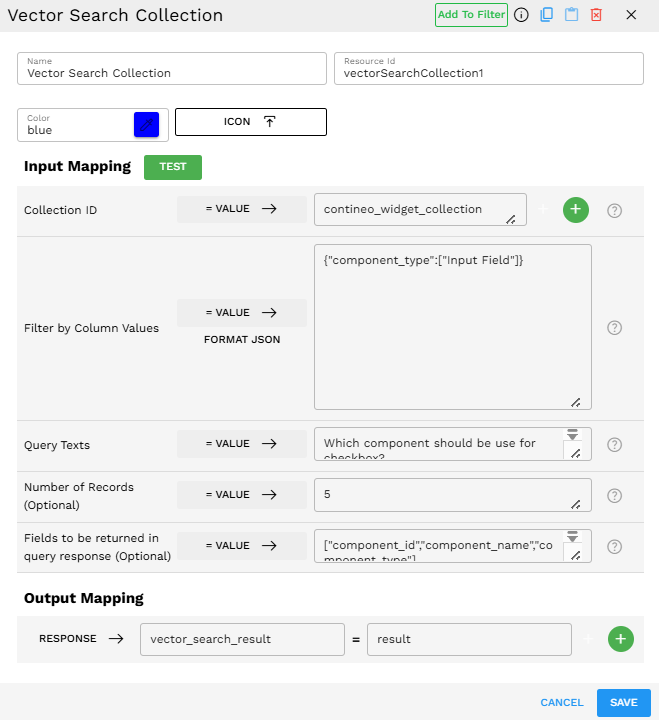
Output Mapping
The Output Mapping section allows you to map the results from the Vector Search Collection to variables that can be used in subsequent components in your Pipeline Builder.
Field |
Description |
Example |
|---|---|---|
RESPONSE |
Maps the vector search results to a variable that can be accessed by other components in the pipeline. This contains the entire response object with the vector_search_result array. |
|
By default, the component maps the search response to a variable named "result", but you can customize this mapping to fit your pipeline's naming conventions. For example, you might want to map it to "component_suggestions" or "relevant_documents" for better readability in your pipeline.
Example: If you set vector_search_result = component_suggestions, other components in your pipeline can reference {{component_suggestions}} to access the vector search results.
Output Format
The output is a JSON object with a "vector_search_result" key containing an array of matching records. Each record includes the similarity distance score, document data, and ID:
{"vector_search_result":[{"distance":0.9072701334953308,"document":{"component_id":"checkbox_0.0.1","component_name":"cnx-checkbox","component_type":"Input Field"},"id":"cnx-checkbox"},{"distance":1.5150833129882812,"document":{"component_id":"number_input_0.0.1","component_name":"cnx-number-input","component_type":"Input Field"},"id":"cnx-number-input"},{"distance":1.5423692464828491,"document":{"component_id":"text_input_0.0.1","component_name":"cnx-text-input","component_type":"Input Field"},"id":"cnx-text-input"}]}
Key elements in the output:
distance: A similarity score where lower values indicate closer matches to the query.
document: Contains the fields requested in the "Fields to be returned" input.
ID: The unique identifier of the matching record.
Best Practices
Craft specific queries - More specific query texts yield more relevant results.
Use appropriate filters - When you know the category or type of information you need, use filters to narrow down results.
Optimize record count - Request enough records to get comprehensive context, but not so many that irrelevant information is included.
Select specific fields - Only include fields that are necessary for your downstream components to keep the pipeline efficient.
Limitations and Considerations
Performance impact - Large collections or complex queries may take longer to process.
Quality of embeddings - The quality of results depends on how well your data was embedded initially.
Field filtering limitations - The component can only filter on fields that exist in your vector database collection.