Video - Adding Video Controls to UI Widget
The Controls attribute adds video controls, such as play, pause, and volume.
Example: Include a Video in Widget
Steps:
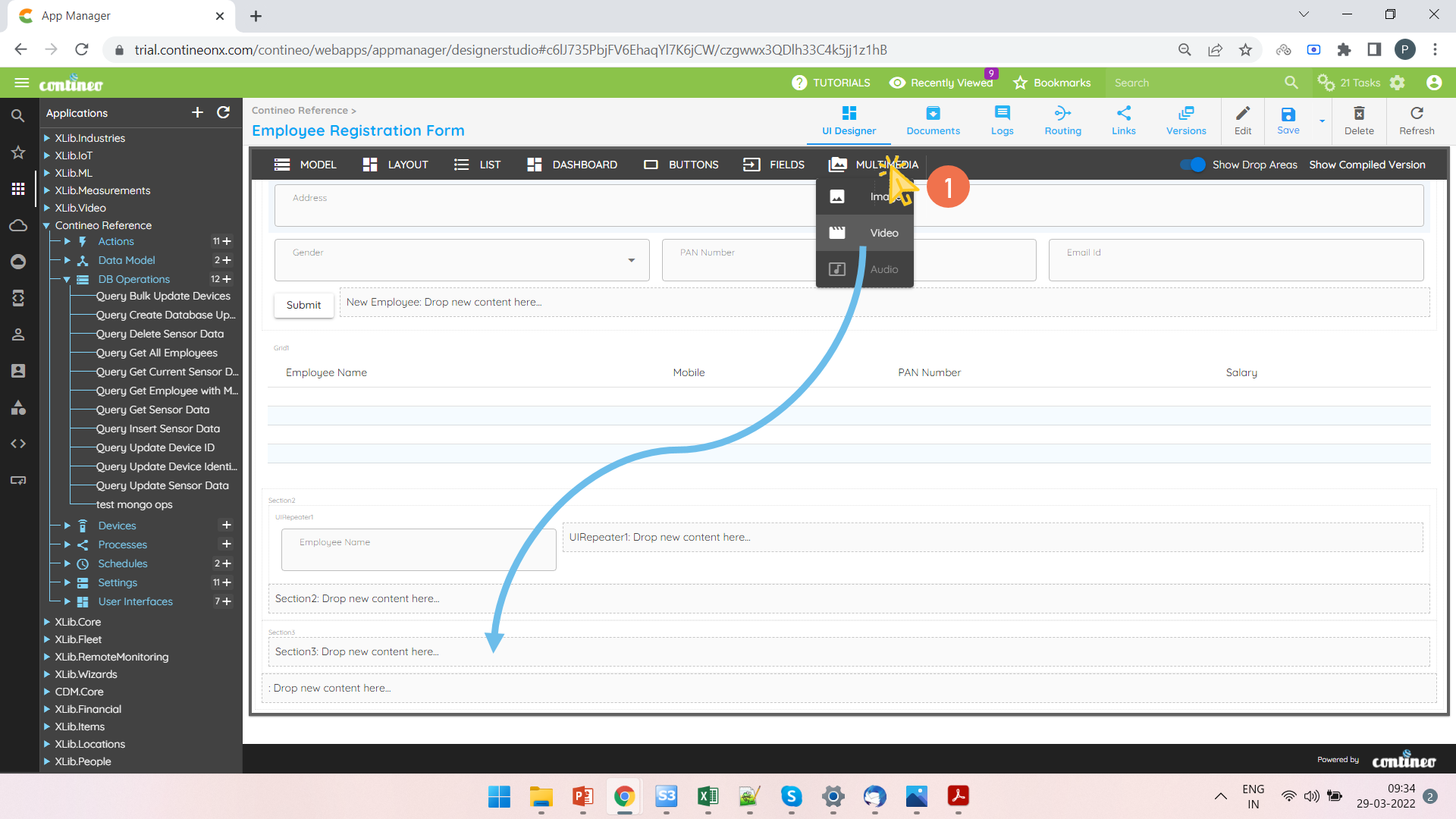
Open a UI Widget. Add a Video to a section.
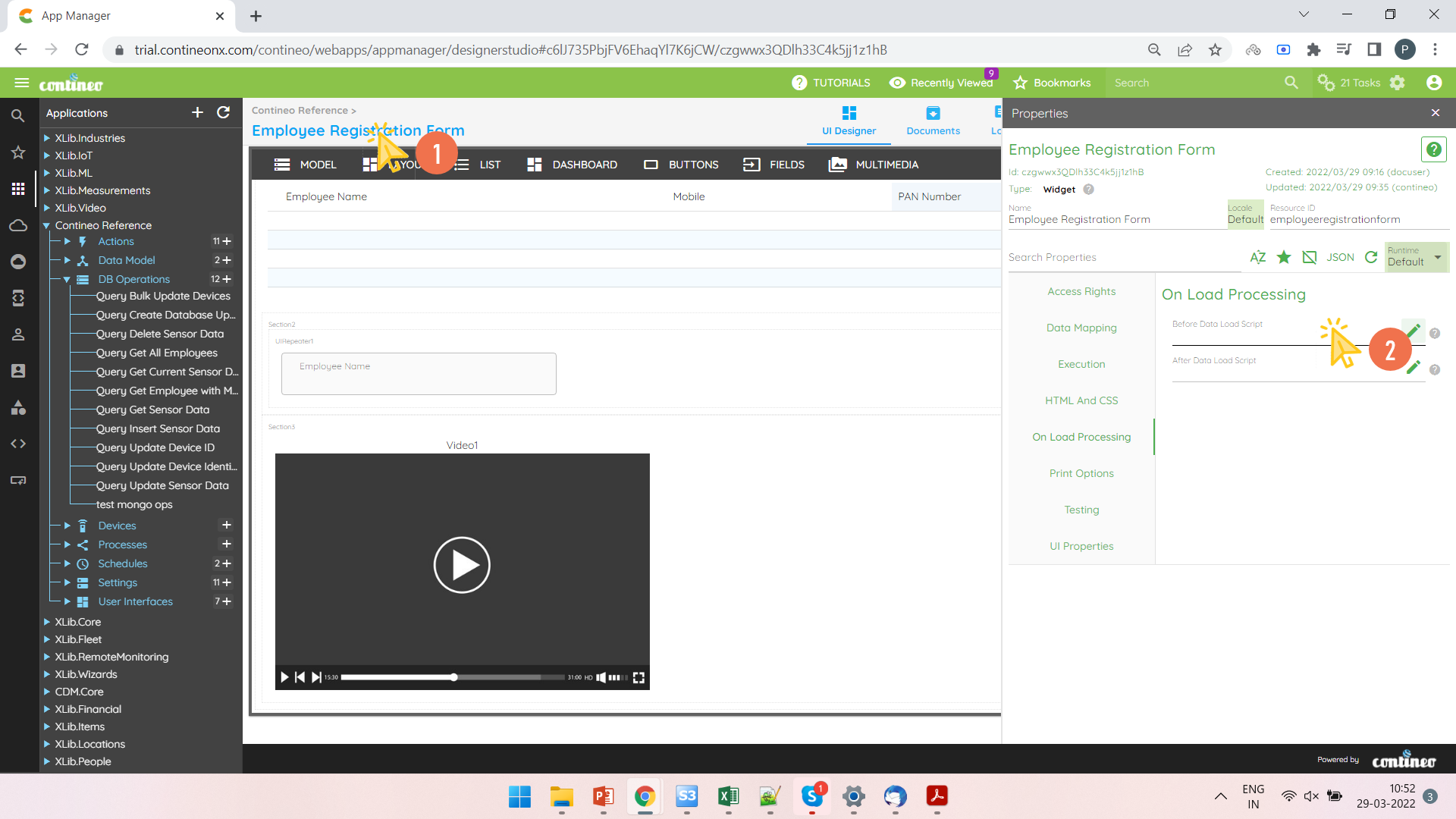
You can pass the JSON Map to the Video control's data bean path to load the video. Use the On Load Script for this. Click on the Widget and open On Load Processing > Before Data Load Script.
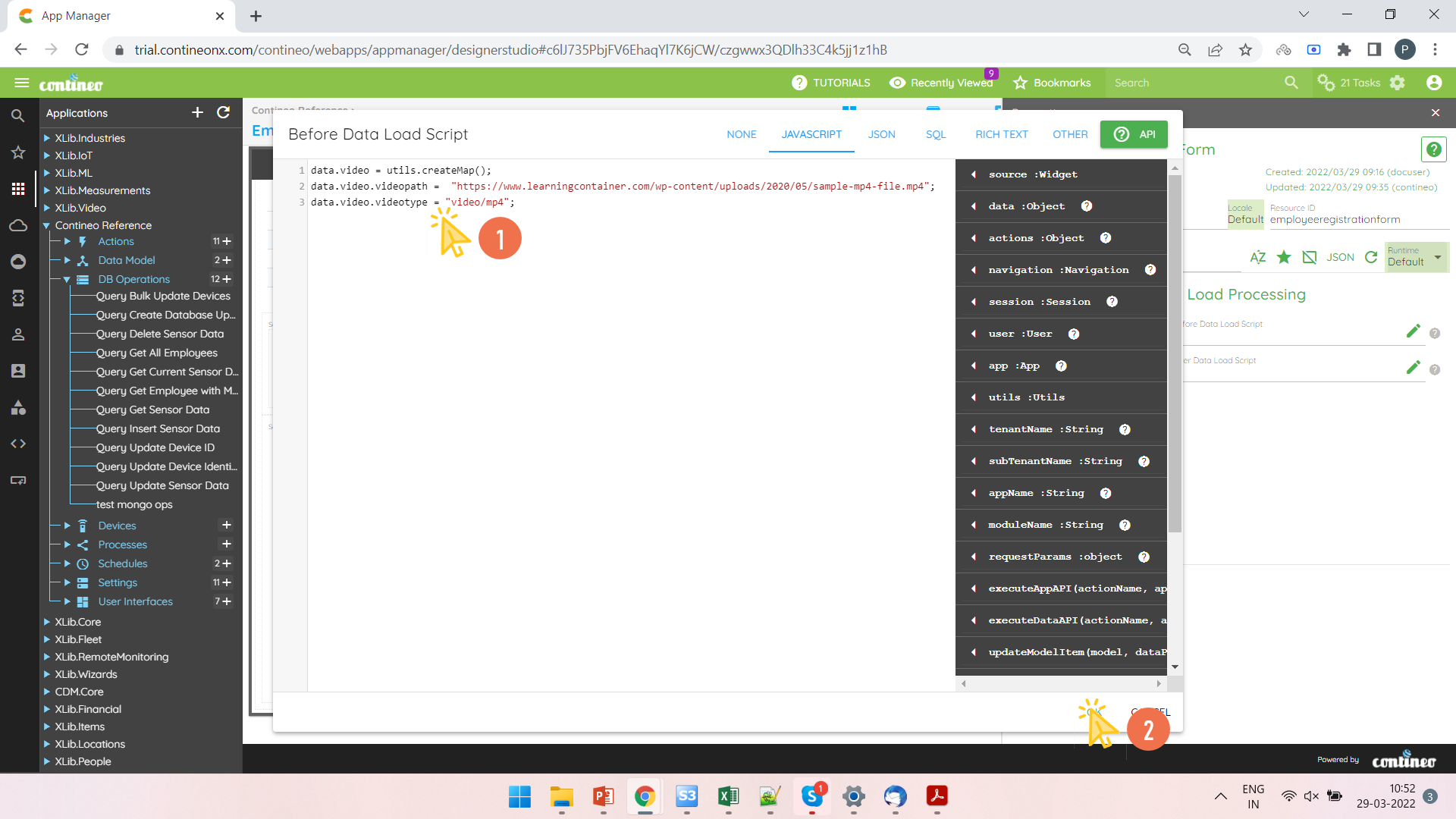
Create a JSON map that includes the video path and video type, then click OK.
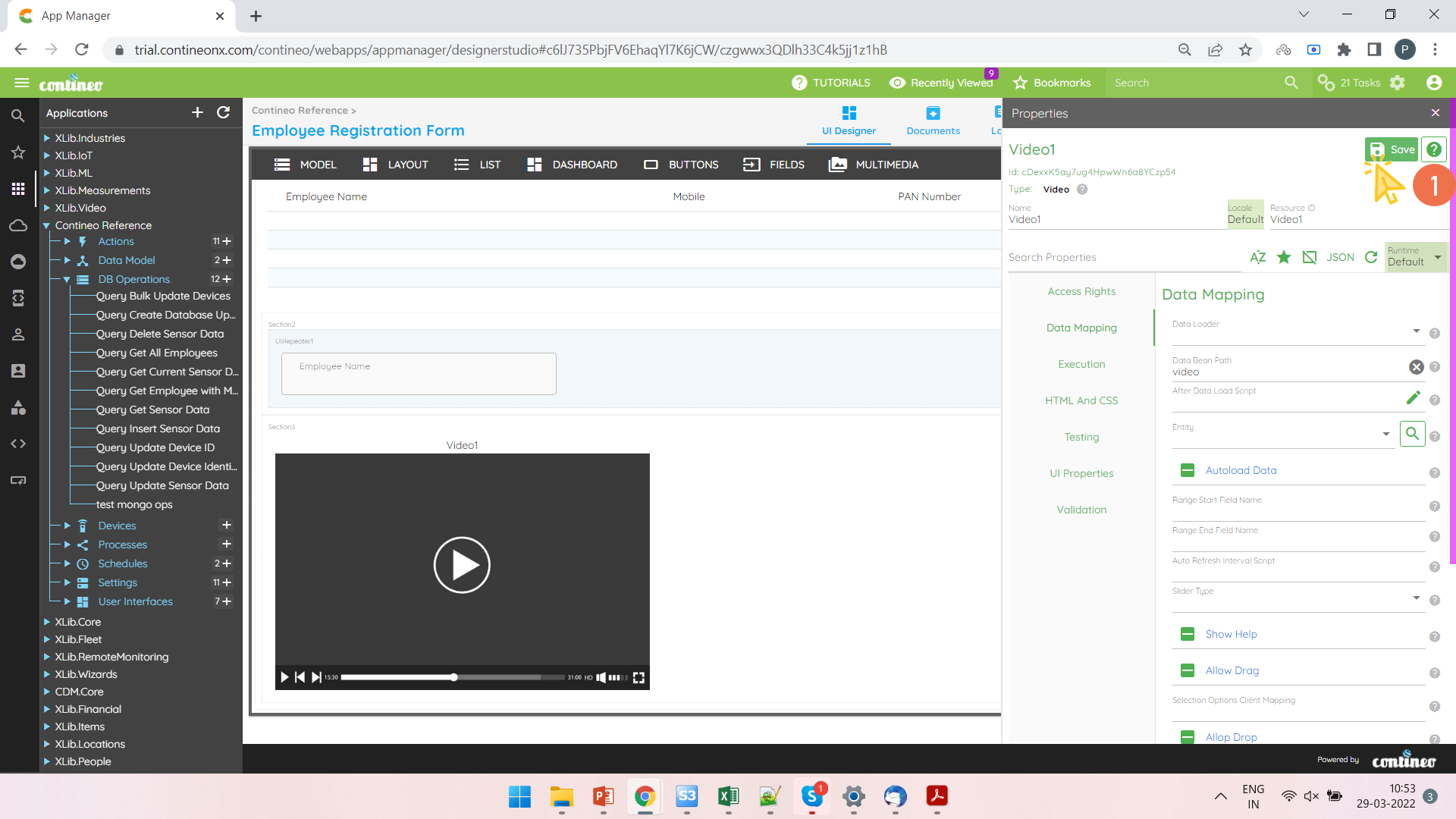
Right-click the Video and open the property panel.
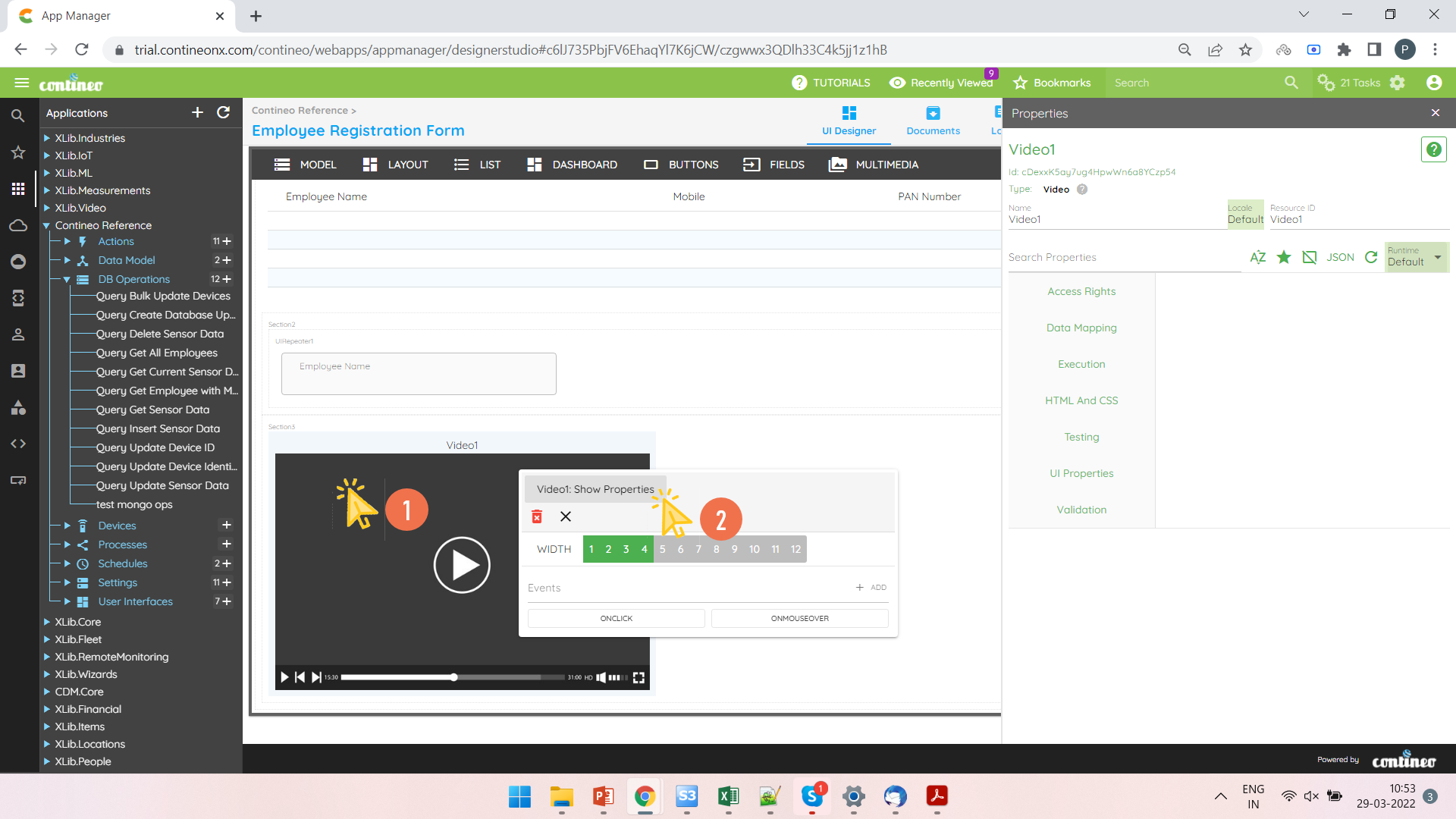
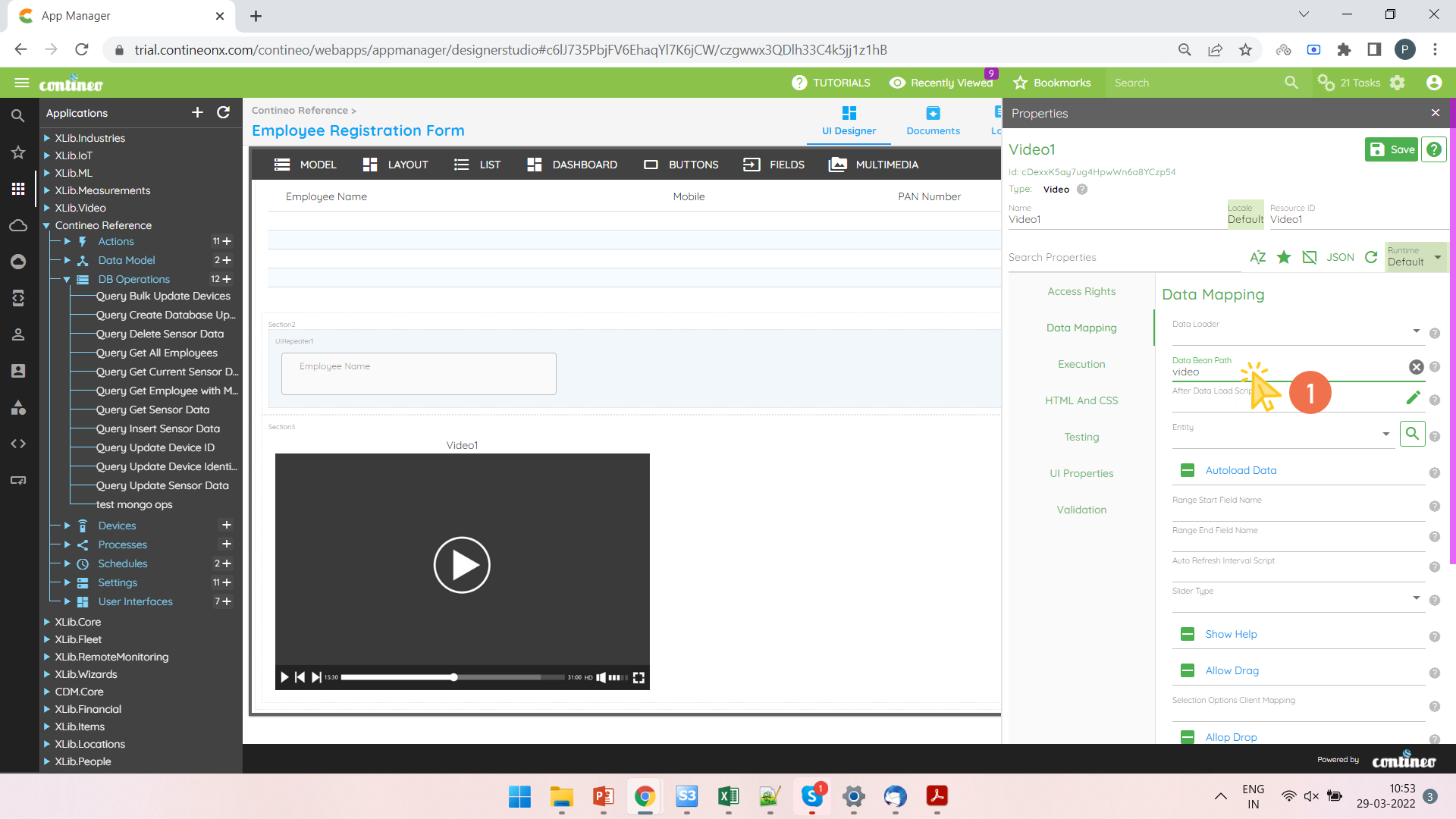
Enter the data bean path (in which the JSON Map is loaded) under Data Mapping > Data Bean Path.
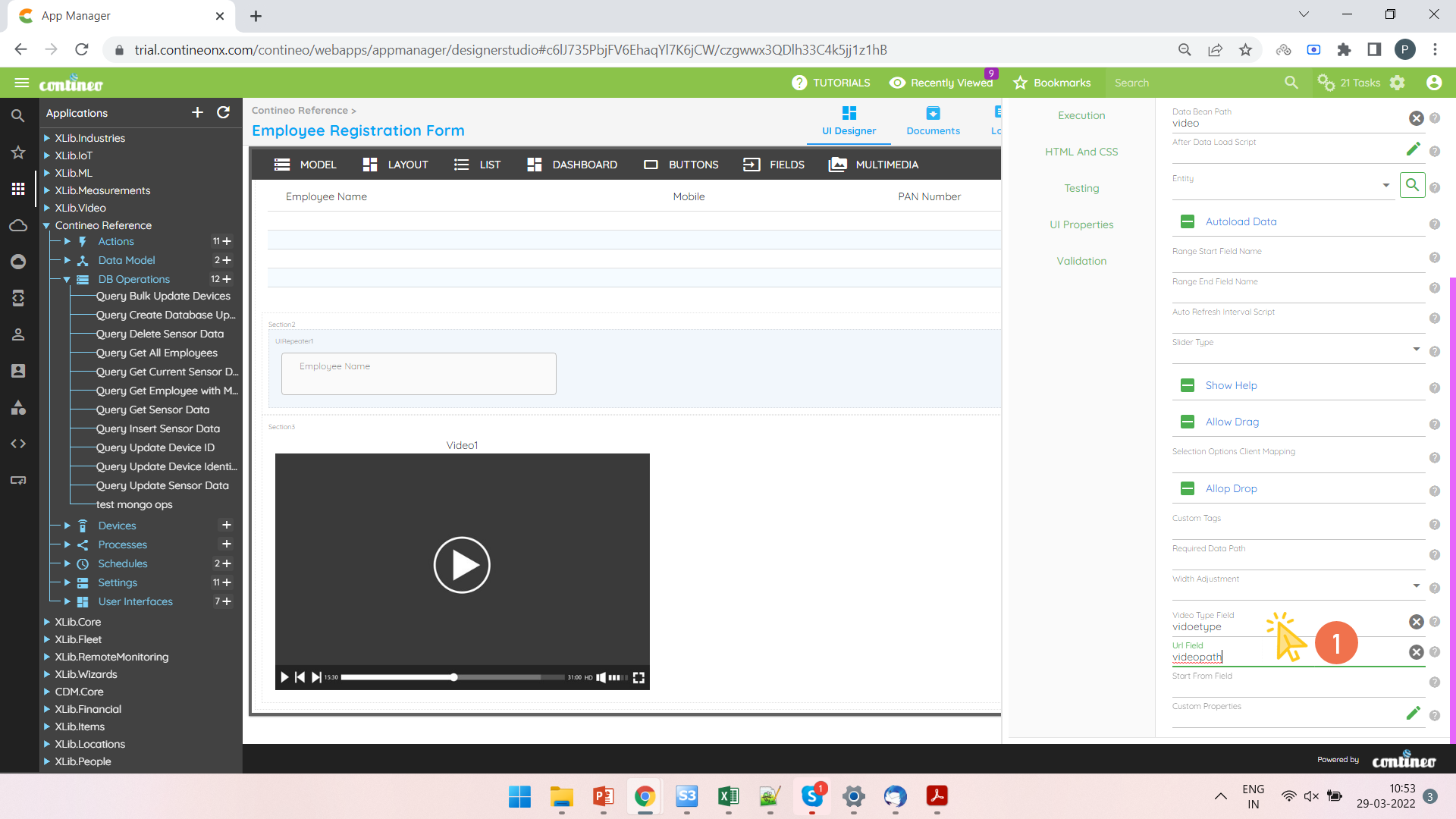
Enter the video type and video path variable names from the JSON Map under Data Mapping > Video Type Field and Data Mapping > Url Field.
Click SAVE.