Widget
The Widget component provides a flexible framework for integrating interactive UI elements into agent workflows. It enables agents to display, manipulate, and retrieve data from various custom widget types directly within chat interfaces. The component serves as a bridge between agent logic and UI interactions, allowing developers to create rich, interactive experiences such as forms, visualizations, selection interfaces, and dynamic content displays. With simple dropdown selection instead of manual ID entry, built-in methods for data operations, and event handling capabilities, the Widget component streamlines the implementation of complex user interfaces and makes them easily accessible within conversation flows.
Skill Level
Basic understanding of Agent's Client Side APIs and widget concepts, with the ability to implement simple JavaScript for data handling.
How to use

Overview
The Widget component allows you to add interactive elements to your agent's chat interface. You select from existing widgets in the dropdown or create your own using the UI Builder. These widgets appear in the chat and let users interact with your agent through forms, buttons, and other visual elements. You can display these widgets, collect user inputs, and use the data in your agent's workflow.
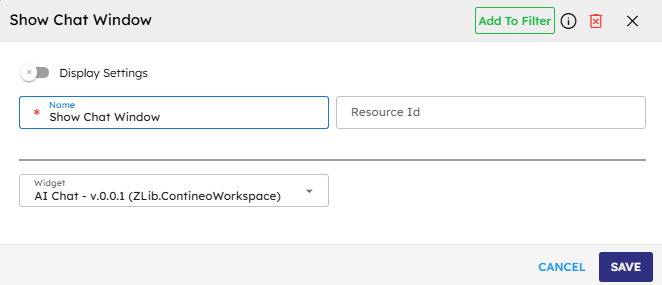
Input
Name |
Code |
Type |
Description |
Data Type |
|---|---|---|---|---|
Name |
|
text |
Name of the component. |
string |
Resource ID |
|
text |
Unique ID of the component. |
string |
Widget |
|
module-selector |
Dropdown to select the unique ID of the widget that loads in the agent workflow to perform actions |
string |
Methods
Id |
Name |
Description |
Input |
Output |
|---|---|---|---|---|
|
Show |
Opens the specified widget |
None |
None |
|
Get Data |
Retrieves data from the specified widget |
valuePath |
Widget data at specified path |
|
Set Data |
Sets data in the specified widget |
valuePath, value |
None |
|
Get Elements |
Retrieves elements from the specified widget |
args |
Widget elements based on input args |
Events
Id |
Name |
Description |
Arguments |
Source Methods |
|---|---|---|---|---|
onLoad |
On Load |
The system triggers this event when it initially loads the component. |
name, sourceID, widget |
NA |
onShow |
On Show |
The system triggers this event when it shows the component. |
name, sourceID, widget |
show |
onEvent |
On Event |
Generic event handler for widget-related events |
name, sourceID |
NA |
Typical Chaining of Components
Source Components
Source Component |
Purpose |
Description |
|---|---|---|
|
Data Preparation |
Provides data for the widget by storing it in the agent data. |
Target Components
Target Component |
Purpose |
Description |
|---|---|---|
|
Data Processing |
Handles data collected from the widget after user interaction. |
|
Process User Input |
Uses widget inputs as parameters for AI processing. |
Implementation Example
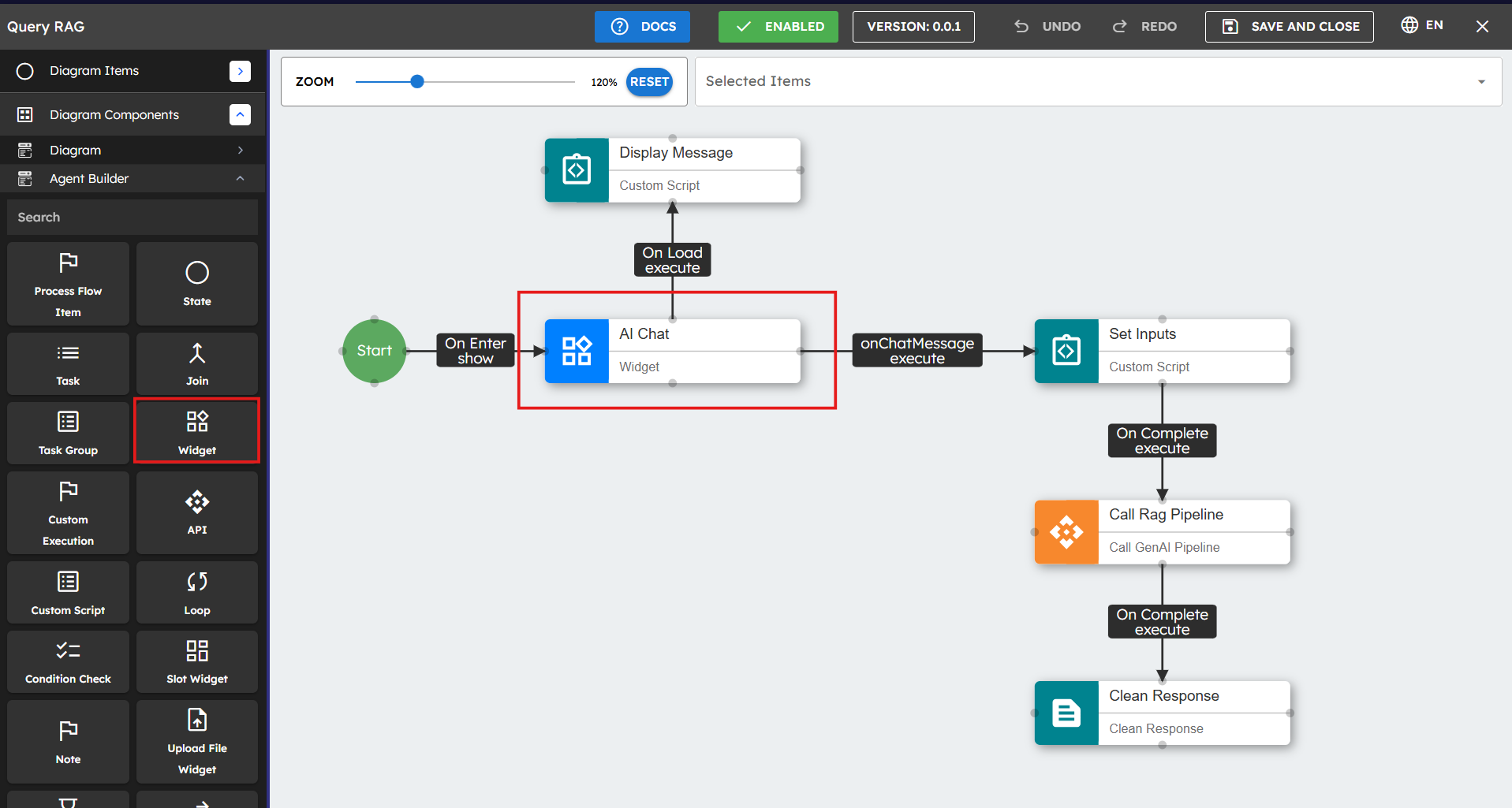
Follow this step to implement the Widget component in your agent flow:
Drag the Widget component from the component palette to your design canvas.
Select the required widget from the dropdown menu instead of manually entering the widget ID.
Configure any necessary data mappings between the widget and other components.
To prepare data for a widget, use a Custom Script component with code as follows:
// Store data in agent state for widget to accessthis.agent.data["widgetData"] = [ { id: 1, name: "Item 1", value: 100 }, { id: 2, name: "Item 2", value: 200 }, { id: 3, name: "Item 3", value: 300 } ];
In your widget's onLoad event, add this script to retrieve the data:
// Access data from agent state data.items = component.getAgent()?.getActiveAgent()?.parent?.data?.widgetData || []; // Log data for debuggingconsole.log("Widget data loaded:", data.items);
The above code uses several agent methods to access data:
component.getAgent() - Returns the agent instance for the current UI component.
getActiveAgent() - Gets the current active agent controlling the UI.
parent - Accesses the parent agent that started this agent.
data - Accesses the agent data object (key-value pairs storage).
For more detailed information about agent methods and properties, see Agent API Documentation.
Best Practices
Widget Creation: Before using this component, ensure that you have created the required widget in Contineo's UI Builder. If you need help creating widgets, see Widget Creation Documentation.
Data Management: Store data in the agent data using
this.agent.data["variableName"] = valuefor widgets to access.Descriptive Naming: Use descriptive names for widgets to make them easier to identify in the dropdown.
Data Access: Properly handle data returned from widgets to ensure smooth workflow execution.
Testing: Test different widget interactions thoroughly to ensure they behave as expected.
Common Use Cases
Use Case |
Description |
|---|---|
Data Collection Forms |
Display forms to collect structured information from users during conversations. |
Interactive Visualizations |
Show charts, graphs, or other data visualizations based on conversation context. |
Selection Interfaces |
Present users with options to choose from (such as dropdown menus, and radio buttons). |
File Upload Interfaces |
Provide interfaces for users to upload documents, images, or other files. |
Dynamic Content Display |
Show content that updates based on user interactions or agent state. |